Can We Upgrade Laptop HDD to SSD: Instant Lag Killer
The fast answer (and the safest way to do it)
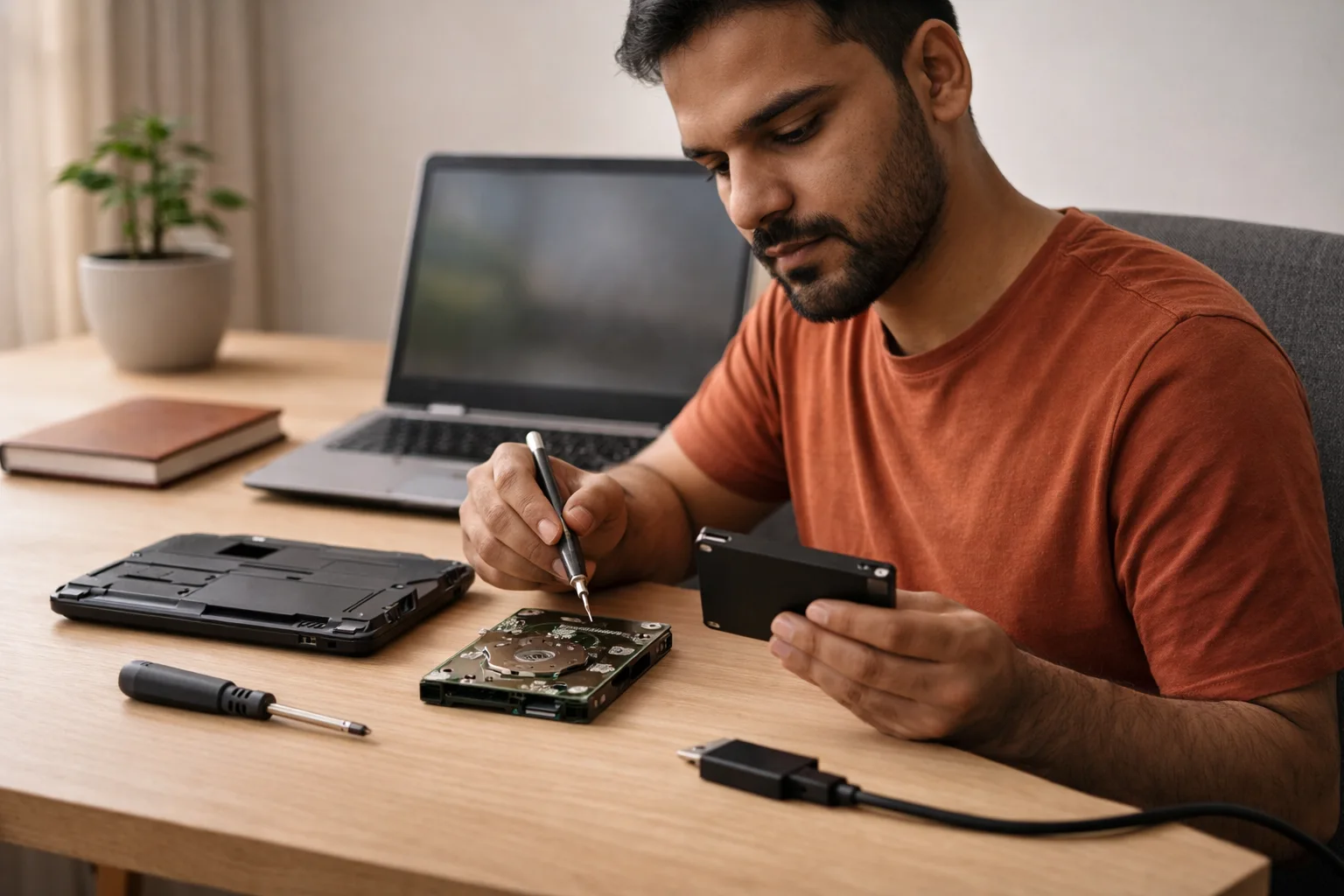
Yes, you can Upgrade Laptop HDD to SSD, and it is usually the single biggest speed upgrade you can do for an older laptop. In most cases, you replace the existing hard disk (HDD) with a solid-state drive (SSD), then either clone your old drive (so everything stays the same) or do a clean Windows install (fresh and fast). After the swap, your laptop boots quicker, apps open faster, and the system stops feeling stuck.
If you want the shortest safe plan, follow this:
- Check what SSD your laptop supports (2.5-inch SATA or M.2, and if M.2, whether it’s SATA or NVMe).
- Back up your important files to an external drive or cloud.
- Decide your migration method:
- Clone if you want “same laptop, just faster.”
- Clean install if you want the cleanest performance and fewer old issues.
- Install the SSD (or connect it using a USB adapter first, if cloning).
- Set SSD as the boot drive in BIOS/UEFI, then test.
That’s it. Everything else in this guide helps you choose the right SSD, avoid data loss, and prevent the common boot problems people hit during upgrade HDD to SSD jobs.
Why SSD feels much faster than HDD
I’ve been building and fixing laptops for over 20 years, and I can tell you this: most slow laptops are not truly “weak.” They are simply waiting on a spinning HDD.
Here’s what changes when you move from HDD to SSD:
- Boot time drops: HDD systems often boot in roughly 30–40 seconds, while SSD systems commonly boot in around 10–15 seconds (varies by laptop, Windows state, and startup apps).
- File copy speed jumps: HDDs often sit around tens of MB/s to low hundreds; SSDs can push far higher, depending on the type.
- Apps feel instant: Browsers, Office, Photoshop, light work, accounting software, and even Windows search feel dramatically snappier.
Why? An HDD uses spinning platters and a moving head. It has to “seek” data physically. An SSD uses flash memory. It can fetch many small files quickly, and that is exactly what Windows does all day.
If you want the bigger picture of what affects speed beyond storage, see our plain-English breakdown: What makes a laptop fast.
SATA SSD vs NVMe SSD (simple comparison)
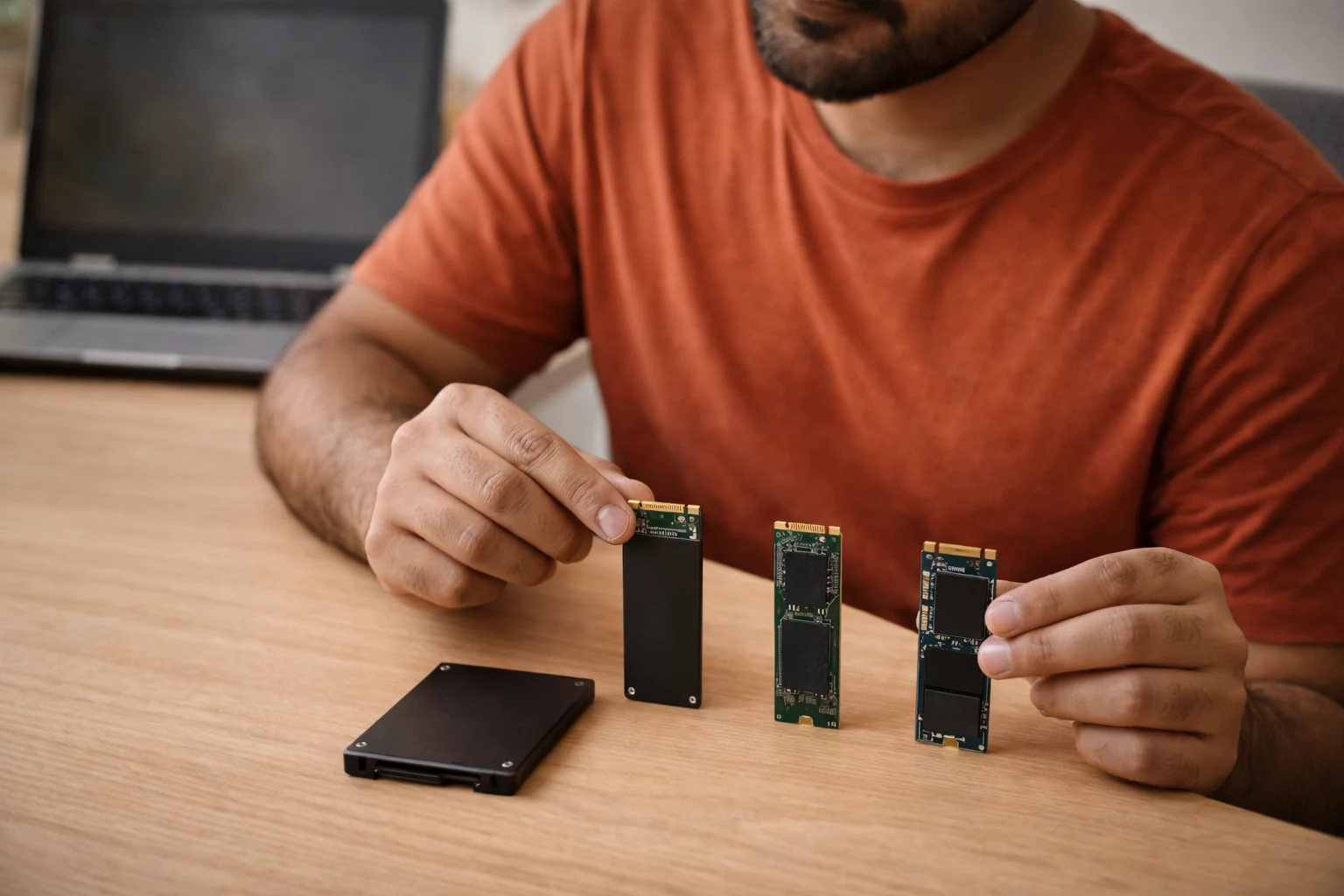
Not every laptop supports NVMe, and that’s fine. Even a basic SATA SSD can transform a laptop.
|
What your laptop supports |
Best SSD choice |
|---|---|
|
2.5-inch drive bay (most older laptops) |
2.5-inch SATA SSD (7mm) |
|
M.2 slot (but wired for SATA) |
M.2 SATA SSD |
|
M.2 slot (NVMe/PCIe) |
M.2 NVMe SSD |
What to know before you open the laptop
Most upgrades go smoothly. The problems come from mismatches and missed prep steps. Here are the real-world edge cases.
1) Can I upgrade my laptop HDD to SSD if it has no slot?
Usually yes, but not always.
- If your laptop has a removable 2.5-inch HDD, you can almost always upgrade to a 2.5-inch SATA SSD.
- If it has an M.2 slot, you need to confirm whether it accepts NVMe or SATA (M.2 is a shape, not a guarantee of NVMe).
- If storage is soldered (common in some ultra-thin laptops), you cannot upgrade storage internally.
A quick way to check: look up your exact laptop model’s “storage options” in the manual/spec sheet, or check in Device Manager/System Information, and then match the slot type.
2) Cloning vs clean install (choose based on your pain)
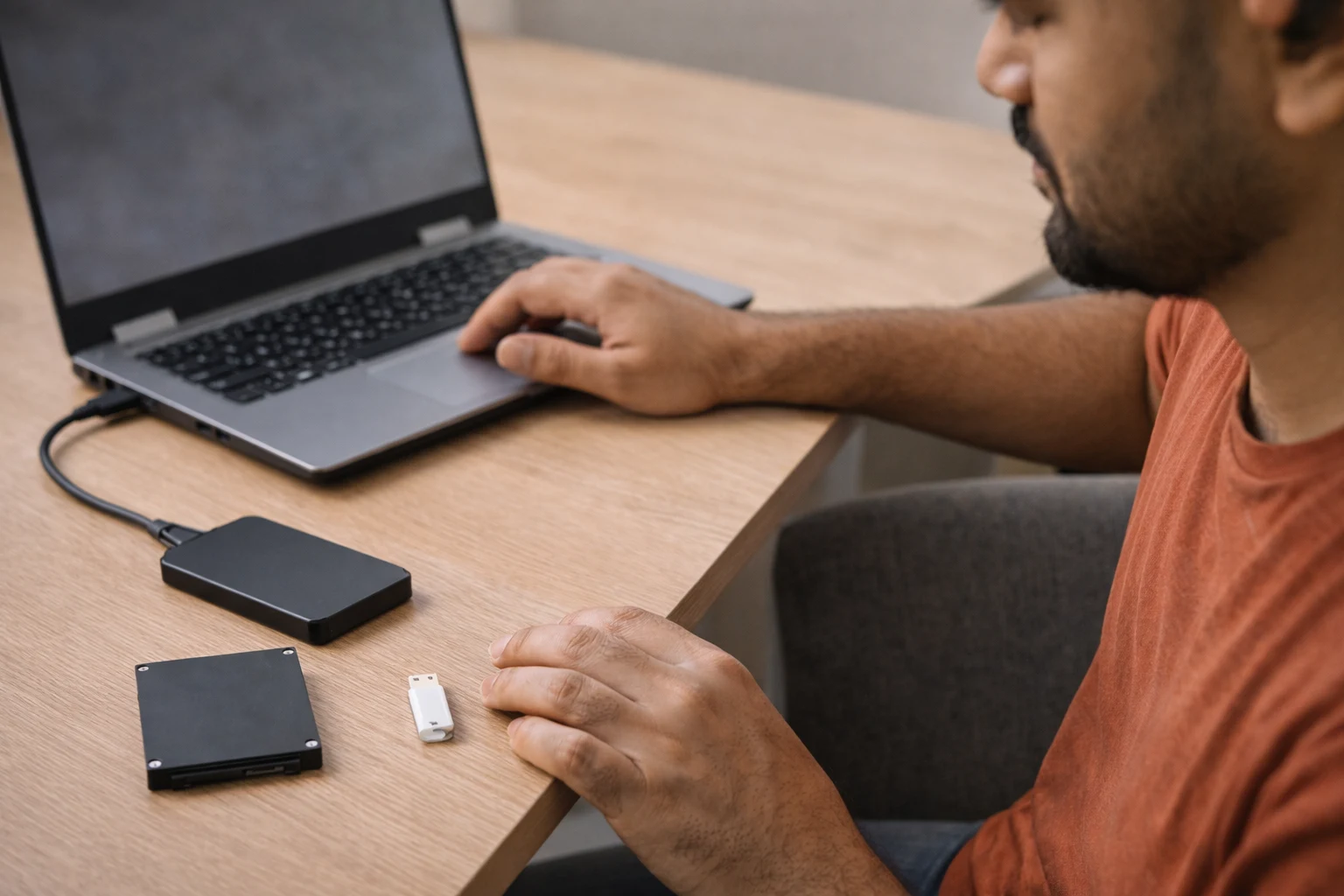
This is the fork in the road.
Choose cloning if:
- You want your laptop exactly as it is: same apps, same settings.
- You want minimum downtime.
Choose a clean install if:
- Your Windows feels messy, full of bloat, or has old driver issues.
- You want the best chance of long-term smooth performance.
Both work. Cloning is faster, but a clean install often feels cleaner.
3) SSD capacity: don’t trap yourself
In India, many people pick 256GB because it looks affordable. Sometimes it works. Often it fills up fast.
My rule of thumb:
- For basic office + browsing: 512GB is the comfortable minimum.
- For designers, editors, heavy Chrome users: 1TB saves you from storage anxiety.
Also, keep 15–20% free space. SSDs slow down when packed to the brim.
If you also multitask with lots of tabs or heavy apps, pairing an SSD upgrade with the right RAM size helps a lot. Use this guide: How much RAM is good for a laptop?
4) Heat and throttling (especially with NVMe)
NVMe drives can run hotter than SATA. In tight laptops, heat can reduce speed under long loads.
If you want simple, safe cooling fixes before or after an SSD upgrade, follow: How to prevent a laptop from overheating.
If you do a lot of heavy work (large exports, big installs, long file copies), pick a quality SSD and ensure airflow. If your laptop has an NVMe heatsink space, use it.
5) BIOS/UEFI settings that affect boot
Two settings matter more than people think:
- Boot mode (UEFI vs Legacy): Most modern Windows installs use UEFI.
- SATA mode (AHCI): Modern systems use AHCI for best SSD handling.
If a cloned SSD does not boot, the boot mode mismatch is a common reason.
Step-by-step: how to upgrade a laptop from HDD to SSD
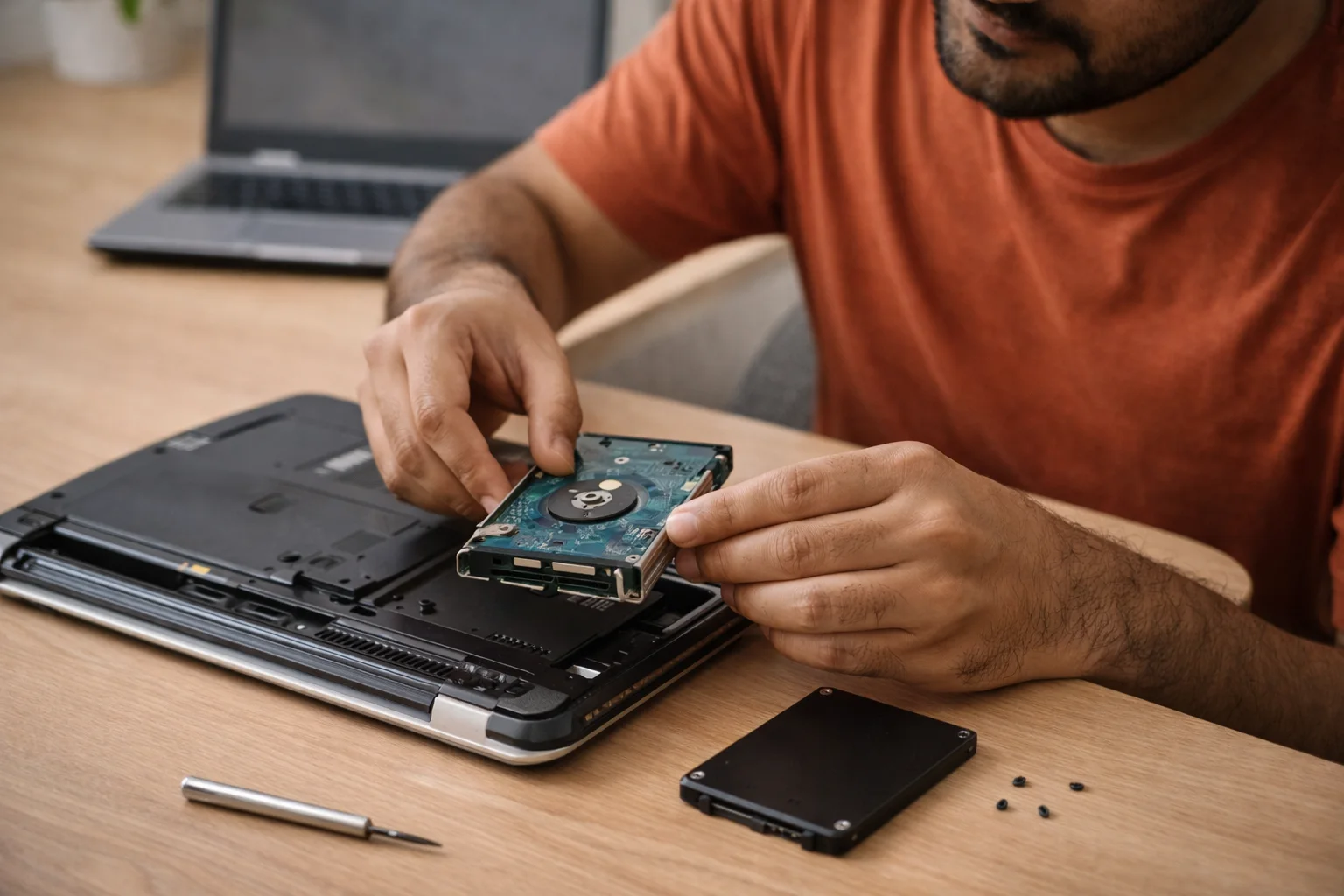
This section walks you through the full upgrade in the same order I follow on real customer laptops: confirm compatibility, protect your data, clone or reinstall properly, then verify boot and health settings. Follow it step-by-step, and you’ll avoid the usual headaches like wrong SSD type, missing boot partitions, BIOS boot-order issues, or a laptop that powers on but won’t load Windows.
This is the method I use in the workshop. Read it in full once, then start.
If you’re not ready to open your laptop yet, start with these quick wins first: 10 easy tips to improve laptop performance.
Step 1: Identify your SSD type (2 minutes)
Pick one:
1. 2.5-inch SATA SSD: fits where your HDD sits.
2. M.2 SSD: a slim stick-like SSD that plugs into the motherboard.
Then confirm if the M.2 slot is NVMe or SATA. Don’t guess. If you want a quick, clear explainer on why M.2 can mean two different SSD types, read: 2 types of M.2 SSDs: SATA and NVMe.
Step 2: Back up your important data (10–30 minutes)
Before any driving work:
1. Copy documents, photos, and project files to an external drive.
2. Save browser bookmarks and password vault exports if needed.
3. If you use BitLocker or device encryption, keep your recovery key safe. Microsoft explains the safest places to retrieve it here: Find your BitLocker recovery key.
Step 3: Gather what you need
1. A small Philips screwdriver
2. A plastic pry tool (optional, helps avoid scratches)
3. A USB-to-SATA adapter or SSD enclosure (only needed for cloning)
Step 4: Decide your migration method
Option A: Clone (keep everything)
1. Connect the SSD using the USB adapter/enclosure.
2. Use a reliable cloning tool.
3. Clone the full disk (including EFI/boot partitions).
4. Shut down, swap drives, then boot.
Tip from experience: If your HDD has errors, cloning can fail or carry problems forward. Run a disk health check first.
Option B: Clean install (fresh start)
1. Create a Windows installer USB. Use Microsoft’s official walkthrough: Create installation media for Windows.
2. Swap the HDD with the SSD.
3. Install Windows.
4. Install drivers and updates.
5. Restore your files.
A clean install takes longer, but it often gives the smoothest outcome.
Step 5: Physically swap the drive (10–20 minutes)
1. Power off. Unplug the charger.
2. If the battery is removable, remove it.
3. Touch a metal surface to reduce static.
4. Open the back panel.
5. Remove the HDD bracket/screws.
6. Replace HDD with SSD (or install M.2 SSD in its slot)
7. Reassemble.
Step 6: First boot checks
On first boot:
1. Enter BIOS/UEFI (often F2, Del, or Esc depending on brand).
2. Make sure the SSD appears.
3. Set SSD as the first boot device.
If it boots, you’ve done the hard part.
Step 7: After-setup health checks (5 minutes)
1. Check storage shows correctly.
2. Run Windows updates.
3. Confirm TRIM is enabled (Windows usually handles this automatically). If you want to double-check using built-in tools, see: Defragment and optimize your data drives in Windows.
Benefits of Upgrading Laptop HDD to SSD (what you notice daily)

These are the real benefits I see users mention within the first day:
- Laptop starts fast even after updates.
- Apps open without waiting, and the system stops freezing during multitasking.
- Better battery feel on many laptops because SSDs waste less power than a spinning HDD.
- No noise and less vibration.
- Less heat from storage (SATA especially).
- Better shock resistance because SSDs have no moving parts.
If your laptop feels slow but still powers on and runs stably, this is usually the highest ROI upgrade.
What We Think at Rentopay
Most guides focus only on speed numbers. That’s not the full story.
Here’s what I’ve learned after two decades of upgrades: the best SSD upgrade is the one you won’t think about again.
That means you should optimize for:
- Compatibility first: the right form factor (2.5-inch vs M.2) and the right interface (SATA vs NVMe).
- Reliability over hype: a known-brand SSD with good endurance matters more than a flashy spec sheet.
- Capacity breathing room: a 512GB SSD that stays 20% free often feels faster for longer than a cramped 256GB.
- A clean migration: if your Windows install has years of clutter and boot issues, a clean install often beats cloning.
Speed is great. Stability is better. When you do both, your laptop feels new again.
Deeper background (context that helps you choose right)
A few simple terms and options can save you from buying the wrong SSD or getting stuck at the boot screen. This section makes those choices clear.
SSD words you’ll see, explained simply
- SATA: an older connection standard. Still very fast compared to HDD.
- NVMe: a newer SSD protocol that uses PCIe lanes. Lower delay, higher speeds.
- M.2: a slot/shape. It can be SATA or NVMe.
- Cloning: copying your old drive to the new SSD so it boots the same.
- Disk image: a backup file of your drive that you can restore later.
- TRIM: a feature that helps SSDs stay fast over time.
- AHCI: a storage mode used by SATA controllers for better SSD handling.
Can you keep the old HDD too?
Sometimes, yes.
- If your laptop has two storage slots, you can keep the HDD for files and use SSD for Windows.
- Some laptops let you replace the DVD drive with a caddy and mount the old HDD there.
This setup works well if you need lots of storage cheaply.
Common SSD Upgrade Questions for Laptop Users
1) Can I upgrade my laptop HDD to SSD without losing data?
Yes, usually. Use a clone method and back up your important files first. If cloning fails, you still have your backup.
2) How long does it take to upgrade an HDD to an SSD in a laptop?
If you clone, it often takes 45 minutes to 2 hours, depending on data size. A clean install can take 2 to 4 hour,s including updates.
3) Which SSD is best for an old laptop in India?
For most older laptops, a 2.5-inch 7mm SATA SSD is the safest choice. It fits easily and gives a huge speed jump.
4) How do I check if my laptop supports an NVMe SSD?
Search your exact laptop model’s specs for “M.2 NVMe” or “PCIe SSD.” If it only says “M.2 SATA,” it won’t support NVMe.
5) Do I need to reinstall Windows after upgrading to SSD?
Not always. You can clone your HDD to the SSD and boot normally. Reinstall only if you want a clean start or if the clone doesn’t boot.
6) Will upgrading to an SSD improve gaming FPS?
It usually improves game loading times and reduces stutters from slow disk access. FPS gains depend more on your CPU and GPU.
7) Is a 256GB SSD enough for Windows and office work?
It can be enough for light use, but it fills up quickly with updates and apps. 512GB is a safer long-term pick for most users.
8) What is the biggest mistake people make during SSD upgrades?
They skip backups or buy the wrong SSD type. Always confirm 2.5-inch vs M.2, and if M.2, confirm SATA vs NVMe.
Ready to speed up your laptop?
If your laptop boots slowly, freezes during multitasking, or takes forever to open files, an SSD upgrade usually fixes the pain fast.
At Rentopay, we can help you pick the right SSD for your exact laptop model and guide you through a safe upgrade path, cloning or clean install. You avoid trial-and-error, wasted money on the wrong SSD, and the stress of boot errors.
Reach out to Rentopay and tell us your laptop model and current storage size. We’ll point you to the cleanest upgrade plan.
And if your laptop is sealed, too old to upgrade cleanly, or you need a high-spec machine just for a short project, renting can be the smarter move. Compare the costs here: Laptop rental vs EMI, then follow this step-by-step guide: How to rent a laptop.