Stop Laptop Overheating: A Practical Step-by-Step Guide
How to prevent laptop from overheating (do this first)
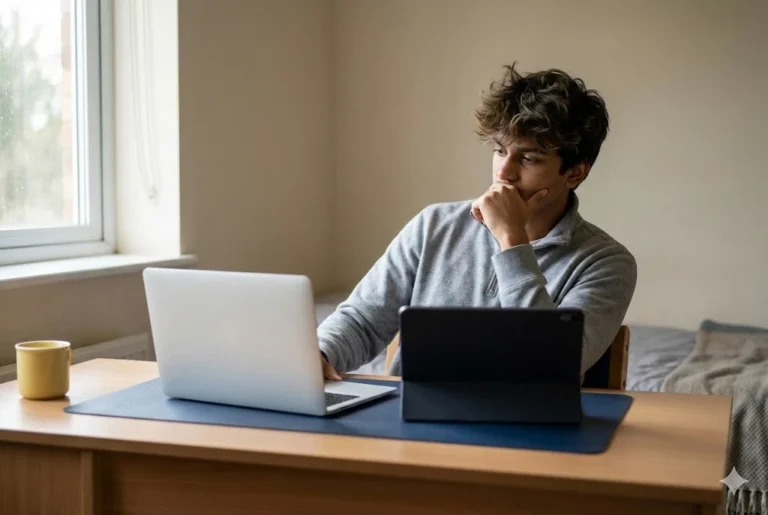
Laptop overheating usually starts when airflow gets blocked or power draw stays too high for too long. Most laptop overheating starts when vents get blocked by beds, dust, or poor placement, or when the CPU and GPU run at high power for too long.
Heat and speed are linked. When temperatures rise, your laptop may slow down to protect itself. If you want a simple breakdown of the parts that affect speed, read what makes a laptop fast.
Do these 5 actions now (in order):
- Put the laptop on a hard surface and keep vents clear.
- Lift the back edge slightly for better ventilation.
- Close heavy apps, then restart once to stop runaway background tasks.
- Set Power mode to Balanced (or Best power efficiency) for normal work.
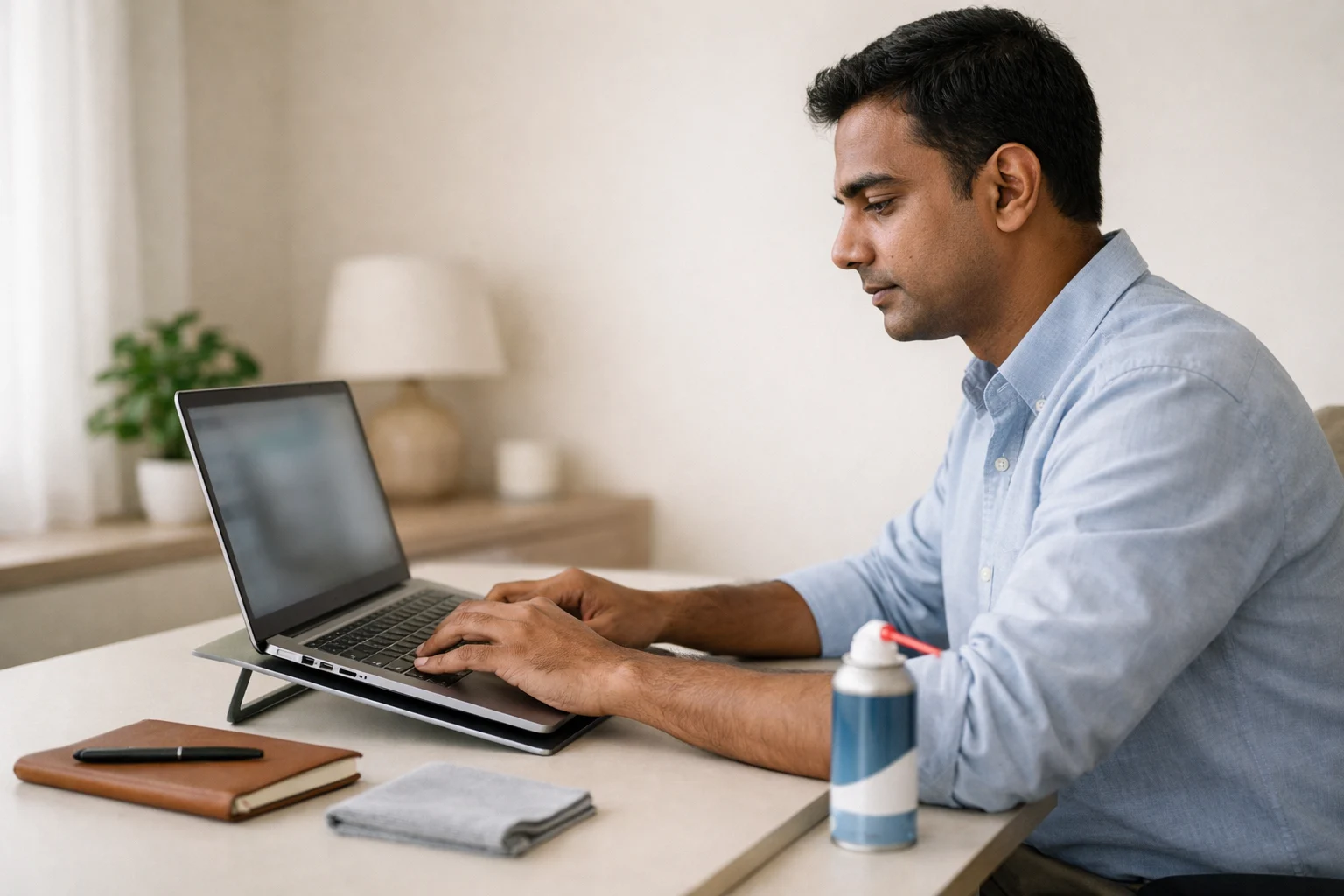
- Clean visible vent dust with short bursts of compressed air.
In hot and dusty Indian conditions, these steps fix most laptop heating problems without opening the device.
Step-by-step guide to fix laptop overheating safely
This section walks you through the safest order of fixes, from quick wins to deeper checks. Start with airflow and workload, then move to power settings, cleaning, and updates. Each step is designed to reduce heat at the source (CPU/GPU load) or improve heat removal (fan and vents) without risking damage from opening the laptop too early.
Step 1: Fix airflow first
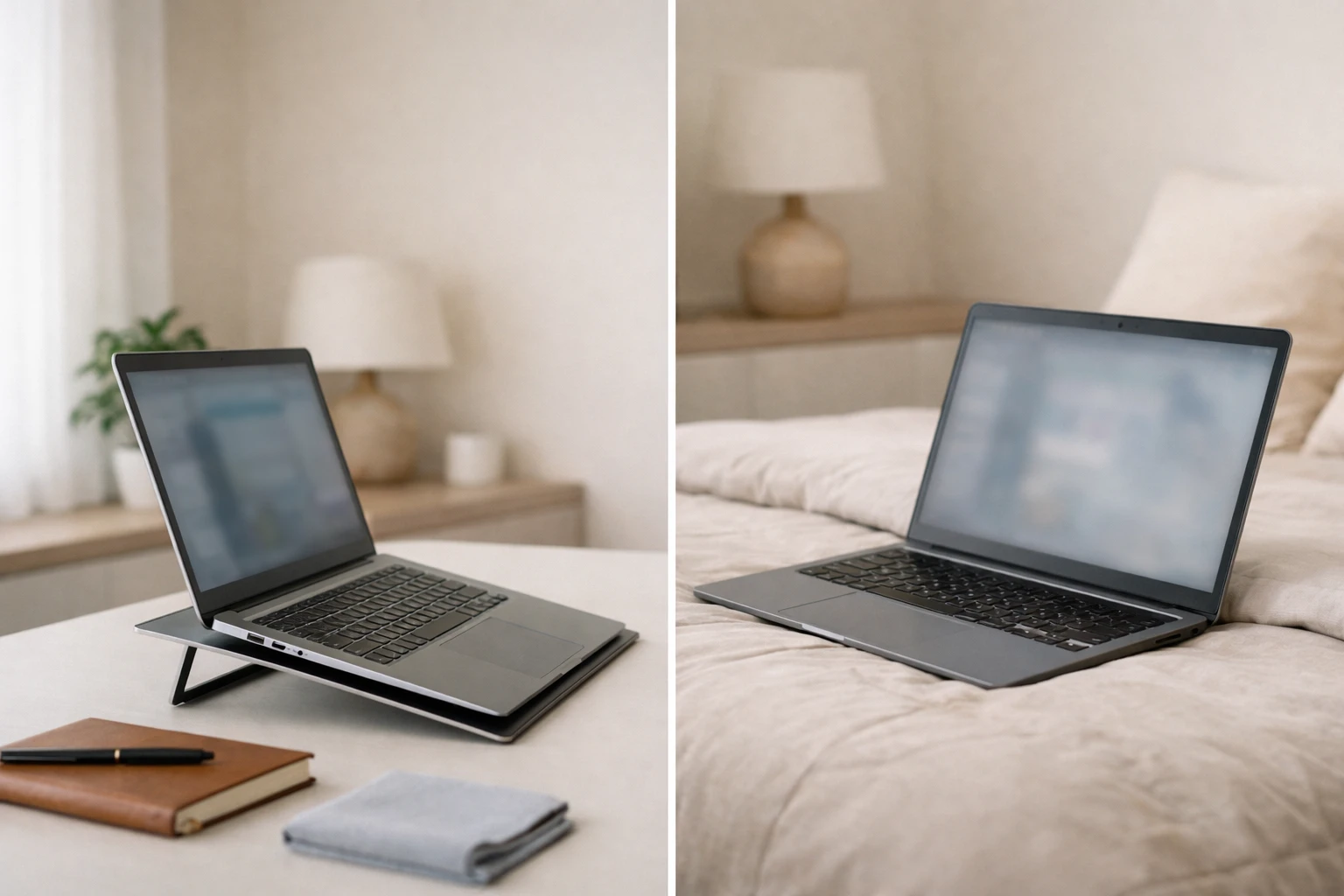
Use a table, not a bed or sofa. Soft surfaces block vents and trap hot air.
Then raise the rear edge by 1–2 cm using a stand or book. This often gives the quickest way to cool down a laptop.
Step 2: Stop hidden workload (common cause of idle heating)
If your laptop feels hot at idle, a background process usually drives it.
Also, check memory use. When RAM runs short, the system works harder and stays busy longer. If you are unsure what capacity fits your work, see how much RAM is good for a laptop.
• Open Task Manager and sort by CPU.
• Close the top app you do not need.
• Pause cloud sync and downloads during calls.
• Restart if the CPU stays high.
If you want a broader tune-up that also helps reduce heat, use these 10 easy tips to improve laptop performance.
Step 3: Use cooler power settings
Power equals heat. Small power cuts can drop temperatures a lot. This is why reducing unnecessary performance boost settings can make a laptop feel cooler during everyday use.
• For classes, WFH, browsing: choose Balanced or Best power efficiency.
If you use Windows 11/10, Microsoft shows exactly where to change this setting in Power mode. This small change is useful when your laptop heating issue starts during simple tasks like browsing, meetings, or office work
• For gaming: cap FPS and reduce a few graphics settings. Your GPU runs cooler and the fan noise drops.
If you are shopping for a cooler-running daily laptop, start with Intel Evo-certified laptops and this list of laptops with the best battery life in India. Efficient laptops usually run cooler for the same workload.
Daily habits that prevent laptop overheating:
• Keep the back vents 10–15 cm away from walls or curtains.
• Avoid direct sunlight on the keyboard deck.
• Do not cover the laptop while it runs (blankets, files, clothing).
• Take a 2–3 minute break every hour during heavy work so heat can dissipate. These habits prevent laptop overheating during long sessions.
Step 4: Clean vents and fans the safe way
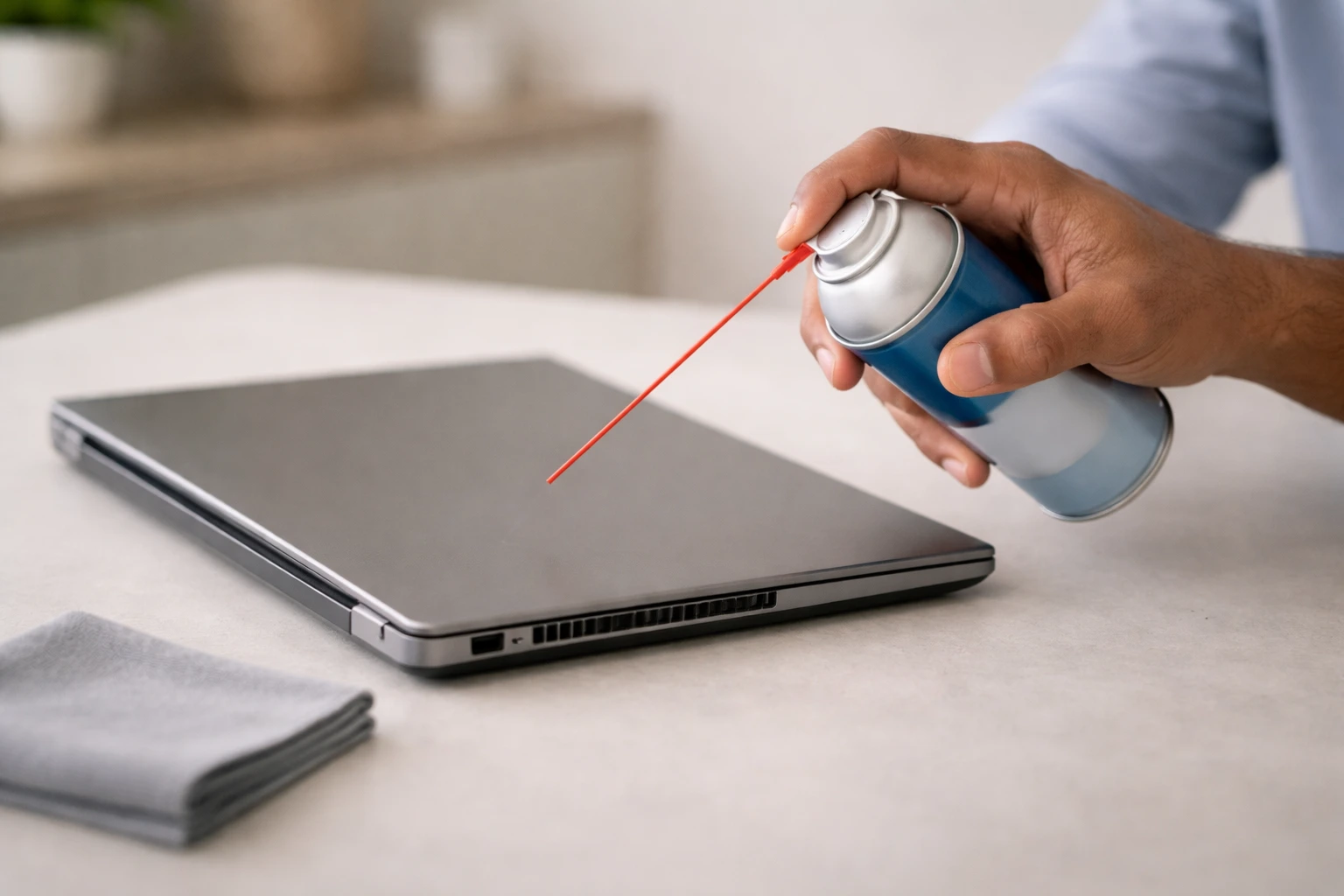
Dust clogs the heat sink fins and blocks airflow.
HP’s official guide on reducing laptop heat also recommends cleaning vents with compressed air and allowing the system to cool down before use: HP overheating prevention steps.
• Shut down and unplug.
• Hold a compressed-air can upright. Blow short bursts into vents.
• Wipe the grill with a dry microfiber cloth.
If you hear grinding or rattling, stop and plan a service visit.
Step 5: Update BIOS and drivers
Many OEM updates tweak fan curves and thermal limits.
• Update BIOS only through your laptop maker’s official tool.
• Update chipset and GPU drivers.
• Install Windows updates, then restart
Step 6: Add a stand or cooling pad (only if it suits the design)
A cooling pad helps most when the laptop pulls air from the bottom. For some models, a simple stand works just as well. Keep accessories dust-free.
Step 7: Watch for red flags that need service
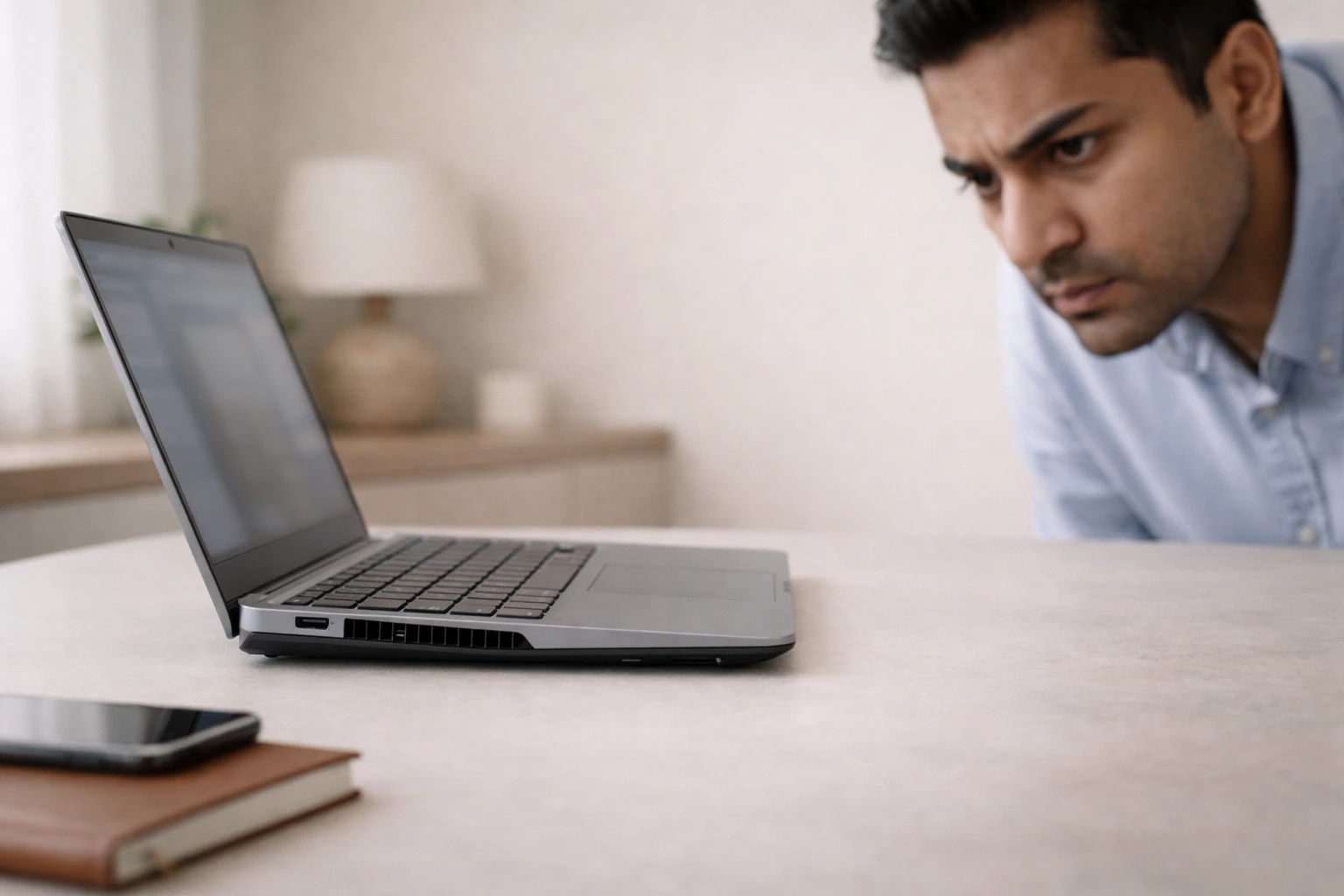
• Sudden shutdowns or restarts
• Burning smell or smoke
• Battery swelling or bulging
• Fan not spinning, or loud grinding noise
• No improvement after airflow + power + cleaning
If you want a manufacturer checklist for symptoms and next actions, Dell’s support guide covers common overheating causes (like blocked vents and dust) and basic troubleshooting: Dell laptop overheating troubleshooting.
These signs can point to fan failure, a clogged heat sink, dried thermal paste, or battery safety issues.
Why these laptop overheating fixes work
Processors protect themselves with thermal throttling. When a CPU approaches its max safe temperature, it reduces speed to avoid damage. Intel explains that Tjunction max varies by processor (often around 100°C to 110°C) and that thermal control can reduce frequency and power to protect the chip: Intel guidance on Tjunction max and thermal control. OEM support guides (HP and Dell, for example) repeatedly highlight blocked vents and dust, and they recommend cleaning vents, improving airflow, adjusting power settings, and keeping BIOS/drivers updated.
Also, laptop cooling is limited by ambient temperature. If the room is 33°C, your cooling system starts at a disadvantage. That is why better ventilation and lower power draw work so reliably for laptop overheating. You help the heat move from the CPU temperature hot spot into the air faster.
Quick fixes for common laptop overheating symptoms
|
What you notice |
Likely cause |
What to do first |
|---|---|---|
|
Hot base + loud fan |
Blocked airflow or dust |
Elevate + clean vents |
|
Heating at idle |
Background process |
Task Manager + restart |
|
Slowdowns in games |
Thermal throttling |
Cap FPS + improve airflow |
|
Hot while charging |
Heat + charging load |
Cooler room + OEM charger |
|
Sudden shutdown |
Severe overheating |
Stop using + get service |
What changes depending on your laptop
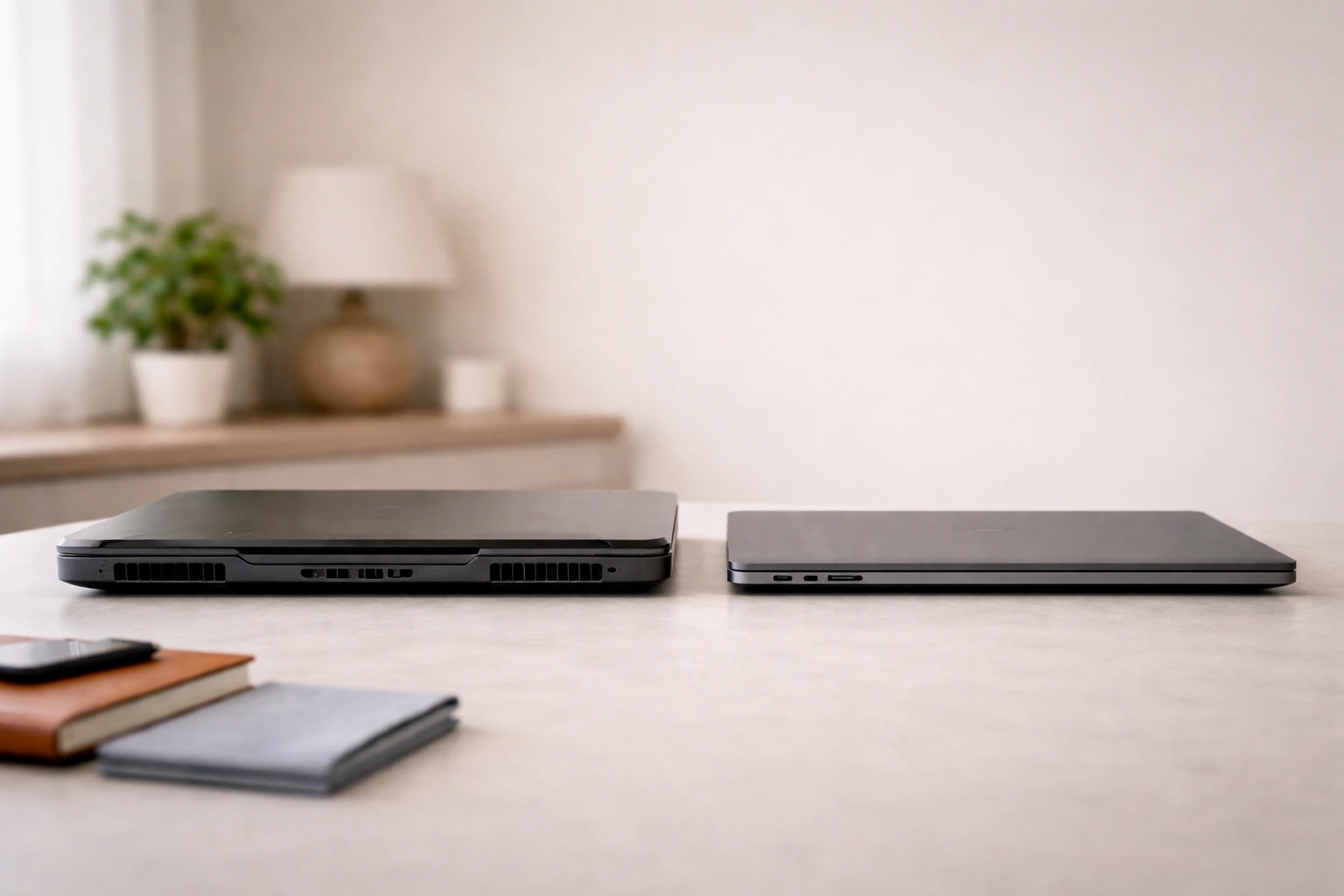
Not every laptop cools the same way. Design, thickness, fan size, and where the air intake sits can change what works best. Use the notes below to match the fix to your laptop type.
- Gaming laptops can run hotter by design. Short spikes can be normal. Sustained heat and shutdowns are not.
- Thin-and-light laptops throttle earlier because cooling space is limited. Support airflow and avoid heavy loads on hot days.
- Room temperature matters. ASUS suggests an ideal charging range of around 15°C to 35°C in its charging do’s and don’ts: ASUS guidance on charging temperature. In Indian summers, even a table fan can help.
Rentopay’s engineer takes on preventing laptop overheating
Heat is not a mystery. It is a pipeline: chips create heat, heat pipes move it, a heat sink spreads it, and a fan throws it out. Block any part of that path, and you get a laptop heating problem.
My rule stays simple: airflow first, power second, cleaning third, parts last. If your laptop still overheats during your everyday work, it may be the wrong machine for the workload. Renting a higher-spec laptop for projects, exams, or peak work months can keep you productive while you repair or upgrade.
Why does laptop overheating get worse over time?
Dust builds up, thermal paste dries, and fans wear out. That is why a laptop that felt fine in year one may develop laptop overheating in year three, especially in dusty cities and hot rooms. This is also why prevention matters. A quick vent clean every few weeks often saves you from a full teardown later.
Common laptop overheating questions
1. How do I cool down a laptop quickly?
Put it on a hard table, lift the back edge, close heavy apps, and let the fans run. If it stays hot, shut it down for 5 to 10 minutes.
2. Why is my laptop heating up even when idle?
A background task often spikes the CPU. Use Task Manager to find it, close it, and restart. Update Windows and drivers if it keeps coming back.
3. What temperature is too hot for a laptop?
It depends on the CPU and model. If you see constant throttling, discomfort to touch, or shutdowns, treat it as too hot and check the manufacturer’s specs.
4. Does a cooling pad help with laptop overheating?
Yes, mainly for laptops with bottom intake vents. A stand can also help by improving ventilation.
5. Is it safe to use a laptop on a bed?
No. Beds and pillows block vents and trap heat. Use a table or a ventilated lap desk instead.
6. Can I use my laptop while charging if it heats up?
Usually yes, but charging adds heat. Use an OEM charger, avoid direct sunlight, and avoid heavy gaming while charging on very hot days.
7. When should I service a laptop heating issue?
Go for service if you get shutdowns, burning smell, battery swelling, fan grinding, or no improvement after airflow, power changes, and vent cleaning.
Don’t let overheating kill your deadlines
Laptop overheating hurts most during classes, client calls, and deadlines. If your device keeps lagging, getting noisy, or shutting down, consult Rentopay for a practical solution. You can also use a rental as a backup while your laptop gets serviced. Start here: how to rent a laptop, and compare options with laptop rental plans across India.