Windows 10 Support Has Ended: Windows 11 Upgrade Options
Windows 10 reached end of ordinary support on October 14, 2025. Windows 10 devices can still start and run, but the last generally supported versions no longer receive the normal free security updates, feature updates, or Microsoft technical support. Some eligible devices can receive Extended Security Updates (ESU), and compatible hardware can move to Windows 11.
Windows 10 support status after October 14, 2025
Microsoft’s Windows 10 release information states that Windows 10 reached end of support on October 14, 2025. This does not mean every device stopped working on that date. It means ordinary servicing ended for the listed editions, with separate lifecycle rules for some LTSC releases.

- Ordinary support: ended for Windows 10 Home, Pro, Enterprise, and Education version 22H2 as described by Microsoft.
- Security exposure: a device without normal updates or ESU may face increasing risk over time, but risk depends on configuration, software, network exposure, and user practices.
- Application support: software and hardware vendors set their own compatibility timelines, so check the applications and peripherals you rely on.
Extended Security Updates are a transition option
Microsoft’s Windows 10 ESU guidance explains that eligible enrolled Windows 10 version 22H2 devices can receive critical and important security updates for a limited period. ESU does not add feature improvements or general technical support. Eligibility, regional terms, enrolment routes, and end dates should be checked in Microsoft’s current documentation.

ESU can give some users more transition time. It is not the same as restoring ordinary Windows 10 support, and it does not make every old application, driver, or device compatible indefinitely.
Check Windows 11 compatibility before upgrading
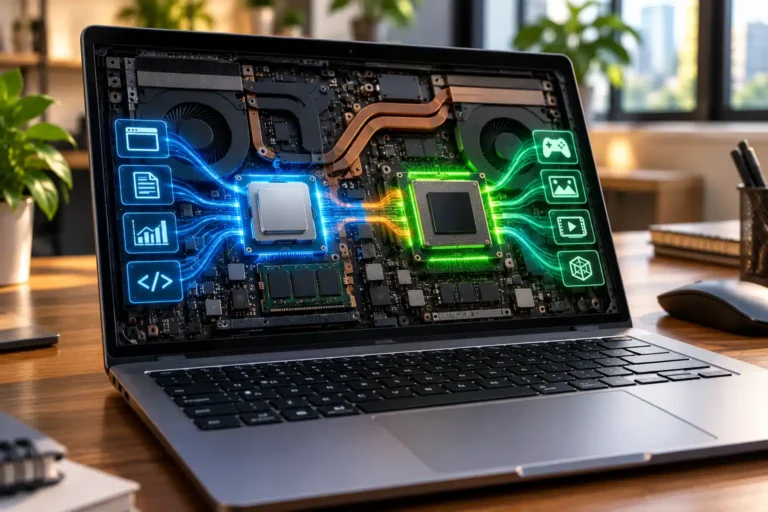
Windows 11 compatibility depends on the complete device, not only its age. Microsoft’s Windows 11 system requirements include a supported processor, at least 4GB RAM, at least 64GB storage, UEFI and Secure Boot capability, TPM 2.0, compatible graphics, and display requirements.
- Run Microsoft’s PC Health Check or use Windows Update to assess eligibility.
- Back up important files before an operating-system upgrade.
- Check business applications, VPN tools, printers, drivers, and security software before migration.
- For managed business devices, follow the organisation’s IT policy and deployment process.
Your practical options
- Upgrade the existing device: appropriate when the hardware is eligible and required software is compatible.
- Use ESU during a planned transition: appropriate only where the device and user meet Microsoft’s current conditions.
- Replace the device: appropriate when hardware is incompatible or no longer meets the workload.
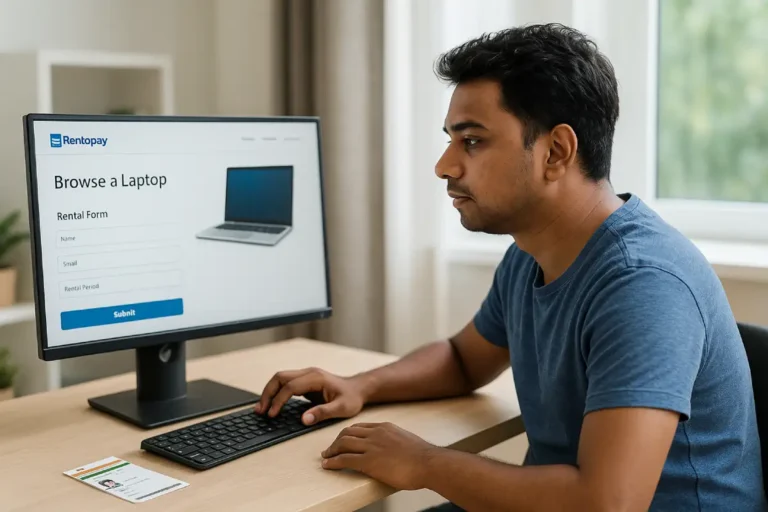
- Use a temporary rental device: an option for a migration project, short assignment, test period, or temporary capacity. Confirm the operating system, exact configuration, availability, support terms, and software responsibilities before ordering.
When a temporary Windows 11 laptop may help
A temporary device can help when an upgrade project needs testing time, an employee needs a supported laptop during migration, or a business needs short-term capacity. Renting is one option alongside upgrading or buying; it is not mandatory and is not automatically the lowest-cost path.

Rentopay inventory is not established by Microsoft documentation or by this article. Review Rentopay’s laptop rental options and ask about the current operating system, processor, RAM, storage, configuration, and location availability.
Windows lifecycle planning checklist
- Identify the exact Windows edition and version.
- Check whether the device is receiving ordinary updates or enrolled in ESU.
- Run the Windows 11 eligibility check.
- Test critical applications, peripherals, and security controls.
- Compare upgrade, purchase, and rental options using actual costs and written support terms.
Conclusion
Windows 10 ordinary support has ended, but the next step depends on device eligibility, ESU status, application compatibility, and the user’s timeline. Verify the Microsoft lifecycle first, then choose between upgrading, a planned ESU transition, replacement, or a temporary device.