Types of SSD Explained: Avoid Costly Laptop Mistakes
If you are searching for Types of SSD, here is the direct answer: most people will choose between SATA SSDs (2.5-inch or M.2 SATA) and NVMe SSDs (usually M.2 NVMe). SATA tops out around 500–550 MB/s in real use, while NVMe can go several times faster, depending on your laptop’s PCIe generation. Beyond that, there are less common options like U.2 drives and PCIe add-in cards (mostly desktops and servers), plus external SSDs over USB.
So, how many types of SSD are there in practical buying terms? Five:
- 2.5-inch SATA SSD (the classic laptop/desktop upgrade)
- M.2 SATA SSD (looks like a gumstick, but still SATA speed)
- M.2 NVMe SSD (the most common fast upgrade today)
- PCIe add-in card SSD (desktop only)
- External SSD (USB/Thunderbolt) (portable)
What this really means is simple: for most people in India, upgrading a laptop, you only need to confirm two things: slot type (2.5-inch SATA bay or M.2 slot) and protocol (M.2 SATA vs M.2 NVMe). Get those wrong, and the SSD either won’t fit or won’t get detected. If you’re planning an upgrade, this step-by-step guide on how to upgrade a laptop HDD to SSD will help you confirm the slot and installation basics.
The different types of SSD and where each one fits

Not every SSD works for every device. This section shows which SSD type matches your laptop or desktop, so you pick the right fit and avoid compatibility surprises.
1) 2.5-inch SATA SSD (most compatible)
This is the safest upgrade for older laptops and many desktops. It uses the same SATA connector as hard drives. If your laptop currently has a 2.5-inch HDD, you can usually replace it with a 2.5-inch SATA SSD.
Best for: older laptops, budget upgrades, office PCs
2) M.2 SATA SSD (same speed as SATA, smaller body)
This SSD uses the M.2 physical shape, but it still speaks “SATA” to the system. Many people confuse M.2 with NVMe. Don’t. M.2 is a size and slot style, not a speed guarantee.
Best for: laptops that have an M.2 slot but only support SATA
3) M.2 NVMe SSD (fastest common laptop option)
NVMe is a protocol designed for flash storage. If you want the simplest definition, IBM’s explainer on what NVMe is is a solid reference. It connects through PCIe lanes, which reduces overhead and boosts performance. Most modern mid-range and premium laptops support M.2 NVMe.
Best for: newer laptops, gaming, creators, heavy multitasking
4) PCIe add-in card SSD (desktop-only)
These are full-size expansion cards that plug into a PCIe slot on a desktop motherboard. They can be fast and can handle better cooling, but laptops cannot use them.
Best for: desktops and workstations with spare PCIe slots
5) External SSD (USB or Thunderbolt)
External SSDs work like fast pendrives, but with better speed and reliability. They are great for backups, video files, and moving projects between devices.
Best for: portable storage, backups, creators on the move
Speeds you can actually expect (without marketing hype)
Let’s break it down in real numbers. SSD brands often advertise “up to” speeds, which you only see in ideal tests. Still, the categories land in clear ranges. If you want a quick, neutral refresher on interfaces, IBM’s NVMe vs SATA comparison breaks it down clearly.
|
SSD type |
Interface/protocol |
|---|---|
|
2.5-inch SATA SSD |
SATA III |
|
M.2 SATA SSD |
SATA III |
|
M.2 NVMe (PCIe 3.0 x4) |
NVMe over PCIe |
|
M.2 NVMe (PCIe 4.0 x4) |
NVMe over PCIe |
|
M.2 NVMe (PCIe 5.0 x4) |
NVMe over PCIe |
Important reality check: for Windows boot and app launch, you often hit limits like CPU, RAM, and small-file access. For the bigger performance picture, read what makes a laptop fast and how much RAM is good for a laptop. That is why random IOPS and latency matter as much as big sequential numbers.
Types of SSD for laptops: formats and sizes that decide compatibility
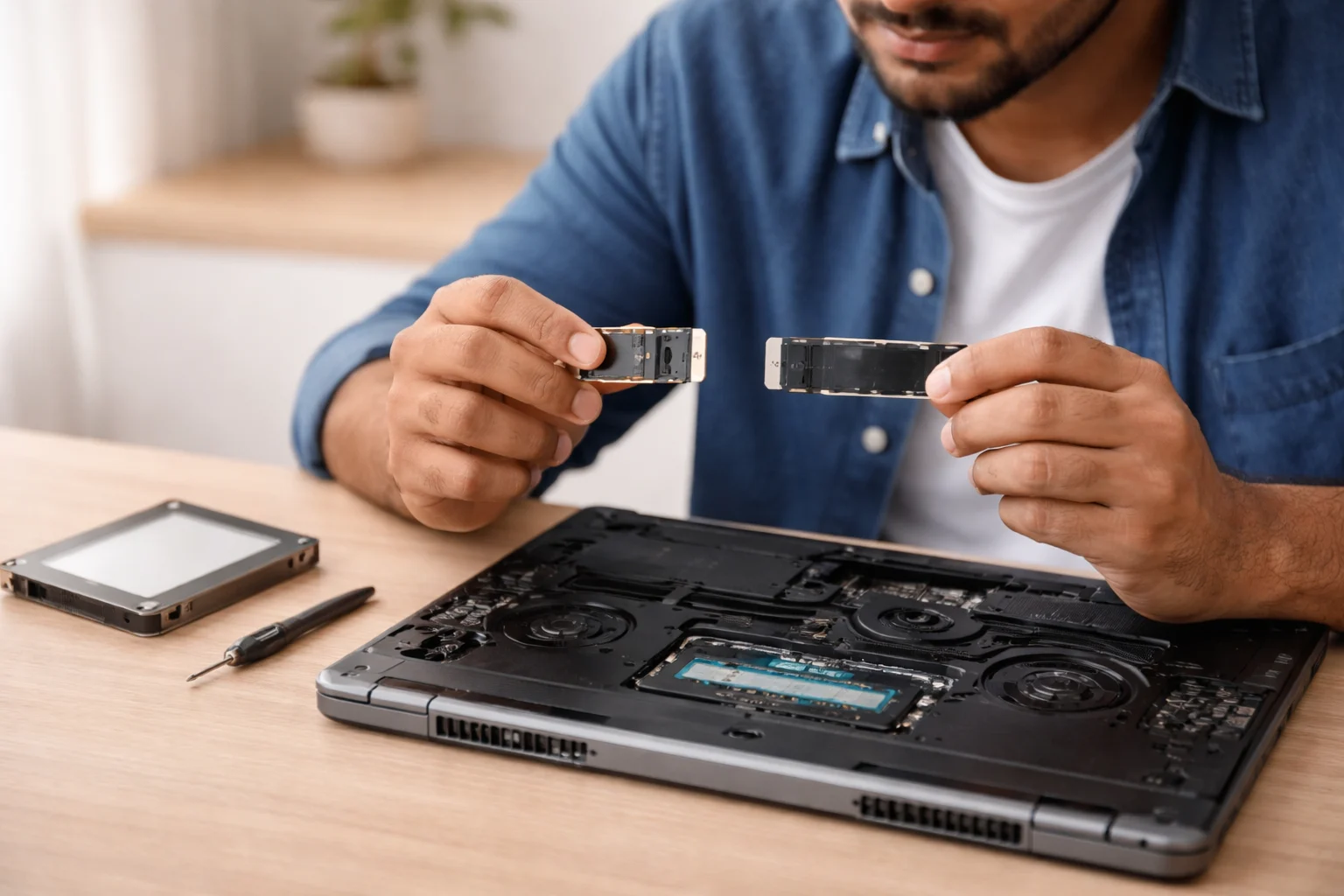
This is where most laptop upgrades go wrong. People buy a great SSD, then realize it does not fit.
1. Laptop storage format : 2.5-inch bay
If your laptop has a 2.5-inch HDD/SSD bay, you can use a 2.5-inch SATA SSD. Many laptops also include an M.2 slot, so you might have two options.
2. Laptop storage format : M.2 slot (but which one?)
M.2 drives come in multiple lengths. You will see labels like 2280 or 2242:
● The first two digits usually mean 22 mm width.
● The last two or three digits mean length in mm.
Common sizes:
● 2230 (30 mm): some ultrabooks and handheld devices
● 2242 (42 mm): a few compact laptops
● 2280 (80 mm): the most common laptop size
● 22110 (110 mm): some workstations, mostly desktops
Most laptops in India that support M.2 use 2280. If you want a simple reference for these size codes, Kingston explains M.2 sizes like 2230, 2242, and 2280 with the exact width and length format.
3. M.2 keying: why “M-key vs B-key” matters
M.2 connectors have notches (keys). These keys prevent wrong insertion:
● M-key commonly supports NVMe (PCIe x4)
● B-key commonly supports SATA or PCIe x2
● B+M fits more slots, but often limits lane support
You do not need to memorize this. Just remember the buying rule: Match your laptop’s supported protocol (NVMe or SATA) first. If you want a clear visual explanation of the notch types, ATP Electronics has a handy guide to M.2 keys and sockets (B, M, and B+M).
What changes the right choice (even within the same SSD type)

After 20+ years around PCs and storage, I can tell you this: two SSDs with the same “NVMe” label can feel very different over time. Here are the factors that decide it.
1) PCIe generation support (your laptop sets the ceiling)
A PCIe 4.0 SSD will still work in a PCIe 3.0 slot, but it will run at PCIe 3.0 speeds. So, if your laptop only supports PCIe 3.0, paying extra for a top-end PCIe 4.0 drive may not give full value.
2) NAND type: TLC vs QLC (speed after the cache)
You will see terms like TLC and QLC NAND. Here’s the simple version:
- TLC usually holds speed better under heavy writes and often lasts longer.
- QLC can be cheaper per GB, but large file writes can slow down once the fast cache fills.
For regular office use and browsing, QLC can still be fine. If you want a simple, practical comparison, XDA’s guide on QLC vs TLC SSD differences explains what changes in speed and endurance. For sustained work like exports and large project files, creators often get better consistency with TLC. If that’s you, compare your needs using our guides on the best laptop for content creation and the best laptops for video editing. For video editing, heavy exports, and long backups, TLC gives more stable performance.
3) DRAM cache vs DRAM-less (and why HMB exists)
Some SSDs include DRAM cache for faster mapping and steadier performance. Many budget NVMe drives skip DRAM and use Host Memory Buffer (HMB) instead, borrowing a small amount of system RAM.
For most day-to-day laptop use, DRAM-less + HMB can still feel fast. If you do heavy multitasking, large databases, or sustained writes, a DRAM-equipped SSD usually behaves better.
4) Endurance (TBW) and why it matters more than you think
SSD endurance often shows as TBW (terabytes written). Higher TBW generally means the SSD can handle more writes over its life.
If you mainly browse, study, and do office work, almost any branded SSD lasts years. If you edit video, run VMs, or write large files daily, look for higher TBW and better cooling.
5) Heat and thermal throttling in slim laptops
Fast NVMe SSDs can heat up. When they get too hot, they slow down to protect themselves. This is called thermal throttling. If you want a straightforward explanation of why it happens more with NVMe drives, How-To Geek covers why modern NVMe SSDs can run hot and throttle in plain language.
Slim laptops with poor airflow can throttle a high-end SSD sooner than a balanced mid-range SSD. If your device runs hot, use these practical steps to prevent your laptop from overheating. So, “faster on paper” does not always mean “faster in your laptop.”
5-minute SSD checklist for choosing the right laptop upgrade

Use this quick list before you buy. It helps you confirm fit, avoid wrong-slot purchases, and choose the right SSD for how you actually use your laptop.
- Check your laptop model (exact model number on the sticker).
- Look up the spec sheet or service manual for storage support.
- Confirm if you have:
- A 2.5-inch SATA bay, or
- An M.2 slot, and whether it supports NVMe, SATA, or both.
- Confirm the M.2 length your laptop accepts (usually 2280).
- Decide your use case:
- Basic use: SATA or budget NVMe works great.
- Gaming/creator: NVMe (PCIe 3.0 or 4.0) + TLC is safer.
- Heavy work: look at TBW, DRAM cache, and cooling.
The upgrade most people ignore
Most upgrade guides push you to chase the biggest speed number. That’s not the smartest move for laptop users.
Here’s my practical take: balance matters more than bragging rights. A good laptop experience comes from the right mix of SSD type, enough RAM, and a healthy CPU. If your workload includes Chrome tabs, Zoom calls, Excel, and occasional editing, a solid PCIe 3.0 or PCIe 4.0 NVMe SSD often feels just as “instant” as a premium PCIe 5.0 drive, especially in thin laptops.
At Rentopay, we see this daily. People rent a laptop for work, study, or a short-term project, and they want it to feel fast from day one. We focus on configurations that stay quick in real life, not just in benchmarks. If you tell us your work style, we can recommend a laptop with the right SSD type and capacity so you don’t overpay or under-spec.
Common questions about SSD types
1) How many types of SSD are there?
In practical buying terms, there are five: 2.5-inch SATA, M.2 SATA, M.2 NVMe, PCIe add-in card, and external USB/Thunderbolt SSDs.
2) What are the best types of SSD for laptop upgrades?
For most laptops, the best choices are 2.5-inch SATA SSDs (older laptops) or M.2 NVMe SSDs (newer laptops). Always check what your laptop supports.
3) Are M.2 and NVMe the same thing?
No. M.2 is the shape and slot type. NVMe is the storage protocol. Some M.2 SSDs use SATA, and some use NVMe.
4) Will an NVMe SSD work in any M.2 slot?
Not always. Some laptops have an M.2 slot that supports only SATA. If you install an NVMe SSD in a SATA-only slot, the laptop may not detect it.
5) Which SSD is better, SATA or NVMe?
NVMe is better for speed, large file transfers, and heavy workloads. SATA is still excellent for basic use and older laptops, and it costs less.
6) What M.2 size should I buy for my laptop in India?
Most laptops use M.2 2280. Some ultrabooks use 2230. Check your laptop’s manual or open the back cover to confirm the size.
7) Does a higher MB/s SSD always make my laptop faster?
Not always. For daily tasks, random access speed, RAM, and CPU can matter more than the top sequential MB/s number.
8) How much SSD capacity do I need for a laptop?
For most people, 512 GB is a sweet spot. Choose 1 TB if you store many videos, games, or large work files.
Why SSD terms feel confusing (and what to remember)
SSD terms got messy because three things evolved at once: the connector (2.5-inch vs M.2), the interface (SATA vs PCIe), and the protocol (AHCI vs NVMe). Brands also marketed these terms together, which created confusion.
So, keep this simple rule:
- Form factor = how it fits (2.5-inch, M.2 2280)
- Interface = how it connects (SATA, PCIe)
- Protocol = how it talks (NVMe for PCIe SSDs)
If you follow that, you will never buy the wrong SSD again.
Need a fast laptop without the guesswork?
If your current laptop feels slow, it usually comes down to the same pain points: long boot time, apps freezing, and file copies taking forever. Tell Rentopay what you use your laptop for, and we will help you choose a rental laptop with the right SSD type and capacity for your work in India. Visit https://rentopay.in/ to explore options or reach out for a quick recommendation. If you want a simple start-to-finish walkthrough, see how to rent a laptop from Rentopay.