
Laptop Rental for Corporate Training Programs: A Device Planning Checklist
Corporate training programs need more than a room and a course outline. When participants require laptops, the organiser must align the device count, software, user access, power, connectivity and support plan with the training schedule.
A practical device brief helps the trainer, IT team, venue and rental provider work from the same assumptions. It also reduces last-minute changes caused by an incomplete participant list or unclear software requirements.
This checklist covers laptop rental for corporate training without assuming a price, stock level, delivery timeline, setup service or support commitment. Confirm every operational and commercial point for the specific program.
1. Confirm the Training Format and Participant Count
Record whether the program is classroom-based, hybrid or distributed across several locations. Note the total participants, facilitators, support staff, session dates and daily schedule. If multiple cohorts reuse the same devices, include the reset time between groups.
- Participant and facilitator count
- Training dates and session timings
- Number of cohorts or batches
- Venue, room and floor details
- Whether participants use one device each or share during exercises
2. Map the Course Activities to Software Requirements
List the applications, browser tools, file types, plug-ins and operating-system requirements used during the course. Separate mandatory tools from optional demonstrations. If a training module depends on a particular version, account, licence or administrator permission, identify who will supply and configure it.
Do not assume that software can be installed by the rental provider or that a licence is included. Ask what is possible and record the approved ownership, access and installation process.
3. Choose a Practical Participant Specification
Select a baseline configuration that supports the exercises comfortably, then document any trainer or specialist exceptions. Processor, RAM, storage, graphics, display size, ports and operating system should be tied to the course rather than to a generic “high-performance” label.
For background reading, compare Rentopay’s guides to processors, RAM and laptop screen sizes. The exact model and configuration still need confirmation in the quote.
4. Plan the Training Room Setup
Check desk space, chair layout, power outlets, extension boards, network capacity, projector or display connections and trainer visibility. The venue should confirm what infrastructure is already present and who is responsible for any additional equipment.
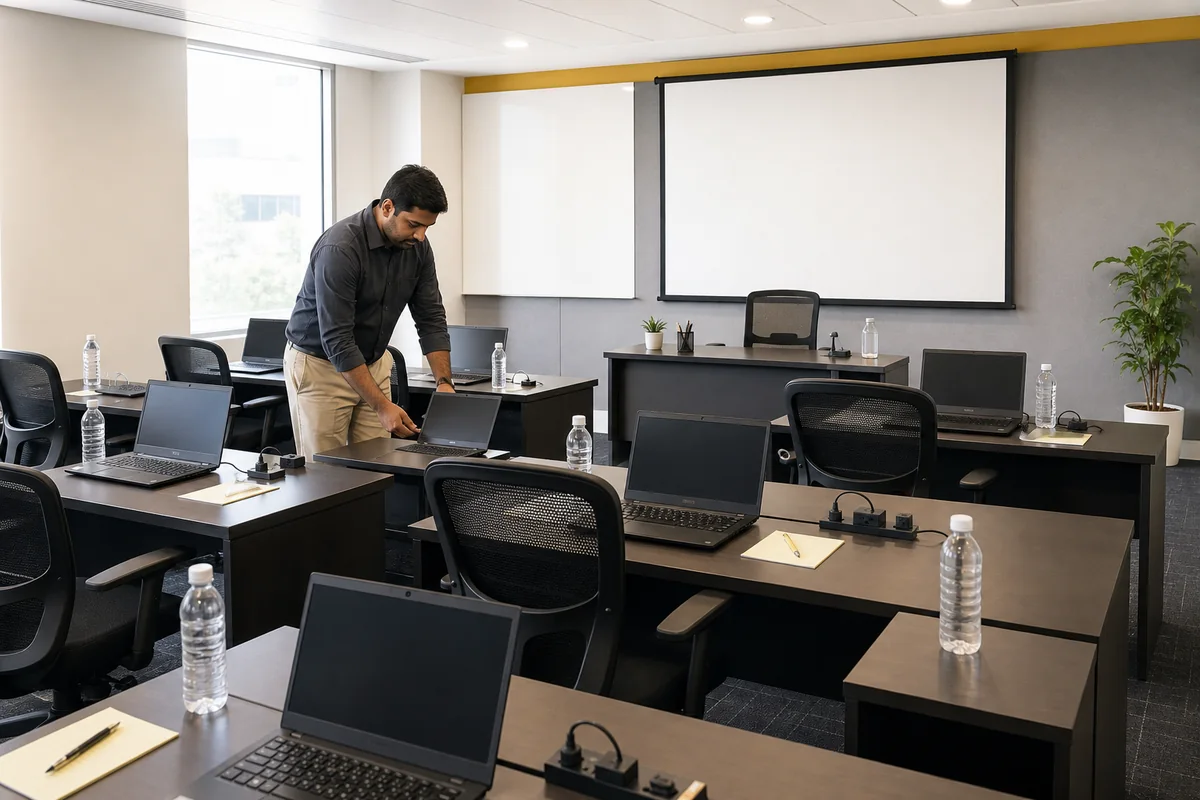
Keep cables controlled and walkways clear. If participants need mice, headsets, adapters or external displays, include quantities in the device schedule.
5. Decide Who Prepares Accounts and Training Files
Name the owner for participant accounts, passwords, licensed software, sample files, browser profiles and network access. Use temporary credentials where appropriate and avoid putting live business data into a training environment unless the organisation has approved the process.
Create a short readiness checklist that can be tested on the actual configuration before the first session. The test should follow the same network and user-permission conditions expected in the room.
6. Run a Participant Device Check
Before the session begins, verify that each laptop powers on, connects as intended and opens the required course tools. Confirm the facilitator’s presentation connections and identify the contact for issues during the program.

The check should verify agreed requirements, not create an unapproved promise about response times or replacement. Support arrangements must come from the quotation or service terms.
7. Plan Data Handling Between Cohorts
If laptops move between batches, decide how local files, downloads, browser data and participant credentials will be removed. Document who performs the reset, when it occurs and how completion is checked before the next group begins.
Training organisers should also explain acceptable use and prohibit participants from storing confidential information on shared devices unless the company has an approved control.
8. Coordinate Returns and Program Close
Maintain a list of devices and accessories assigned to the room or cohort. At the end, reconcile laptops, chargers, adapters and any other supplied items. Record condition issues and follow the return process stated in the agreement.
If dates may change, check extension and notice terms in advance. The organiser should not assume that devices can remain beyond the agreed period without confirmation.
9. Send a Complete Training Rental Enquiry
Include participant count, trainer count, dates, venue, course activities, software, minimum specifications, operating system, accessories, room constraints and setup ownership. Mention whether there are multiple batches and when devices must be reset.
Rentopay already has a guide to laptop rentals for corporate events. For a business training requirement, use Corporate Laptop Rental as the main commercial page and ask for a requirement-specific quotation.