How Much VRAM Do I Need? VRAM Explained Clearly
How much VRAM do I need? For most users, 8 GB of VRAM is a practical starting point for modern gaming and creative work, while 12 GB to 16 GB or more is better for demanding 1440p or 4K gaming, 3D rendering, video editing, and some local AI workloads.
VRAM, or Video Random Access Memory, is the high-speed memory used by a GPU to store textures, frames, images, and other graphics data. The right amount depends on your workload, display resolution, software, and GPU performance.
The right amount depends on what you actually do with the laptop. A student using Chrome, Office and online classes has very different graphics requirements from a video editor, gamer or AI developer.
That distinction matters when choosing a laptop in India. Paying for more laptop VRAM than your workload needs can waste money, while choosing too little can create stuttering, lower texture quality or memory errors.
What Is VRAM and Why Does It Matter?
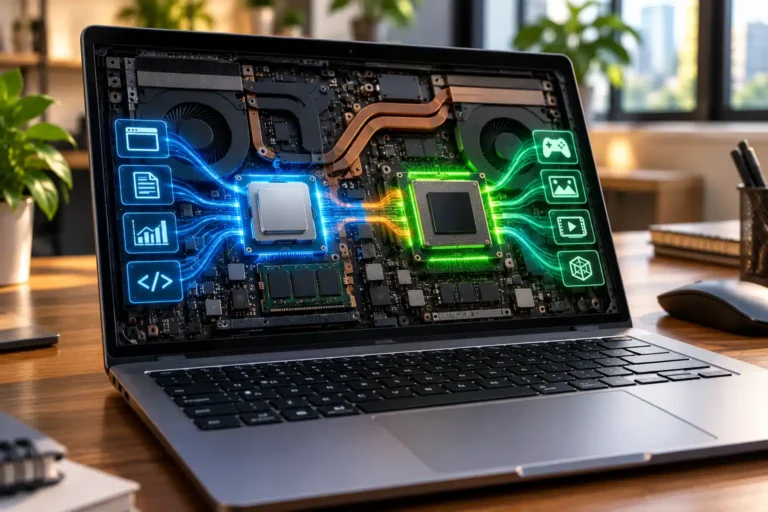
VRAM is the GPU’s fast working memory for visual data. It stores textures, frame buffers, geometry, shaders, and other graphics data so the GPU can access them quickly during demanding tasks.
VRAM capacity matters, but it is only one part of overall performance. GPU architecture, processing power, memory bandwidth, software optimisation, cooling, and power limits also affect speed. NVIDIA also explains that VRAM is only one part of a larger GPU memory subsystem, so a higher VRAM number does not automatically mean better performance. The simplest buying rule is to choose the workload first, GPU class second, and VRAM capacity third.
Need a laptop for study, business, development, design, editing, or GPU-heavy work without committing to a purchase? Explore Rentopay and choose a rental configuration that matches your workload and budget..
How Much VRAM Do I Need for My Laptop?

Choose VRAM according to your heaviest graphics workload, not simply the biggest number on the specification sheet. GPU power and memory capacity must work together.
Here is a practical starting point:
|
Workload |
Practical VRAM guidance |
|---|---|
|
Browsing, Office, classes, streaming |
Integrated graphics usually sufficient |
|
Photoshop and light creative work |
4 GB+ or capable modern integrated graphics |
|
Entry-level gaming |
6–8 GB |
|
Modern 1080p gaming |
8 GB is a practical baseline |
|
Demanding 1440p gaming |
12 GB is a stronger target |
|
4K gaming / advanced creation |
16 GB+ depending on workload |
|
3D rendering / local AI |
12–16 GB+, often more for large projects |
These numbers are guidelines rather than guarantees. ASUS currently describes 8 GB as a solid 1080p gaming baseline, 12 GB as a 1440p sweet spot and 16 GB as a starting point for a stronger 4K experience.
Adobe provides another useful reference point. According to Adobe’s Premiere Pro system requirements, a GPU with at least 4 GB of memory is recommended, while more demanding professional editing workflows can benefit from higher VRAM capacity.
If you are comparing the rest of the specification too, Rentopay’s guide to how much RAM you need in a laptop can help you balance RAM and graphics memory.
How Much VRAM for Gaming Is Enough?
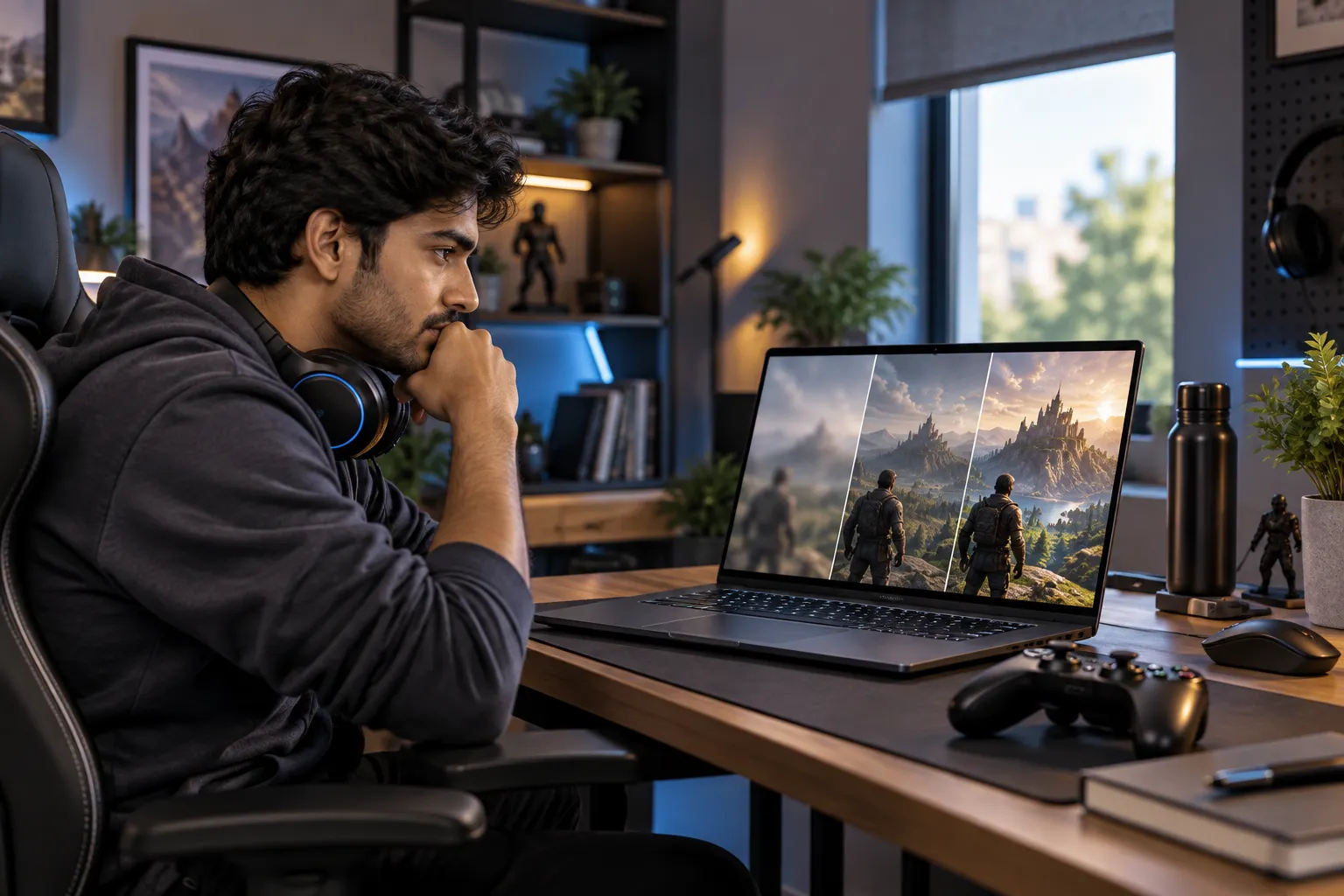
For gaming, resolution, texture quality, ray tracing and the game itself influence VRAM demand more than resolution alone. Higher settings usually require more graphics memory.
For competitive games at 1080p, 8 GB can remain perfectly usable. Current AAA games with high-resolution textures can demand more, especially at 1440p or 4K.
When VRAM becomes full, the GPU may need to move data through slower system memory. You may notice:
- sudden stutters or uneven frame delivery
- textures loading late or appearing blurry
- larger frame-rate drops
- settings that cannot be enabled comfortably
- crashes or out-of-memory errors in extreme cases
AMD explains that VRAM holds textures, shaders and other graphics assets required for rendering. AMD’s explanation of VRAM
Do not judge a graphics card by VRAM alone. An older or slower GPU with 16 GB is not automatically faster than a newer 8 GB GPU. Architecture, memory bandwidth, processing performance, cooling and power limits also matter.
If gaming is your main purpose, compare the complete configuration using Rentopay’s gaming laptop guide for India rather than choosing from VRAM capacity alone.
Laptop VRAM for Editing, Design, 3D and AI
Creators and AI users can benefit from more VRAM because large video frames, complex 3D scenes and AI models can consume graphics memory quickly.
Photoshop users generally need much less VRAM than people rendering large Blender scenes or running generative AI locally. Adobe’s current Photoshop requirements recommend 4 GB of GPU memory for 4K displays and above.
Blender provides a particularly clear warning. Its documentation says a GPU “out of memory” error usually means the scene cannot fit into available graphics memory.
Local AI can push requirements even further because model data may need to fit into GPU memory. NVIDIA currently positions GeForce RTX systems with roughly 6–32 GB VRAM for different local AI workloads.
For creators, Rentopay’s guides to laptops for video editing, graphic design laptops and content creation laptops provide workload-specific considerations beyond graphics memory.
VRAM vs RAM: What Is the Difference?
VRAM serves graphics processing, while system RAM supports the CPU, operating system and applications. They perform related but different jobs inside a computer.
A discrete graphics card normally has its own high-speed video memory. NVIDIA describes VRAM as high-speed memory located on the graphics card that helps the GPU access the data required to process and display images.
Integrated graphics work differently. Intel confirms that its integrated processor graphics do not use a separate graphics-memory bank. Instead, they use system memory according to the workload and system configuration.
This is why a laptop may show both dedicated and shared GPU memory in Windows. Adding ordinary RAM does not turn a discrete 4 GB GPU into an 8 GB GPU.
How to Check VRAM on a Windows Laptop
Windows lets you check dedicated graphics memory in a few steps, but make sure you distinguish dedicated VRAM from shared GPU memory.
Go to Settings > System > Display > Advanced display > Display adapter properties. Look for Dedicated Video Memory.
You can also open Task Manager > Performance > GPU to view dedicated and shared GPU memory.
Before renting or buying a performance laptop, check the exact GPU model rather than relying only on a listing that says “dedicated graphics.”
Rentopay’s Take – Choose the Workload Before the VRAM
After years of evaluating computer hardware, one rule remains useful: buy enough graphics memory for the workload, then judge the GPU as a complete system.
A business laptop used for Excel, browsers, presentations and video calls does not suddenly become better because it has 12 GB of VRAM.
The opposite mistake happens with creators. Someone editing 4K video, rendering complex 3D scenes or experimenting with local AI may save money initially with a low-memory GPU, only to hit a hard limit later.
For businesses and startups, this is where renting can be practical. Instead of purchasing expensive GPU laptops before knowing the real requirement, teams can choose configurations based on each employee’s workload. See the questions to ask before renting laptops before selecting a configuration.
FAQs About How Much VRAM You Need
If you are wondering how much VRAM do I need, the answer depends on your workload, resolution, software, and GPU. These quick FAQs explain laptop VRAM, gaming needs, and GPU memory in simple terms.
1. How much VRAM do I need for a laptop?
For normal browsing, Office work, online classes, and streaming, integrated graphics are usually enough. For gaming or creative work, 8 GB of VRAM is a practical starting point, while 12 GB to 16 GB is better for heavier workloads.
2. How much VRAM do I need for gaming?
For 1080p gaming, 8 GB VRAM is generally a good target. For demanding 1440p gaming, 12 GB is safer, while 16 GB or more gives better headroom for 4K gaming and high-resolution textures.
3. What is VRAM and why is it important?
VRAM is dedicated GPU memory used to store textures, frames, and other graphics data. Enough VRAM helps games and creative applications run more smoothly, especially at higher resolutions.
4. Is 8GB laptop VRAM enough?
Yes, 8 GB laptop VRAM is enough for many modern games, video editing tasks, and creative applications. Heavy 3D rendering, 4K gaming, and local AI workloads may need more.
5. What is the difference between VRAM and GPU memory?
VRAM is a type of GPU memory. In most discussions, the terms are used interchangeably. However, integrated GPUs may use shared system RAM instead of dedicated VRAM.
6. Is more VRAM always better?
Not always. More VRAM helps only when your workload actually needs the extra memory. GPU architecture, processing power, memory bandwidth, and cooling also affect performance.
7. How much VRAM do I need for video editing?
For basic editing, 4 GB to 8 GB can work well. For 4K editing, advanced effects, and professional workflows, 8 GB to 16 GB or more is usually a better choice.
8. How much VRAM do I need for AI and 3D rendering?
AI and 3D workloads can use a lot of GPU memory. Smaller projects may work with 8 GB, while complex models, large scenes, and local AI workloads often benefit from 12 GB, 16 GB, or more.