Powerful Laptop Ergonomics Tips for Pain-Free Work
Laptop ergonomics means setting up your laptop so your neck, back, eyes, shoulders, wrists, and laptop all work safely together. The best laptop position is simple: keep the screen close to eye level, place the keyboard and mouse at elbow height, sit with back support, and avoid using a laptop in bed for long work sessions.
A laptop joins the screen and keyboard in one compact body, so it forces a compromise. If the screen is low, your neck bends. If you raise the laptop and still type on it, your shoulders and wrists suffer. That is why a laptop stand for neck pain works best only when you also use an external keyboard and mouse.
For Indian students, college professionals, business owners, and startup founders, this matters a lot. Long study hours, remote work, online meetings, coding, design work, and travel-based work can quietly create pain if the laptop position is wrong every day.
Why Laptop Ergonomics Matters for Daily Work
A good laptop ergonomics setup protects your body first, then improves focus, typing comfort, and laptop performance. Small changes can prevent daily strain from becoming a long-term work habit.
Health and safety guides like Mayo Clinic’s office ergonomics guide recommend keeping the monitor straight ahead, around arm’s length away, with the top of the screen at or slightly below eye level. OSHA also explains that there is no single perfect posture for everyone, but the goal is a custom-fit workstation with relaxed shoulders, supported feet, and wrists in line with the forearms.
In real life, most laptop users in India work from dining tables, hostel desks, beds, sofas, shared offices, cafes, or coworking spaces. That means your setup must be practical, portable, and repeatable. You do not always need expensive furniture, but you do need the right alignment.
Best Laptop Position for Neck, Back, and Wrist Comfort
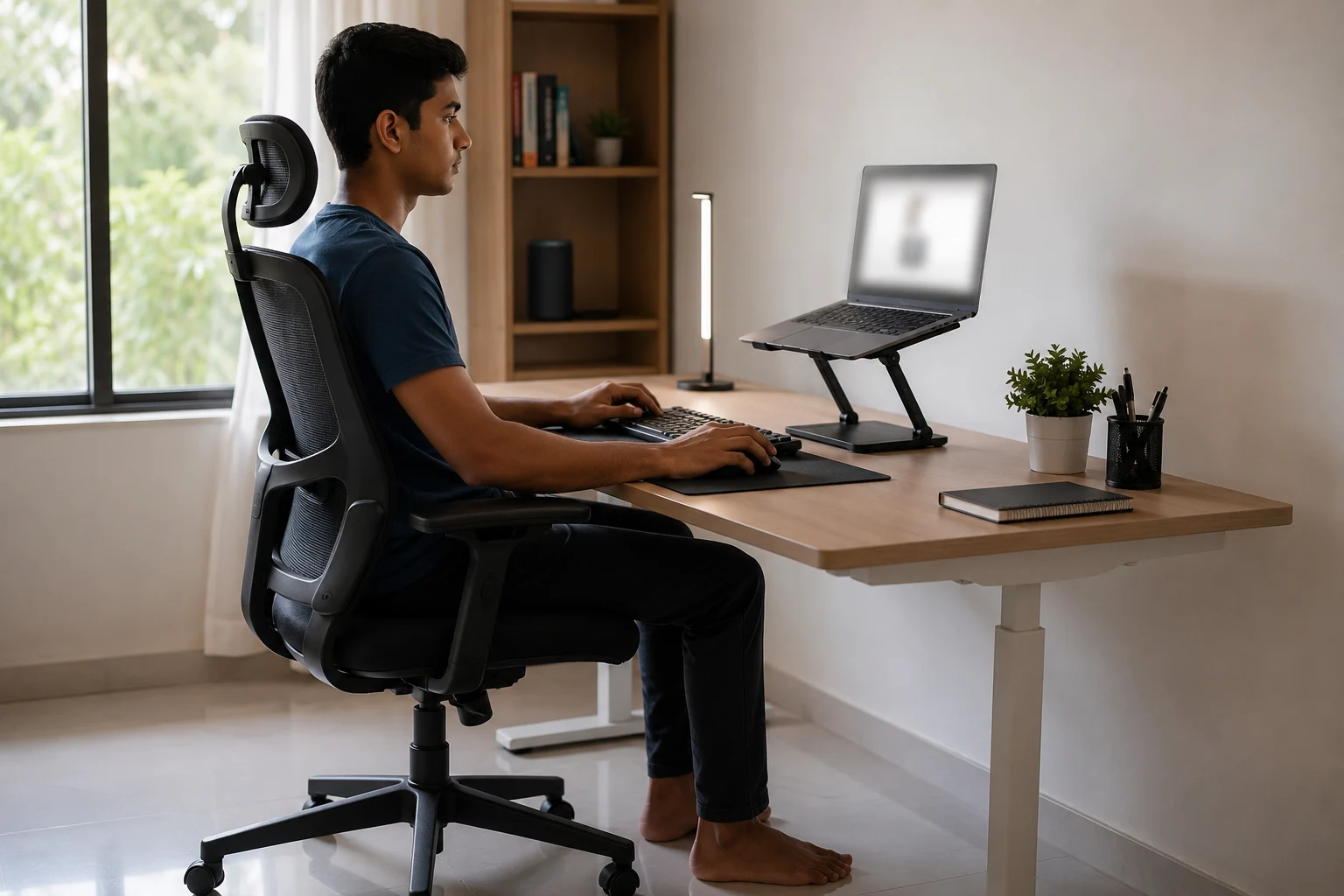
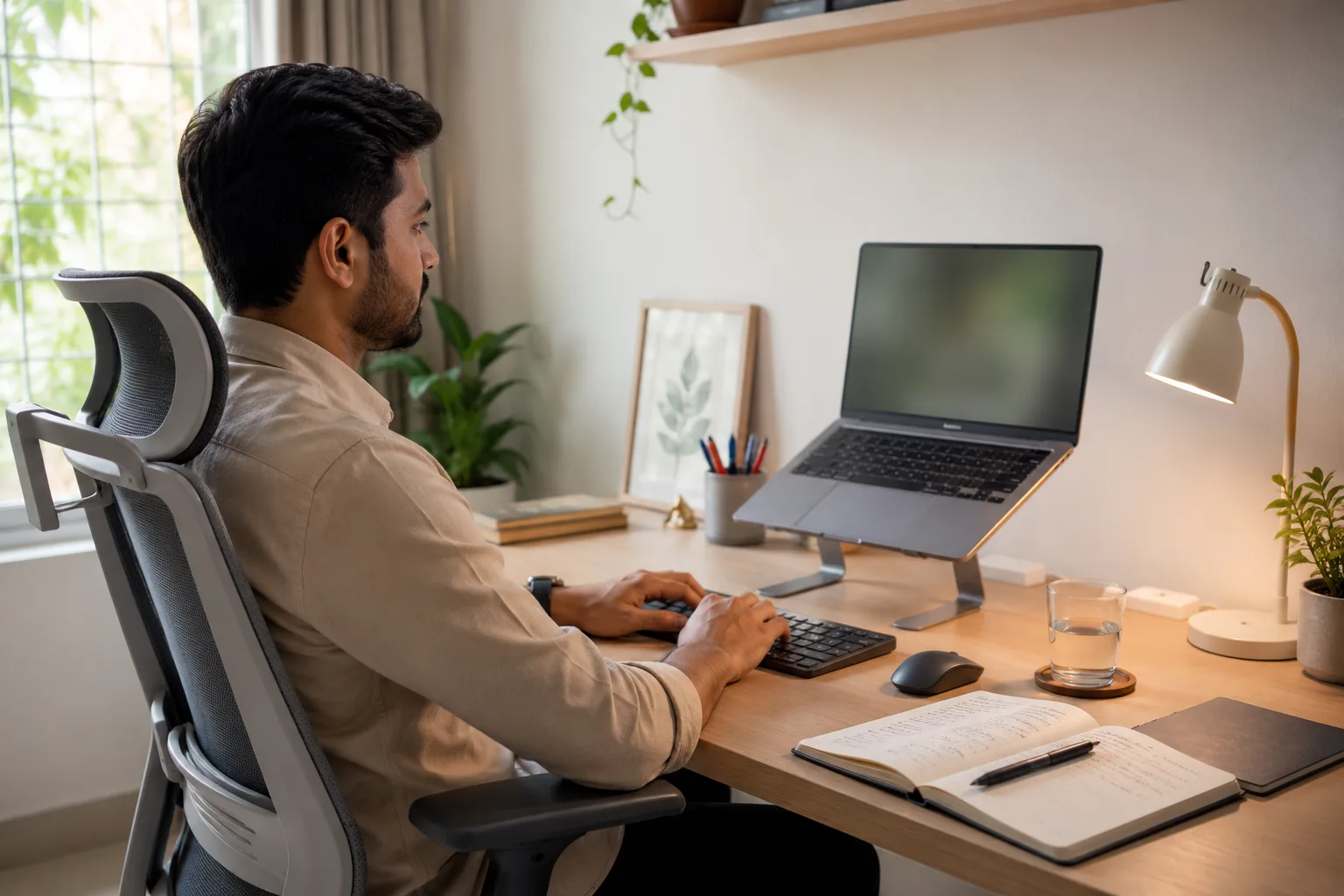
The best laptop position keeps your head balanced, your elbows close, your wrists straight, and your screen directly in front of you. If one part feels forced, the setup needs adjustment.
Use this simple check:
- Your laptop screen should sit directly in front of your face.
- Your eyes should meet the top third of the screen without bending your neck.
- Your elbows should stay close to the body at roughly 90 degrees.
- Your wrists should stay straight while typing or using the mouse.
- Your feet should touch the floor or a footrest.
- Your lower back should get support from the chair or a cushion.
This laptop position works best for office work, online classes, coding, editing, meetings, and business tasks. If your work needs long hours, avoid placing the laptop flat on a table and looking down for hours. That is one of the fastest ways to trigger neck strain.
Laptop Stand for Neck Pain: What Actually Works
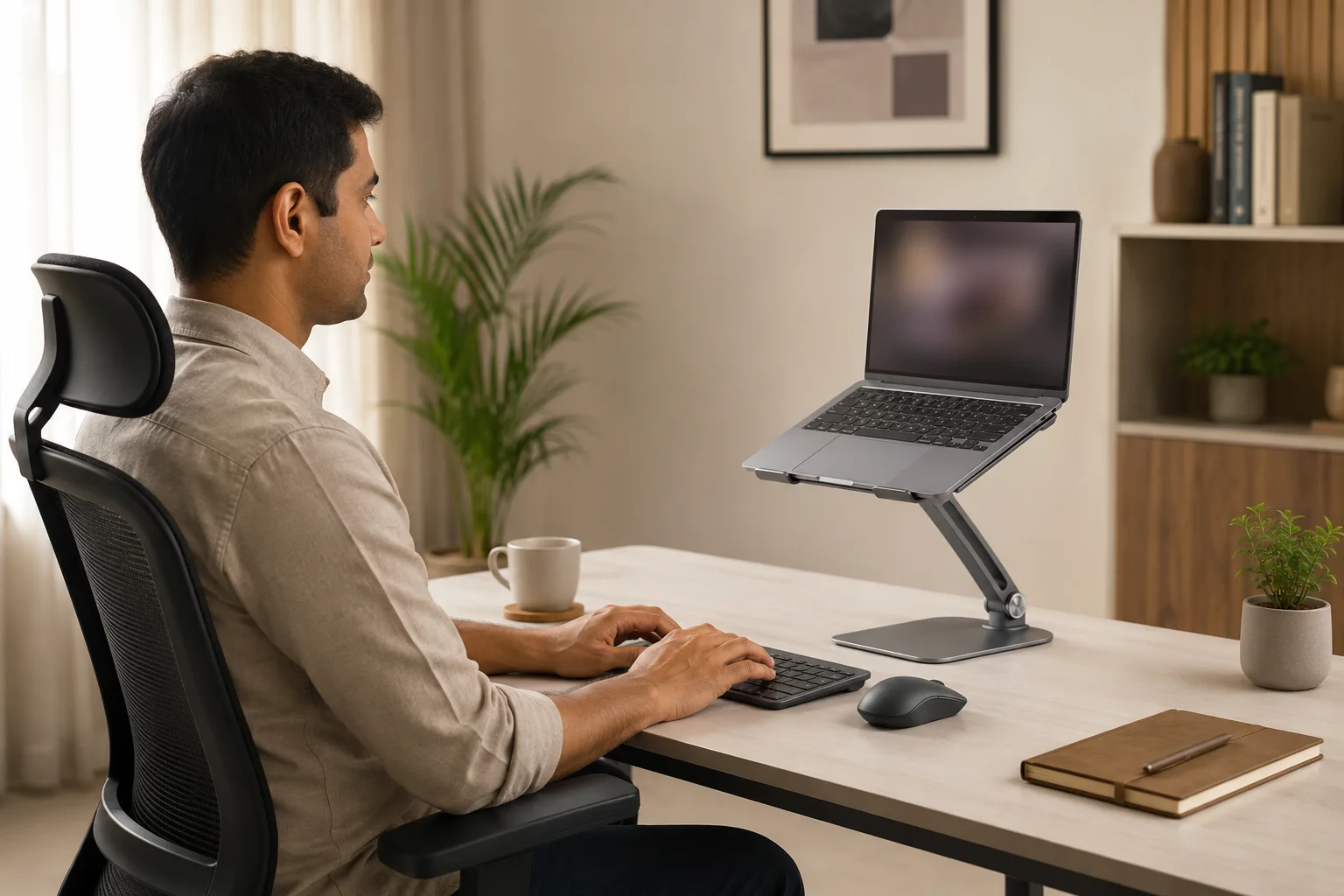
A laptop stand for neck pain works when it raises the screen without forcing your hands into a bad typing angle. A stand alone is useful, but a stand with external keyboard and mouse is much better.
A laptop stand guide from HP explains that the top of the screen should sit at or slightly below eye level, while the keyboard and mouse should stay near elbow height. This is the key point most users miss. When you lift the laptop, the built-in keyboard also rises, so typing directly on it can create shoulder and wrist strain.
Choose a laptop elevation stand that is stable, adjustable, and wide enough for your laptop size. If you travel often, use a foldable stand. If you work from one desk, use a stronger adjustable stand. If you use a heavy gaming or workstation laptop, check the stand’s weight capacity before buying.
Can You Use a Laptop in Bed Safely?
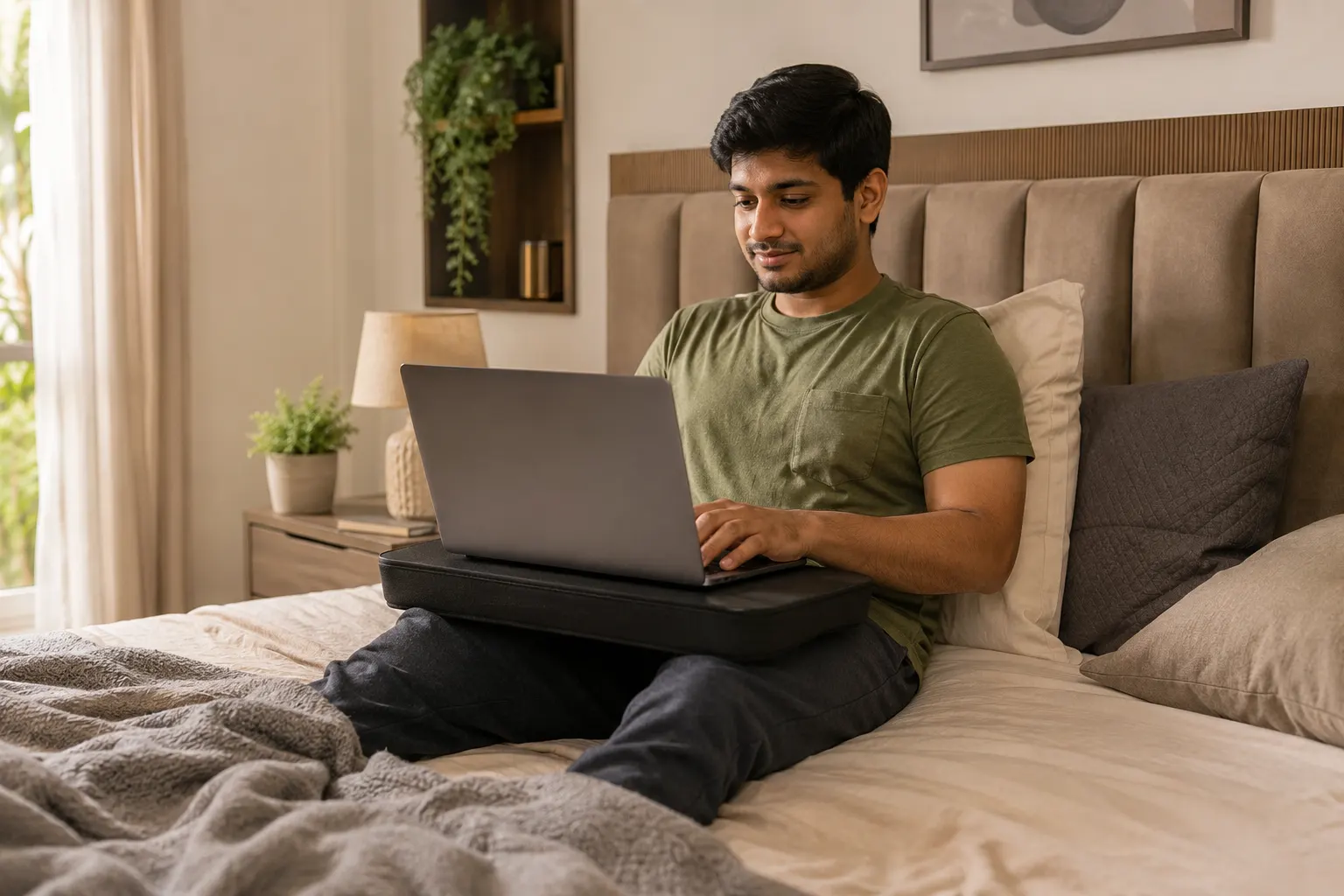
Using a laptop in bed is okay for short browsing or a quick movie, but it is not ideal for study, office work, or meetings that last for hours. The bed makes your neck bend, your back collapse, and your laptop heat up faster.
If you must use a laptop in bed, use a firm lap desk or bed table. Keep your back supported against a wall or headboard, bend your knees slightly, and keep the screen as high as possible. Do not place the laptop directly on a pillow or blanket because soft surfaces can block air vents and increase overheating risk.
For long work, move to a table. This protects both your posture and your laptop. Rentopay has a practical guide on laptop overheating prevention that is useful if you often work from soft surfaces, warm rooms, or heavy software sessions.
Tools That Help Build an Ergonomic Laptop Setup
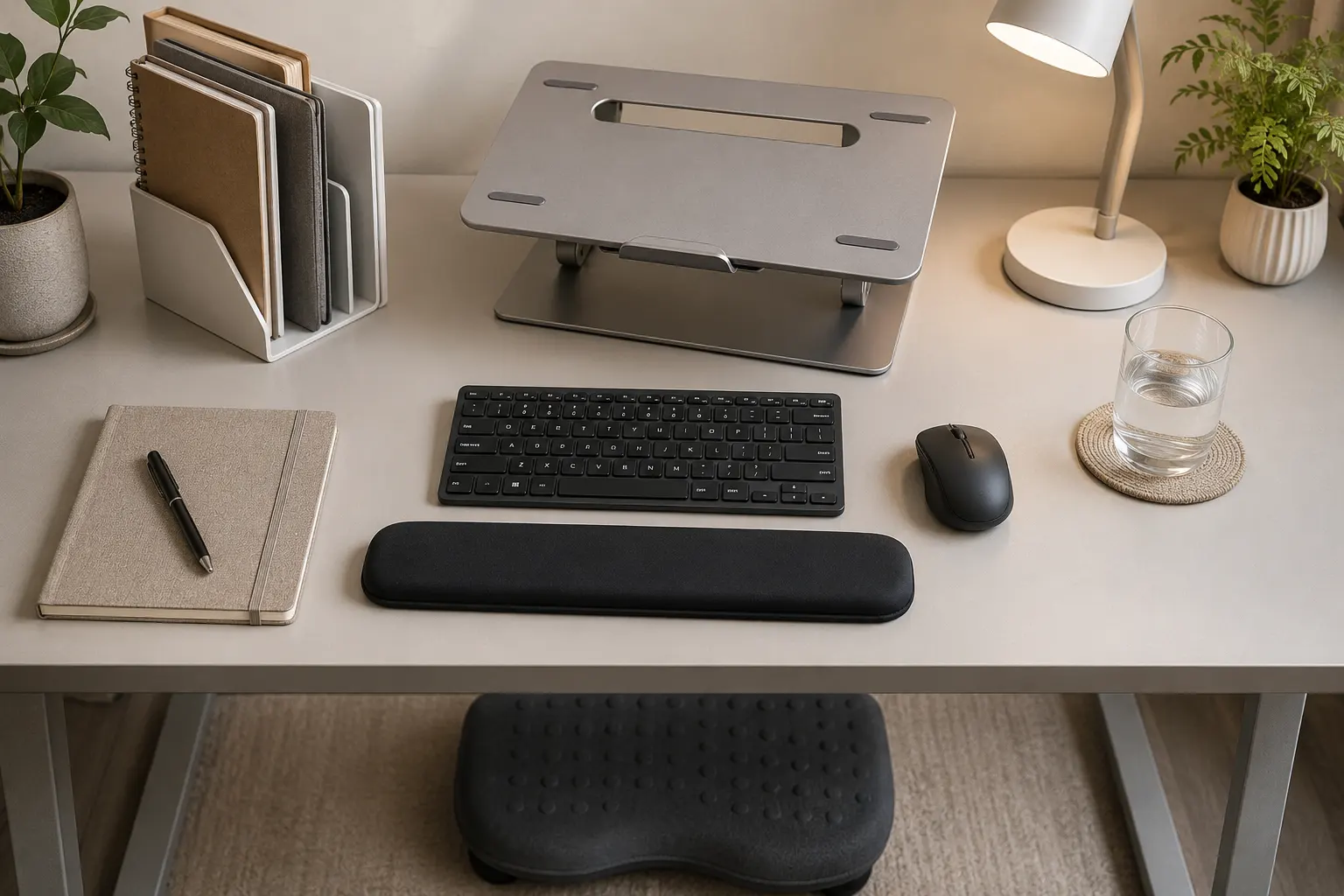
The right ergonomic tools make laptop use easier, especially when you work daily. Start with a laptop elevation stand, external keyboard, wireless or wired mouse, supportive chair, footrest, and a small desk lamp.
A laptop elevation stand helps bring the screen closer to eye level, while an external keyboard and mouse keep your hands in a relaxed position. This matches the basic ergonomic guidance shared by Mayo Clinic’s office ergonomics guide, where screen height, keyboard position, and relaxed shoulders are key parts of a comfortable workstation.
Useful ergonomic tools include:
- Laptop elevation stand: Raises the laptop screen and reduces the habit of looking down for long hours.
- External keyboard: Keeps your elbows and wrists in a more natural position while typing.
- Wireless or wired mouse: Reduces strain caused by repeated trackpad use, especially during design, browsing, or spreadsheet work.
- Supportive chair: Helps your lower back stay supported during study, office work, or long meetings.
- Footrest: Useful when your feet do not touch the floor properly.
- Desk lamp: Reduces eye strain when room lighting is poor, especially during evening work.
- Laptop cooling pad: Helps improve airflow when you use heavy software or work in warm rooms.
- Document holder: Keeps printed notes or documents near screen height, so you do not keep bending your neck.
- External monitor: Useful for coding, design, accounting, video editing, and multitasking.
- Webcam: Helps maintain a better screen position during long video meetings.
You can also add a wrist rest, monitor arm, laptop cooling pad, document holder, and webcam if your work involves long meetings or heavy multitasking. A compact keyboard can reduce shoulder reach because the mouse sits closer to your body, which is also supported by general workstation guidance from OSHA’s computer workstation recommendations.
For more ideas, Rentopay’s guide to best laptop accessories in India can help users choose practical add-ons without buying random gadgets. The goal is not to fill your desk with accessories, but to choose tools that improve your laptop position, reduce neck strain, and make daily work more comfortable.
Desk Setup for Students and College Professionals
Students need a setup that works for classes, assignments, exams, coding practice, and late-night research. The best ergonomic setup for students should be low-cost, portable, and easy to repeat daily.
Use books as a temporary laptop elevation stand if you cannot buy one right away. Add an external keyboard and mouse when study sessions cross one hour. Keep notes beside the laptop, not far away, so you do not twist your neck repeatedly while reading.
Students who cannot buy a high-end laptop immediately can also explore student-friendly laptop rental plans. Renting can make sense when you need a better machine for exams, internships, design software, coding, or short-term projects.
Ergonomic Setup for Business Owners and Startup Teams
Business owners and startup founders need laptop ergonomics because poor posture reduces energy during long calls, planning sessions, sales work, and hiring meetings. A tired neck can quickly become a tired workday.
For teams, create a simple workstation rule: laptop stand, external keyboard, mouse, chair support, and proper lighting. This is especially useful in compact offices where employees move between desks. If your team works remotely or grows fast, Rentopay’s guide on renting a laptop for remote work can help match devices with flexible work needs.
Startup teams should also avoid giving everyone random old laptops with weak batteries, poor screens, and heating issues. Bad hardware forces bad posture because users lean forward to read dim screens or sit near charging points all day.
Laptop Ergonomics for Long Work Hours
For long work hours, your setup should support movement, not just perfect sitting. Even the best chair cannot protect you if you sit frozen for five hours.
Follow the 30 to 45 minute rule. Stand, stretch, walk, or change posture for one or two minutes. Use reminders if you forget. Keep water nearby, but not so close that spills can reach the laptop. Keep frequently used items within arm’s reach, so you do not twist or stretch again and again.
A larger external monitor can help if you work on spreadsheets, design tools, code editors, or dashboards. For laptop-only users, increase font size instead of leaning forward. If your eyes feel tired, check screen brightness, glare, and room lighting before blaming only posture.
Common Laptop Ergonomics Mistakes to Avoid
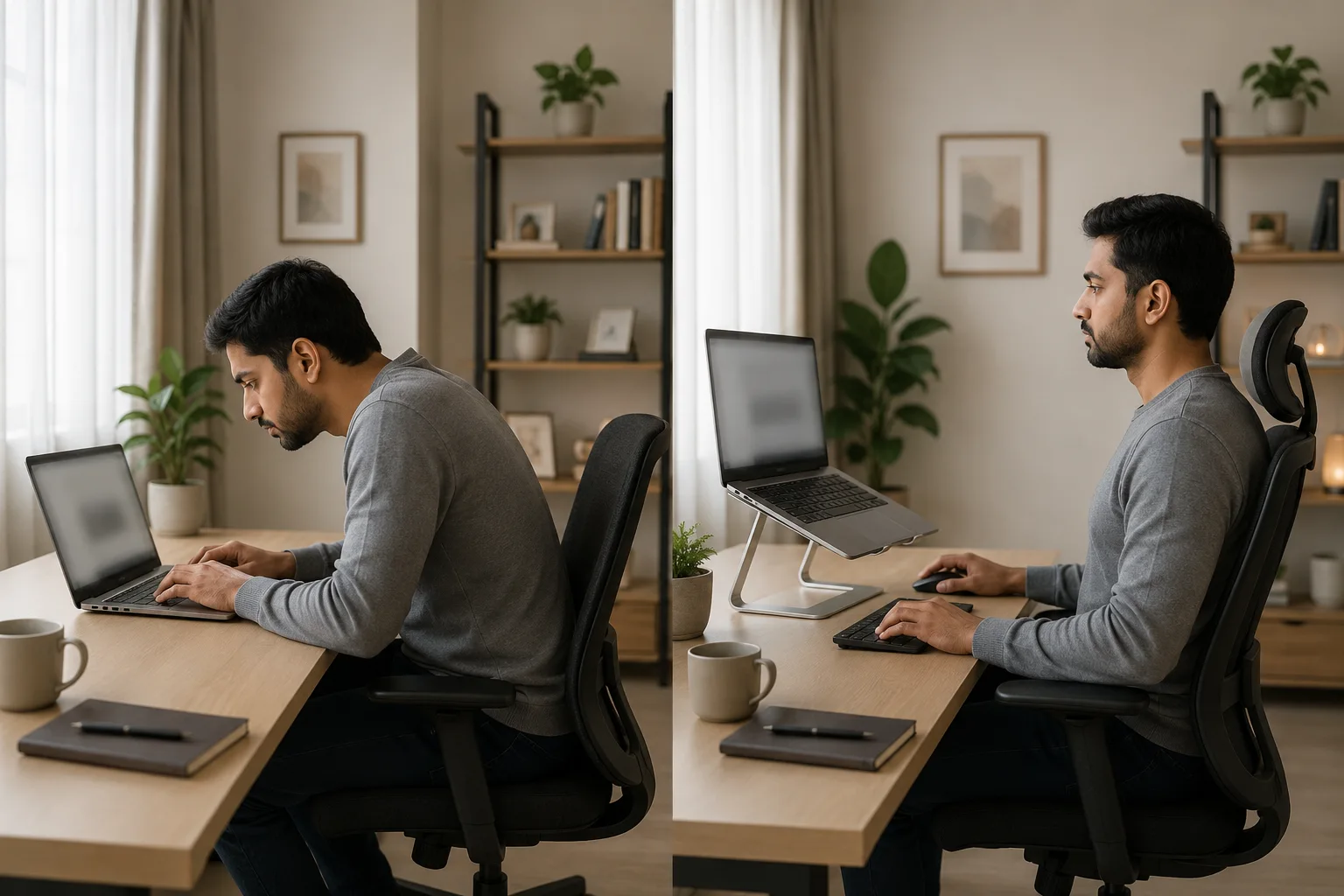
Most laptop pain comes from repeated small mistakes, not one bad sitting position. Fixing these habits can make work feel lighter within a few days.
Avoid these common issues:
- Working with the laptop flat on the desk for many hours.
- Using a laptop in bed as a full-time workstation.
- Raising the laptop but typing on the built-in keyboard.
- Keeping the mouse too far from the body.
- Sitting on a chair without back support.
- Working with crossed legs for long periods.
- Looking down at the screen during every video call.
- Blocking laptop vents with pillows, blankets, or cloth.
If you are renting a laptop for office, events, or projects, ask about screen size, battery health, ports, weight, and accessory support. Rentopay’s guide on questions to ask before renting a laptop can help you choose a device that fits both performance and comfort.
Rentopay’s Practical View on Laptop Ergonomics
From a hardware engineer’s point of view, laptop ergonomics is not only about posture. It is also about how the laptop sits, cools, connects, charges, and supports your real work environment.
A thin laptop on a soft bed may feel comfortable for 20 minutes, but the blocked airflow can increase heat. A small screen may look portable, but it can make users lean forward during long work. A heavy laptop may perform well, but it needs a stronger stand and better desk placement. The best setup balances comfort, device health, and work style.
Rentopay’s approach is simple: match the laptop and accessories to the user’s actual routine. A student, designer, developer, founder, and event team should not always use the same setup. If the work changes every few months, renting the right laptop and pairing it with the right ergonomic tools can be smarter than forcing one device to fit every use case.
Laptop Ergonomics FAQs
These laptop ergonomics FAQs answer the most common questions people ask before buying a stand, fixing neck pain, or setting up a laptop at home. The answers are short, direct, and useful for students, professionals, and business teams.
1. What is the best laptop position for daily work?
The best laptop position keeps the screen at eye level, the keyboard at elbow height, and the mouse close to your body. Your back should be supported, your feet should rest flat, and your wrists should stay straight.
2. Is using a laptop in bed bad for posture?
Yes, using a laptop in bed for long hours is usually bad for posture. Beds make you slouch, bend your neck, and place the laptop at an unstable height. Short use is fine, but long work should happen at a table. If you must work from bed, use a firm lap desk and back support.
3. Does a laptop stand for neck pain really help?
A laptop stand for neck pain can help when it raises the screen closer to eye level. It reduces the need to bend your head down for long periods.
4. What height should a laptop elevation stand be?
A laptop elevation stand should raise the screen so the top third is near your eye level. The exact height depends on your chair, desk, body height, and laptop size.
5. Should I use an external keyboard and mouse with a laptop stand?
Yes, you should use an external keyboard and mouse with a laptop stand for long work sessions. This keeps your hands at a comfortable height while the screen stays elevated.
6. How often should I take breaks while using a laptop?
Take a short break every 30 to 45 minutes when using a laptop for work or study. Stand, stretch, walk, or change posture for one or two minutes.
7. Can laptop ergonomics improve productivity?
Yes, laptop ergonomics can improve productivity because discomfort distracts the brain. When your neck, eyes, and wrists feel better, you can focus for longer.
8. What tools are most useful for laptop ergonomics?
The most useful tools are a laptop elevation stand, an external keyboard, an external mouse, supportive chair, footrest, and desk lamp. These tools fix the main issues of screen height, hand position, back support, and lighting.
Conclusion
Laptop ergonomics is not complicated, but it must be consistent. Raise the screen, separate the keyboard and mouse, support your back, keep your wrists straight, and avoid long hours with a laptop in bed.
The best laptop position is the one you can repeat every day without pain, heat issues, or awkward movement. Whether you are studying, building a startup, managing a team, or working remotely, a better setup can protect your body and help you work with more focus.