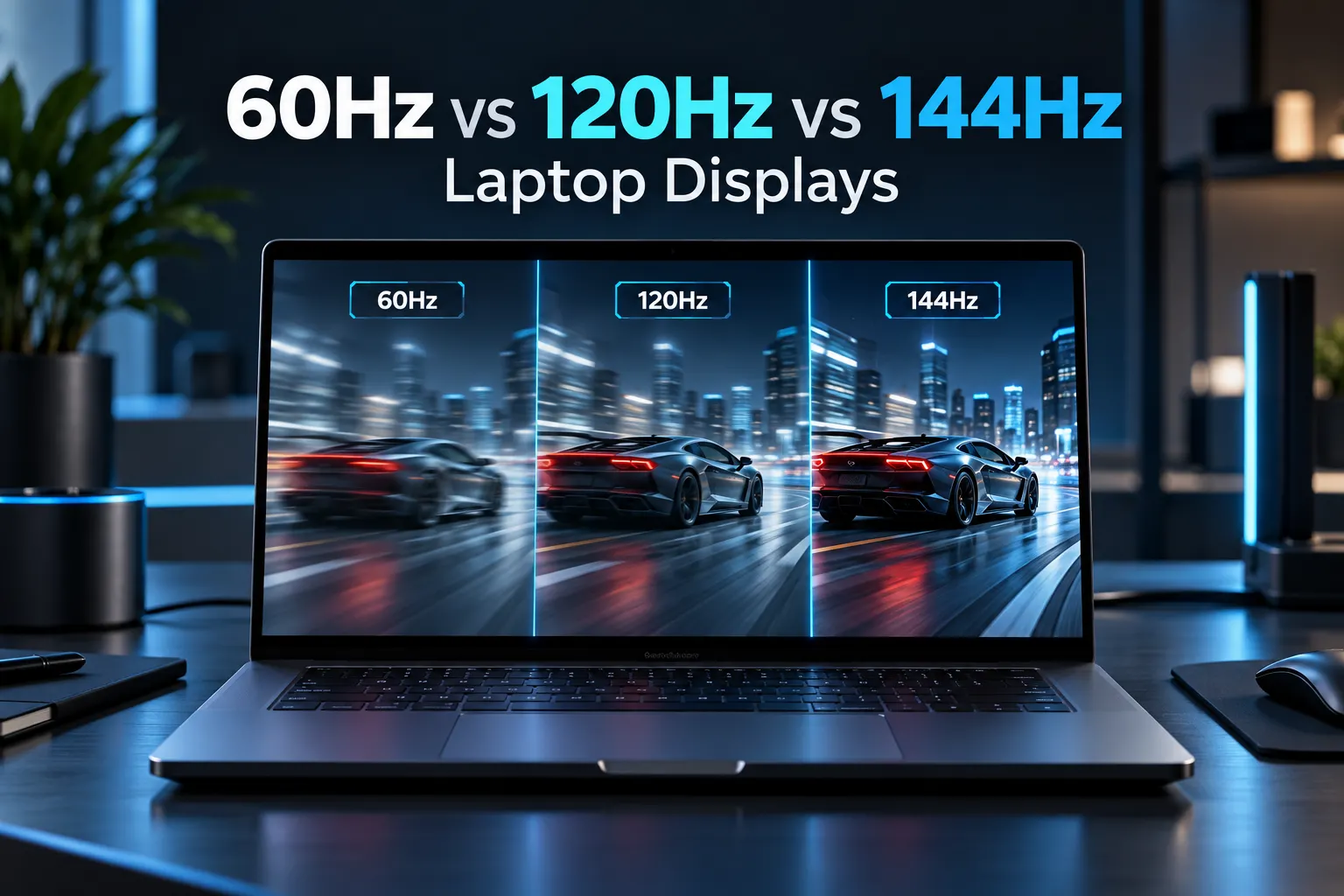
Laptop Refresh Rate Explained – 60Hz vs 120Hz vs 144Hz
Laptop refresh rate tells you how many times a screen updates its image each second. A 60Hz display refreshes 60 times, a 120Hz display 120 times, and a 144Hz display 144 times. Higher rates can make movement look smoother, but the best choice depends on your work, games and budget.
For students, professionals and businesses in India, a bigger Hz number is only one part of choosing a laptop. Screen quality, battery life and the hardware inside matter too. This guide explains the practical differences without assuming everyone needs a gaming display.
What Does Laptop Refresh Rate Mean?
Refresh rate is measured in hertz, written as Hz. Think of it as how often the display gets an opportunity to show an updated image. At a fixed 60Hz, those opportunities arrive approximately every 16.67 milliseconds. At 120Hz, the interval falls to 8.33 milliseconds; at 144Hz, it is about 6.94 milliseconds.
These intervals are calculated as 1,000 divided by the refresh rate. They are not measurements of pixel response time or total input lag. A higher setting can improve how scrolling, cursor movement and supported games appear, but it does not make your processor calculate faster.
60Hz vs 120Hz vs 144Hz Laptop Display Comparison
The table below compares common refresh rates. Treat the use cases as starting points, because two screens with the same refresh rate can differ substantially in brightness, colour quality and motion clarity.
|
Laptop refresh rate |
Refresh interval |
Typical use |
|---|---|---|
|
60Hz |
16.67 ms |
Study, office work and everyday viewing |
|
120Hz |
8.33 ms |
Smoother navigation and mixed work with gaming |
|
144Hz |
6.94 ms |
Fast gaming with sufficient frame rates |
The jump from 60Hz to 120Hz doubles the number of refresh opportunities. Moving from 120Hz to 144Hz adds another 20%, so the difference is usually less dramatic. Whether you notice it depends on the content, panel behaviour and your sensitivity to motion.
60Hz vs 120Hz Laptop: Which Feels Better?
In a 60Hz vs 120Hz laptop comparison, 120Hz often feels smoother when scrolling long webpages, moving windows or navigating animated interfaces. This can be pleasant during everyday use even if you never play games.
A 60Hz screen remains suitable for email, spreadsheets, online classes, documents and ordinary video viewing. It does not stop you from completing demanding work. If the choice is between a better-quality 60Hz panel and a dim, poor-colour 120Hz panel, consider the whole screen rather than choosing by Hz alone.
A higher refresh rate also does not automatically add new frames to a film or meeting stream. The content retains its original frame rate unless software performs interpolation. For broader panel differences, see Rentopay’s guide to types of display in laptops.
When Is a 144Hz Laptop Display Worth It?
A 144Hz laptop display is especially useful for fast games when the system produces high, reasonably consistent frame rates. Racing, competitive shooters and other quick-moving games can benefit from more frequent visual updates.
However, the label alone does not promise smooth gameplay. A game running at 45 FPS will not become 144 FPS because the screen supports 144Hz. Graphics settings, resolution, cooling and CPU performance all influence the frames the laptop can deliver.
Before choosing a gaming configuration, check performance in your actual games at the resolution you intend to use. Intel’s refresh rate guide also recommends checking whether your system can deliver the frame rates needed to benefit from a faster display. Rentopay’s CPU vs GPU guide explains how both processors contribute to laptop performance.
Refresh Rate vs FPS and Response Time
These specifications describe different parts of the experience. Understanding them prevents a common mistake: treating a high Hz rating as proof that every moving image will look sharp.
- Refresh rate: how often the display refreshes, measured in Hz.
- Frame rate: how many frames the system renders per second, measured in FPS.
- Response time: how quickly pixels change between specified colour levels.
- Input lag: the delay between an input and its visible result, affected by the wider system.
Slow pixel transitions can leave trails or ghosting even on a high-refresh panel. Aggressive overdrive settings can introduce bright or dark halos. Check measured reviews of the exact laptop panel rather than comparing advertised response-time numbers from different testing methods.
Intel’s display buying guide explains why refresh rate, response time and panel characteristics should be assessed together. Screen tearing is another issue: it can occur when frame delivery and display refreshes are not synchronised.
Choosing a High Refresh Rate Laptop for Your Work
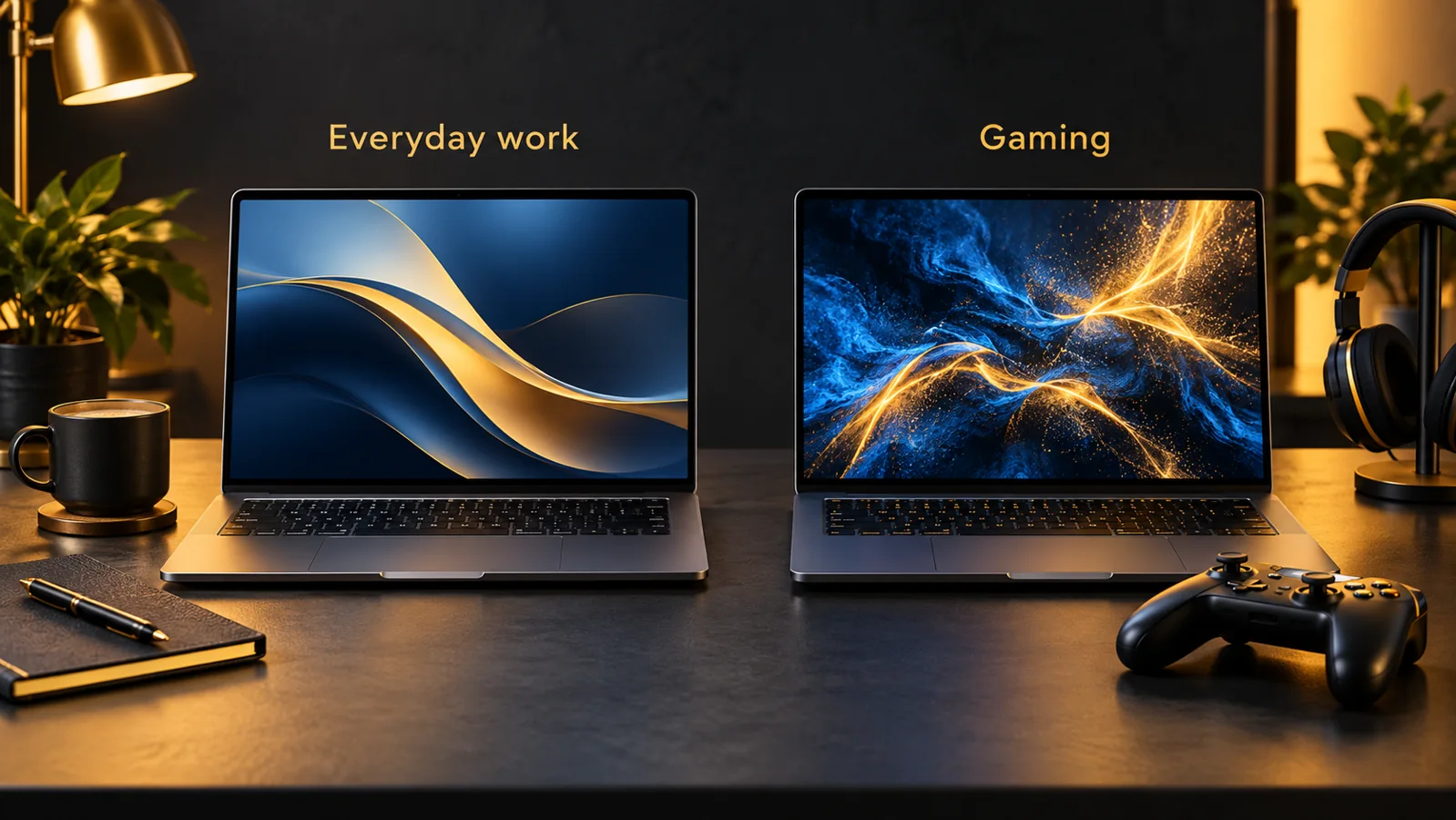
Choose a high refresh rate laptop around what appears on your screen most often. A student reading notes has different priorities from someone practising competitive games or reviewing fast animation.
- Study and office work: 60Hz is generally sufficient; 120Hz is a useful comfort preference for smoother navigation.
- Mixed work and gaming: 120Hz can be a balanced choice when the rest of the configuration fits.
- Fast-paced gaming: 144Hz is worth considering alongside adequate graphics performance and good response times.
- Design and editing: prioritise accurate colour, suitable resolution and brightness before buying solely for refresh rate.
Display size also affects workspace and portability. Rentopay’s laptop screen size guide can help you weigh those factors alongside smoothness.
Does a Higher Refresh Rate Reduce Battery Life?
Higher refresh settings can increase power use, although the effect varies with the panel, brightness, workload and laptop design. Running games at higher FPS can also increase processor activity. There is no single battery-life penalty that applies to every 120Hz or 144Hz laptop.
Where supported, lowering the setting for battery-powered work may help. Windows Dynamic Refresh Rate can switch rates according to activity on compatible hardware. This differs from gaming variable refresh rate, which synchronises the display with frame delivery within a supported range to reduce tearing and stutter.
Check the specific model’s support instead of assuming every high-refresh screen includes either feature. Compare battery tests under similar conditions, especially if you regularly work away from a charger.
How to Check and Change Laptop Refresh Rate
In Windows 11, you can check the active setting without installing another application. Microsoft’s refresh rate instructions outline the supported options:
- Open Settings > System > Display.
- Select Advanced display.
- Choose the correct display if more than one is connected.
- Find Choose a refresh rate and select an available option.
- Confirm the change and check that the screen works normally.
Available choices depend on the display and configuration. For an external monitor, the laptop’s output, dock, cable, resolution and monitor must support the chosen combination. Selecting a higher rate may require a different resolution; check before accepting it.
Rentopay’s Take: Choose the Screen for the Task
Before buying or renting, confirm the exact laptop model and display option. A product family may offer several screens, so the same series name does not guarantee 144Hz. Ask about resolution, brightness, refresh rate and the GPU configuration together.
For a temporary gaming event, creative project or business team, discuss the workload with Rentopay and confirm available specifications. A suitable 60Hz laptop can serve routine office work well, while users who value smoother motion may prefer 120Hz or 144Hz. Spend for a benefit you will actually use.
Laptop Refresh Rate FAQs: 60Hz vs 120Hz and 144Hz Displays
These laptop refresh rate questions cover everyday use, gaming, upgrades and battery life. Use the answers alongside the exact model specifications when deciding whether a high refresh rate laptop suits your needs.
1. Is 60Hz Enough for a Laptop?
Yes. A 60Hz laptop is generally sufficient for studying, office applications, browsing and video calls. Higher refresh rates mainly improve the appearance of motion rather than basic application capability.
2. Is a 120Hz Laptop Better Than 60Hz?
It can feel smoother during scrolling and supported games. However, brightness, colour quality, battery life and price still matter, so 120Hz alone does not make a laptop better overall.
3. Is 144Hz Much Better Than 120Hz?
144Hz provides 20% more refresh opportunities than 120Hz. The improvement is usually smaller than the jump from 60Hz to 120Hz and depends on the content and display quality.
4. Does a 144Hz Laptop Display Increase FPS?
No. The CPU, GPU, game and settings determine rendered FPS. A 144Hz screen can refresh more frequently, but it cannot generate missing game frames.
5. Can I Upgrade a 60Hz Laptop to 144Hz?
Changing a setting cannot turn a 60Hz-only panel into 144Hz. Internal replacement requires verified hardware compatibility. An external high-refresh monitor may work if the laptop’s output supports it.
6. Which Laptop Refresh Rate Is Best for Battery Life?
On the same supported display, a lower refresh setting may save power. Actual runtime also depends on brightness, battery capacity, processor activity and the applications you use.