5 Types of Display in Laptop You Should Know
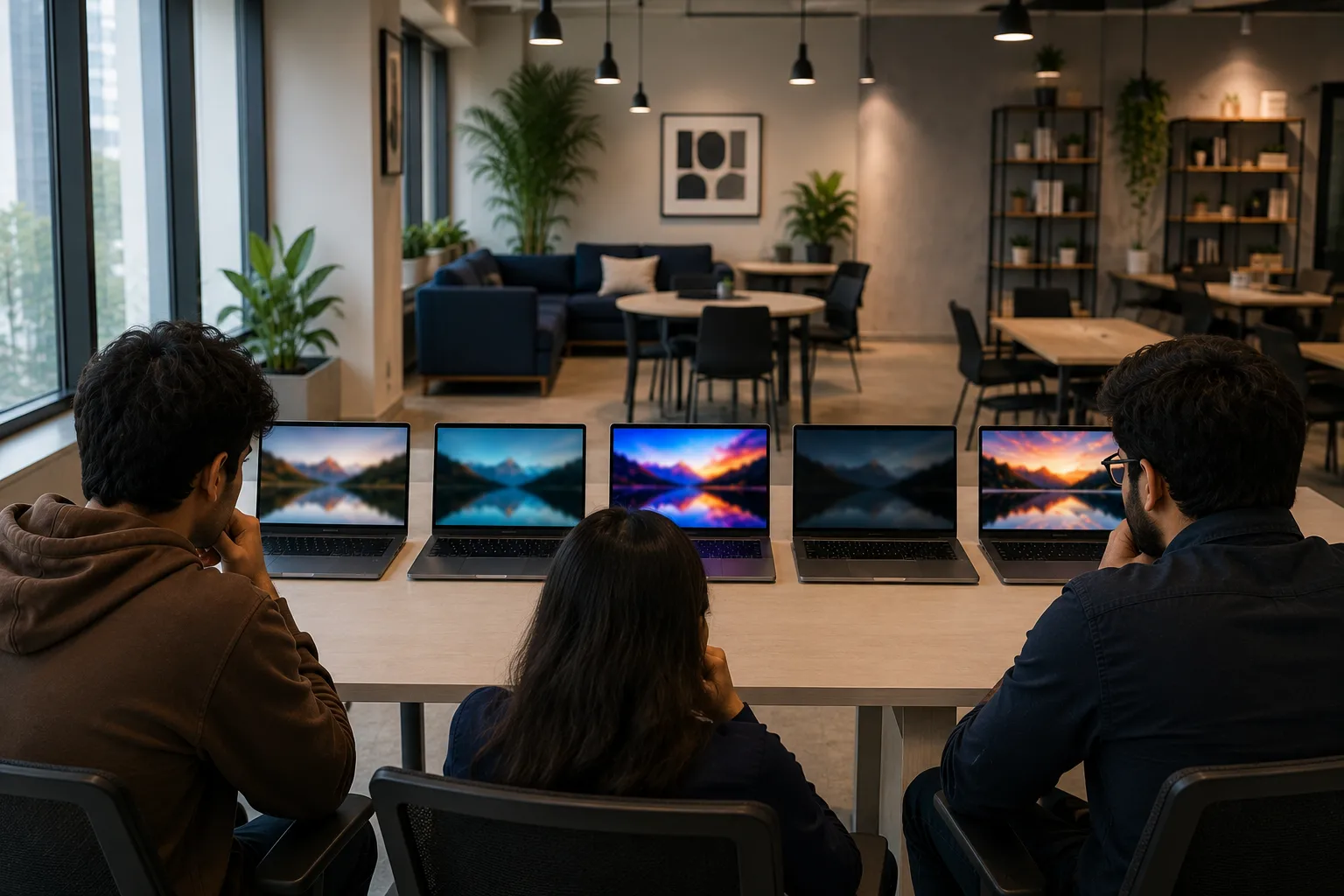
The main types of display in laptop models include IPS, TN and VA LCD panels, OLED screens and LCD panels with Mini-LED backlighting. For most students, working professionals and startup teams in India, a Full HD+ IPS display offers the best balance of screen quality, price and long-term reliability.
OLED is better suited to movies, gaming and colour-focused creative work because it produces deeper blacks and faster pixel response. Mini-LED works well for users who need high brightness and improved HDR performance, while TN mainly appears in older or entry-level laptops.
The panel name is only one part of the decision. Resolution, brightness, colour coverage, refresh rate, surface coating and aspect ratio also influence whether a display screen laptop feels comfortable and useful during everyday work.
Quick Comparison of Different Screen Types
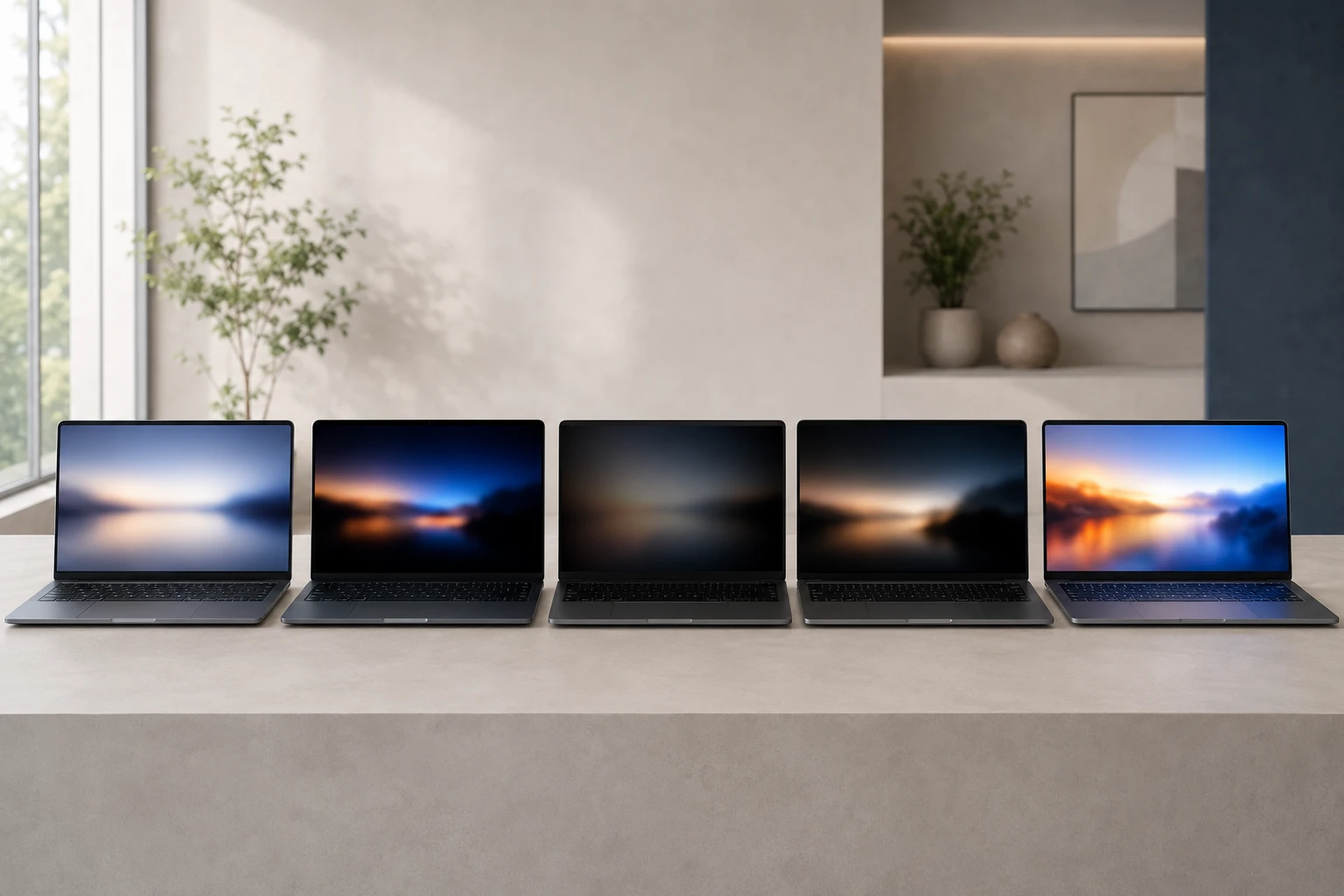
The best laptop screen depends on your workload, budget and surrounding light. A costly screen may look impressive in a showroom, but it may offer little practical value if you mainly use documents, online meetings and browser-based applications.
|
Display type |
Main strength |
Main limitation |
Suitable for |
|---|---|---|---|
|
IPS LCD |
Balanced colours and viewing angles |
Average black levels |
Study, coding and office work |
|
OLED |
Deep blacks and fast response |
Burn-in risk and reflections |
Design, films and gaming |
|
TN LCD |
Affordable and responsive |
Weak colours and viewing angles |
Basic use |
|
VA LCD |
Stronger contrast |
Rare in laptops |
Entertainment |
|
Mini-LED LCD |
High brightness and HDR |
Expensive and may show blooming |
Professional visual work |
Two laptops using the same panel technology can still produce very different results. One IPS panel may have poor brightness and limited colour coverage, while another may offer a sharp resolution, accurate colours and a smoother 120Hz refresh rate.
How Does a Laptop Display Work?
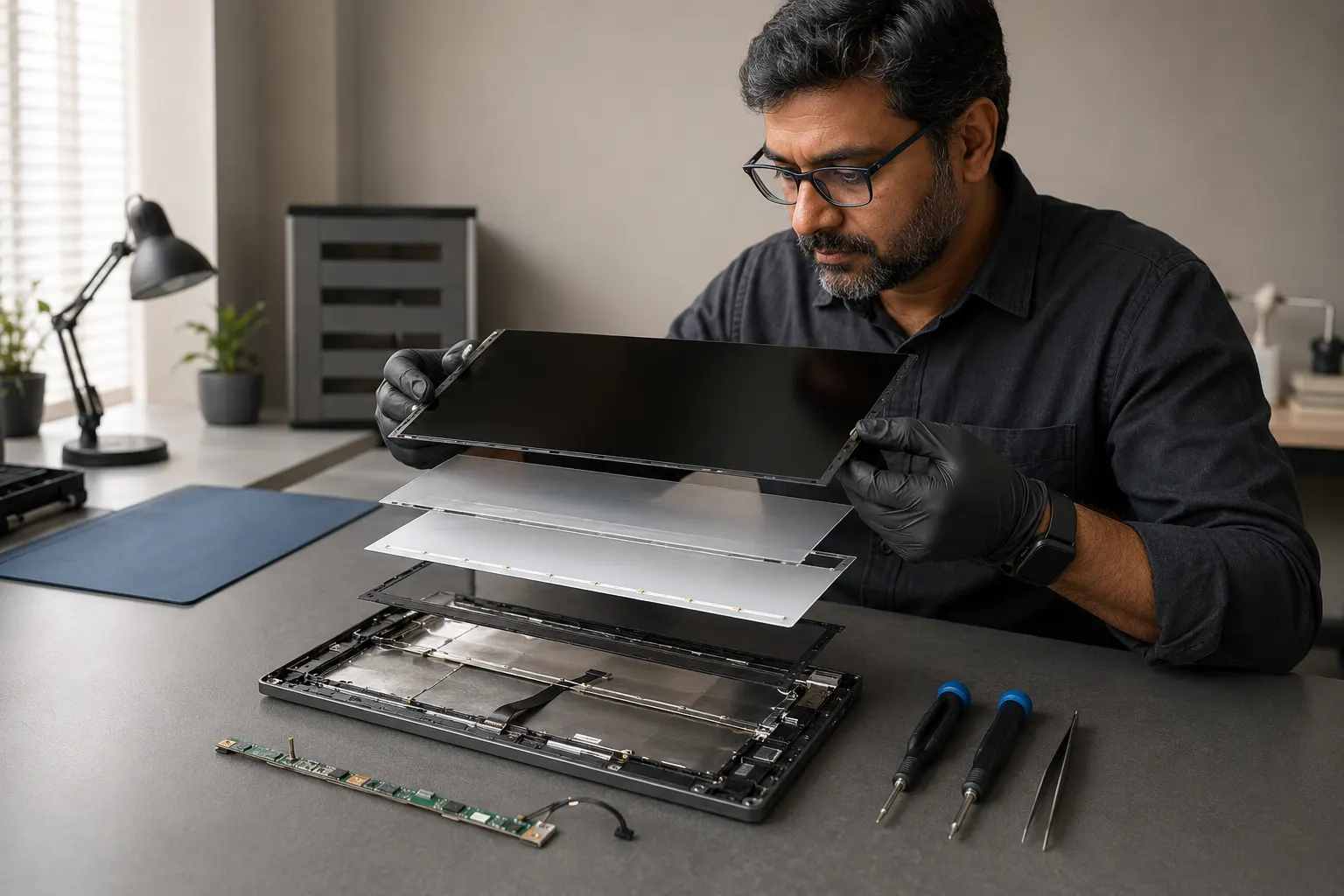
A laptop display contains several layers that work together to create the image. The panel forms the picture, the backlight provides illumination in LCD screens, and an optional digitiser allows the display to detect touch or stylus input.
The screen assembly also includes a display cable, controller, protective surface and coating. PCMag’s laptop display technology guide separates panel types from specifications such as resolution and refresh rate, while My Laptop Spares explains the main components used inside laptop screens.
This distinction also helps during repairs. A failed backlight may leave a faint image visible, while flickering or lines that change when the lid moves may indicate a damaged display cable rather than a faulty panel.
IPS Display: The Practical Choice for Most Users
An IPS display is the most practical option for students, programmers, business owners and office teams because it provides consistent colours and wide viewing angles. The image remains clear even when you view the screen from the side, making IPS suitable for presentations, discussions and shared work.
IPS screens also handle static applications well. You can keep spreadsheets, browser tabs, coding tools and business dashboards open for long periods without the permanent image-retention concerns associated with OLED technology.
Advantages of an IPS display
- Wide and consistent viewing angles
- Better colours than most TN panels
- Suitable for study, office work and coding
- Available across different price ranges
- No permanent burn-in risk
- Commonly available with anti-glare coatings
The IPS label alone does not guarantee the best laptop screen. Look for Full HD or Full HD+ resolution, at least 300 nits of brightness and close to 100% sRGB coverage when colour accuracy matters.
Rentopay’s guide to the best Lenovo laptops for office use explains why display comfort, processing power and business reliability should be evaluated together.
OLED Display: Premium Quality with Trade-Offs
OLED can produce excellent image quality because every pixel generates its own light. Black pixels switch off completely, creating deeper blacks, stronger contrast and more detail in dark films, games and creative content.
OLED panels also offer fast response and wide viewing angles. However, vivid colours do not automatically mean professional colour accuracy, so designers should still verify sRGB, DCI-P3 coverage and factory calibration.
Advantages of an OLED laptop screen
- Deep black levels
- High contrast
- Rich colours
- Fast pixel response
- Wide viewing angles
- Strong movie and gaming experience
Limitations of OLED
- Higher cost than standard IPS screens
- Possible image retention or burn-in
- Reflections on glossy panels
- Variable battery use with bright content
- Colour accuracy depends on calibration
Static taskbars, browser controls and application menus may contribute to image retention after prolonged use. Manufacturers reduce this risk through pixel shifting, automatic screen timeout and panel-care controls, but users should keep these protections enabled.
For professional creative work, Rentopay’s graphic design laptop guide explains how display quality should work with suitable RAM, graphics and processor performance.
TN Display: Affordable but Visually Limited
TN, or Twisted Nematic, is one of the oldest types of display in laptop models. Manufacturers used it widely because it was affordable to produce and could offer quick response times on budget and older gaming laptops.
The main weakness is viewing-angle performance. Colours, brightness and contrast may change when you tilt the screen or view it from the side, which makes TN less suitable for presentations, design work and shared viewing.
Advantages of a TN display
- Lower manufacturing cost
- Fast response on some models
- Suitable for basic applications
- Available in older budget laptops
- Can support high refresh rates
Limitations of a TN display
- Narrow viewing angles
- Limited colour accuracy
- Weaker contrast than IPS or OLED
- Image changes when the lid is tilted
- Not suitable for professional creative work
A TN screen can still handle data entry, billing applications and basic browsing when price is the main concern. However, an IPS laptop usually offers better long-term value when the difference in cost is small.
VA Display: Strong Contrast but Limited Availability
VA, or Vertical Alignment, generally provides stronger contrast than a standard IPS panel. Dark movie scenes can appear deeper and more detailed, which makes VA suitable for entertainment and content viewed in dim rooms.
However, VA panels remain uncommon in laptops and appear more frequently in desktop monitors. Pixel transitions may also be slower on weaker panels, causing visible smearing during fast games or moving scenes.
Advantages of a VA display
- Strong contrast
- Deeper black levels
- Good performance for films
- Better visual quality than basic TN panels
- Suitable for entertainment
Limitations of a VA display
- Rare in laptop models
- Slower response on some panels
- Possible motion smearing
- Less consistent viewing angles than IPS
- Limited model choices
Do not rely only on the VA label when comparing a display screen laptop. Check independent measurements for response time, brightness, colour gamut and motion quality before choosing a particular model.
Mini-LED Display for Brightness and HDR
Mini-LED is an advanced backlighting system used behind an LCD panel. It uses many small LEDs divided into local dimming zones, allowing bright highlights and dark areas to appear together more effectively than on a standard edge-lit display.
This technology works well for HDR editing, premium entertainment and bright offices. It can produce higher brightness than many OLED panels and does not carry the same permanent burn-in concerns, but it may show a soft halo around bright objects on dark backgrounds.
This halo effect is called blooming. Its visibility depends on the number of dimming zones and the quality of the backlight-control system, which means two Mini-LED laptops may provide noticeably different image quality.
LCD, LED and OLED: Understanding the Difference
LCD stands for Liquid Crystal Display and requires a separate light source behind the panel. Most modern LCD laptops use LED backlighting, which is why the terms LCD and LED frequently appear together in laptop specifications.
IPS, TN and VA describe different LCD panel technologies. LED describes the backlight, so an IPS display can also be described as an LED-backlit screen without creating any technical contradiction.
OLED works differently because every pixel creates its own light. Mini-LED still belongs to the LCD family because its smaller LEDs improve the backlight rather than replacing the liquid-crystal panel.
Resolution, Brightness and Colour Accuracy
Resolution determines how much detail a screen can display. Full HD at 1920 × 1080 remains suitable for normal use, while a Full HD+ resolution of 1920 × 1200 provides extra vertical space for documents, web pages and coding tools.
A 2.5K or higher resolution can improve detail for design and editing, but it also makes the graphics system process more pixels. This may reduce battery life and gaming performance, particularly when the laptop has entry-level graphics hardware.
Around 300 nits of brightness works for normal indoor use, while bright rooms may require 400 nits or more. Users involved in web design, presentations or digital content should look for close to 100% sRGB coverage instead of trusting vague descriptions such as vivid or cinema-quality colour.
Refresh Rate and Response Time
Refresh rate measures how many times the display updates every second. A 60Hz panel is suitable for regular office work, while 90Hz or 120Hz creates smoother scrolling, animations and general movement.
Gaming laptops commonly use 144Hz, 165Hz or higher refresh rates. However, the processor and graphics card must generate enough frames to use the panel properly, otherwise the higher refresh-rate specification adds limited practical value.
Response time measures how quickly individual pixels change. A high-refresh display can still show ghosting when its pixels respond slowly, so gamers should evaluate both refresh rate and response performance.
Microsoft’s Windows refresh-rate guide explains how available refresh rates may change depending on the selected resolution.
Matte, Glossy and Touchscreen Displays
A matte screen uses an anti-glare coating to soften reflections from windows and overhead lights. This finish generally works well in classrooms, offices and home workspaces where lighting conditions cannot always be controlled.
A glossy screen can make colours and contrast appear richer, but it may reflect lights and surrounding objects. Many OLED and touchscreen laptops use glossy glass, so users should test the screen near a window before making a decision.
Touchscreens support handwritten notes, drawing, presentations and convertible laptop modes. They can also increase price, weight and power consumption, so touch functionality makes sense only when it supports a regular task.
Choosing the Best Laptop Screen for Your Work
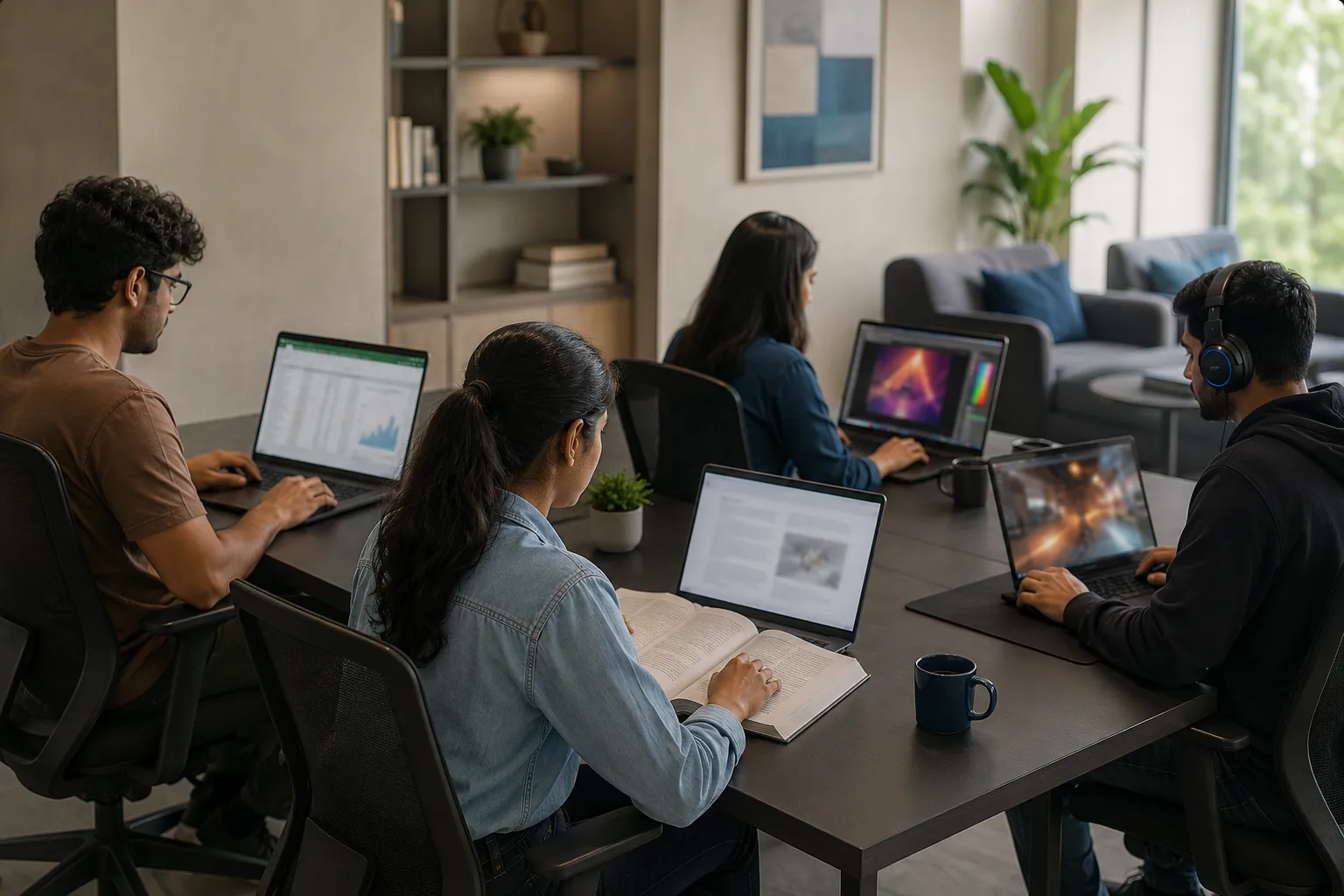
Students usually benefit from a Full HD+ IPS screen with a matte coating and at least 300 nits of brightness. This combination provides clear text, practical battery performance and comfortable viewing without increasing the laptop price unnecessarily.
Business owners and startup teams should consider a 16:10 IPS screen for documents, dashboards and video meetings. OLED or Mini-LED laptops should normally be reserved for designers, editors and employees whose work genuinely requires wider colour coverage or HDR performance.
Gamers should choose a fast IPS or OLED screen with a refresh rate that matches their graphics hardware. Rentopay’s guides to the best gaming laptops in India and best laptops for video editing provide more workload-specific recommendations.
How Laptop Displays Affect Battery Life
The screen is one of the largest power-consuming parts of a laptop. High brightness, resolution and refresh rate can reduce battery life because the display and graphics processor must perform more work.
OLED power consumption changes according to the content shown. Dark interfaces may use less power because black pixels switch off, while bright webpages, documents and white application backgrounds may consume more energy.
Actual battery life also depends on processor efficiency, battery capacity, software and background activity. You should therefore compare complete battery tests rather than assuming one display technology will always last longer.
How to Check a Laptop Screen Before Buying or Renting
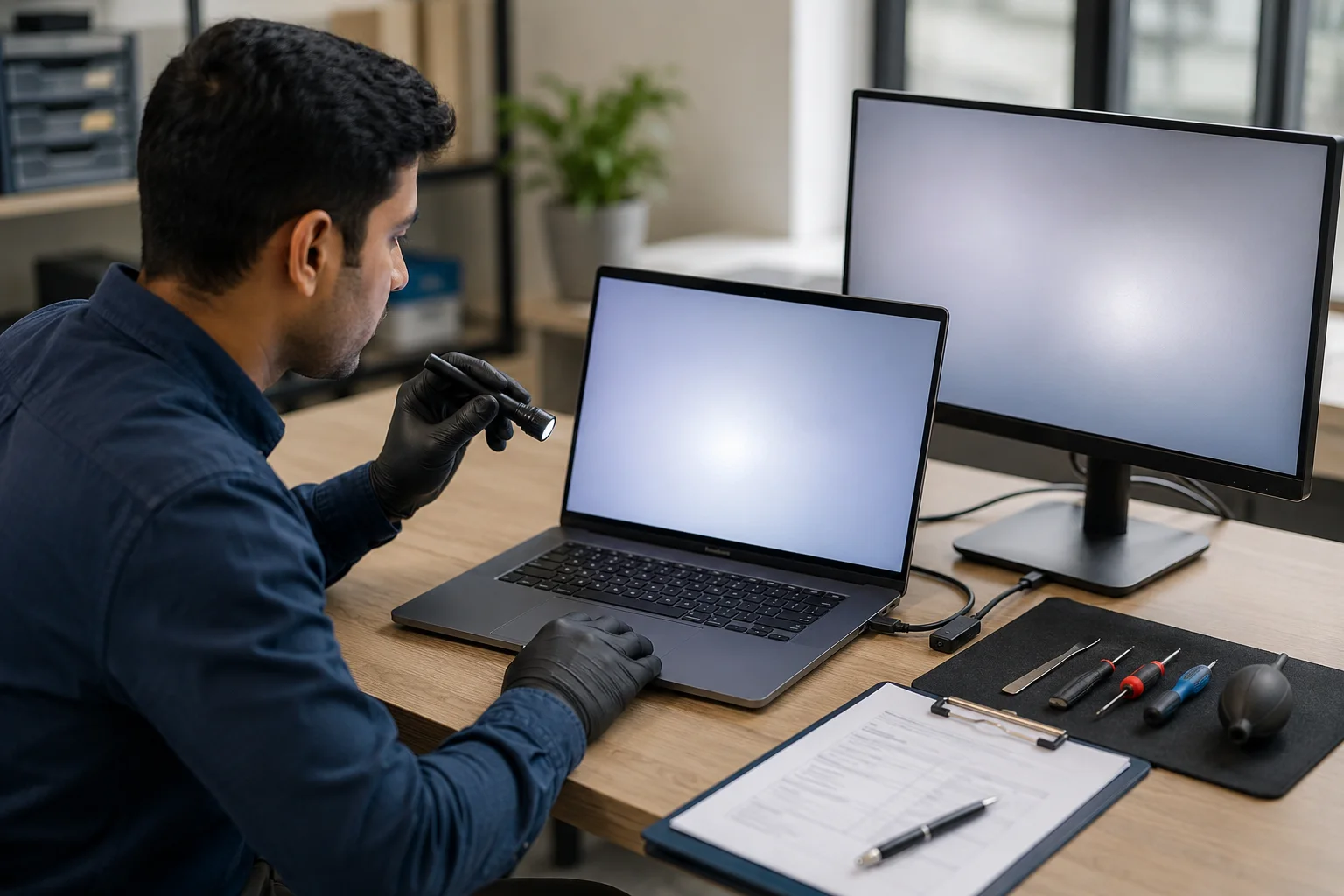
Open full-screen white, black, red, green and blue images to check for dead pixels, bright pixels, colour patches and uneven brightness. Reduce the brightness to test for flicker, then move the lid slowly and watch for lines that change with the screen position.
Test the display near a window to understand how strongly it reflects surrounding light. When you notice artifacts or lines, connect an external monitor because a clean external image may point to a panel, cable or backlight problem inside the laptop.
Rentopay’s guides to white dots on laptop screens and laptop screen flickering explain these symptoms in more detail.
Rentopay Brand Take: Choose the Display Before the Logo
A powerful processor cannot correct a dim, reflective or inaccurate screen. Since you view the display during every task, its brightness, clarity and coating may affect daily productivity more than an expensive processor upgrade that remains underused.
Most students and office users should prioritise a high-quality IPS screen. Designers should focus on measured colour accuracy, while gamers should balance refresh rate with graphics performance instead of selecting the highest number available.
Renting can make sense when an OLED, Mini-LED or high-refresh laptop is needed only for a temporary project, event or training programme. Review the questions to ask before renting a laptop before selecting a device.
Conclusion
The safest option among the types of display in laptop models is usually a Full HD+ IPS screen with good brightness and colour coverage. It supports study, office work, coding and normal entertainment without adding unnecessary cost.
OLED provides deeper blacks and faster response for creative work and entertainment, while Mini-LED offers higher brightness and improved HDR performance. TN and VA serve narrower requirements and should be selected only when their specific strengths match your use.
Before buying or renting, compare resolution, brightness, colour gamut, refresh rate, aspect ratio and surface finish. Rentopay helps students, professionals and growing teams access laptops that match their work without paying for display features they may not use.
FAQs About Types of Display in Laptop
The following questions address the most common concerns people have while comparing different screen types. The answers are written for quick reading, voice search and featured snippet results.
1. Which type of laptop display is best?
IPS is the best all-round choice for most students and professionals because it offers consistent colours, wide viewing angles and sensible pricing. OLED suits entertainment and creative work, while Mini-LED is useful for high brightness and demanding HDR applications.
2. Is OLED better than IPS in a laptop?
OLED provides deeper blacks, stronger contrast and faster response. IPS generally costs less, avoids permanent burn-in concerns and commonly offers an anti-glare finish, making it more practical for long office, college and coding sessions.
3. Is LED better than IPS?
LED and IPS describe different parts of a display. LED normally refers to the backlight, while IPS describes the LCD panel, which means a single laptop screen can use both IPS technology and LED backlighting.
4. What is the best laptop screen for students?
A Full HD+ IPS display with a matte coating and at least 300 nits works well for most students. It provides clear text, wide viewing angles and reasonable battery performance without adding the cost of a premium OLED screen.
5. Is a 120Hz laptop display worth buying?
A 120Hz display makes scrolling, animations and gaming appear smoother than a 60Hz panel. It is useful for gaming and motion-heavy work, but it is not essential for documents, email, online classes or basic office applications.
6. Can OLED laptop screens develop burn-in?
OLED burn-in can occur after long exposure to static, high-contrast content. Modern laptops reduce the risk through pixel shifting, screen savers and panel-care tools, so users should keep these features enabled and use automatic screen timeout.
7. Can I replace a TN laptop screen with IPS?
A TN-to-IPS upgrade may be possible when the replacement panel matches the size, resolution, connector, voltage and mounting design. A qualified technician should verify the laptop and panel model numbers before ordering or installing the new screen.