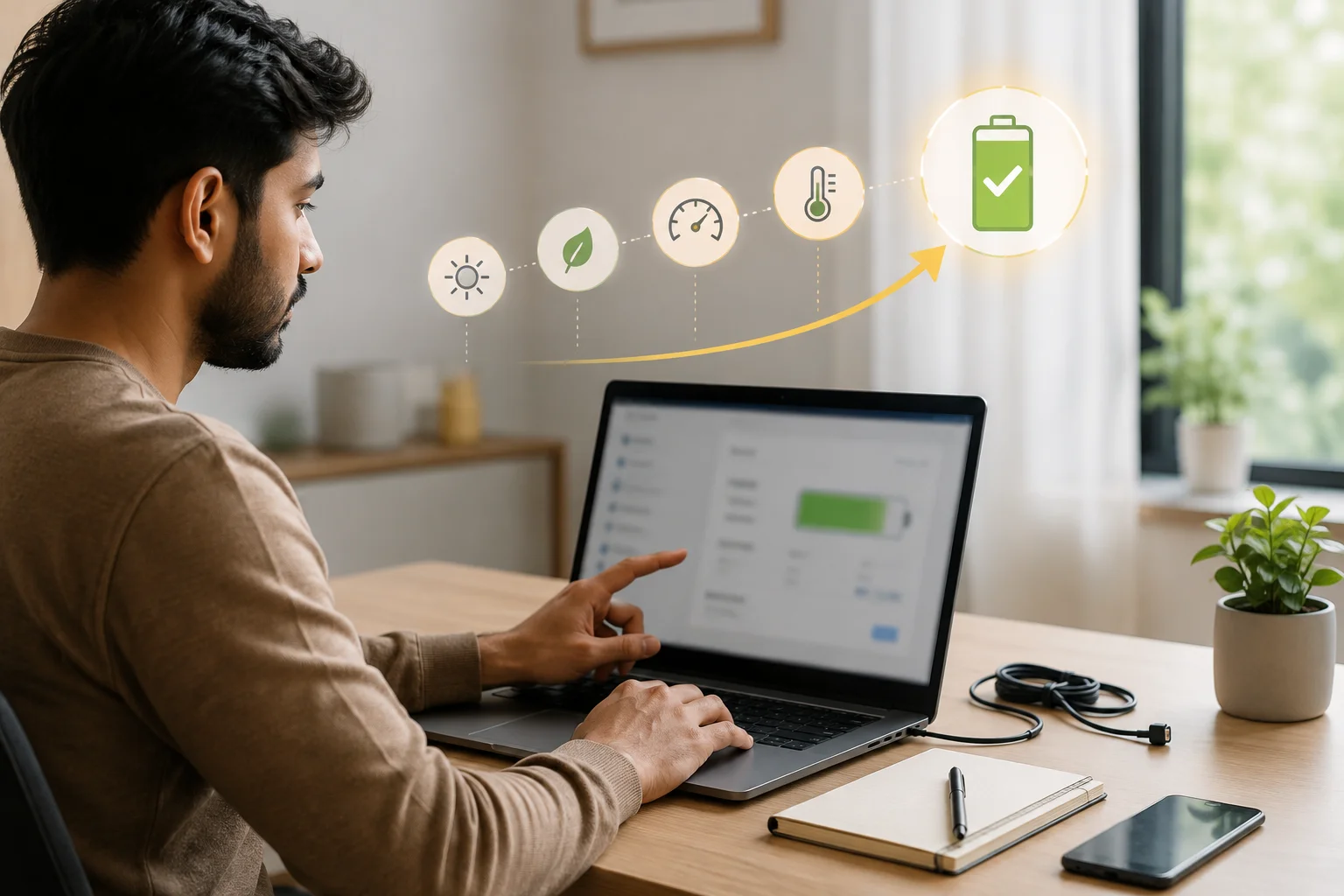
How to Increase Battery Life of Laptop in 8 Smart Steps
Learning how to increase battery life of laptop starts with reducing unnecessary power use. Lower screen brightness, choose an efficient power mode, turn on Energy Saver, close demanding apps, shorten screen timeouts, disconnect unused devices, and keep the laptop cool.
These changes improve runtime quickly, but they cannot restore capacity already lost through battery ageing. If the percentage drops unusually fast during light work, check battery health before buying a replacement.
Quick Steps to Improve Laptop Battery Life Today
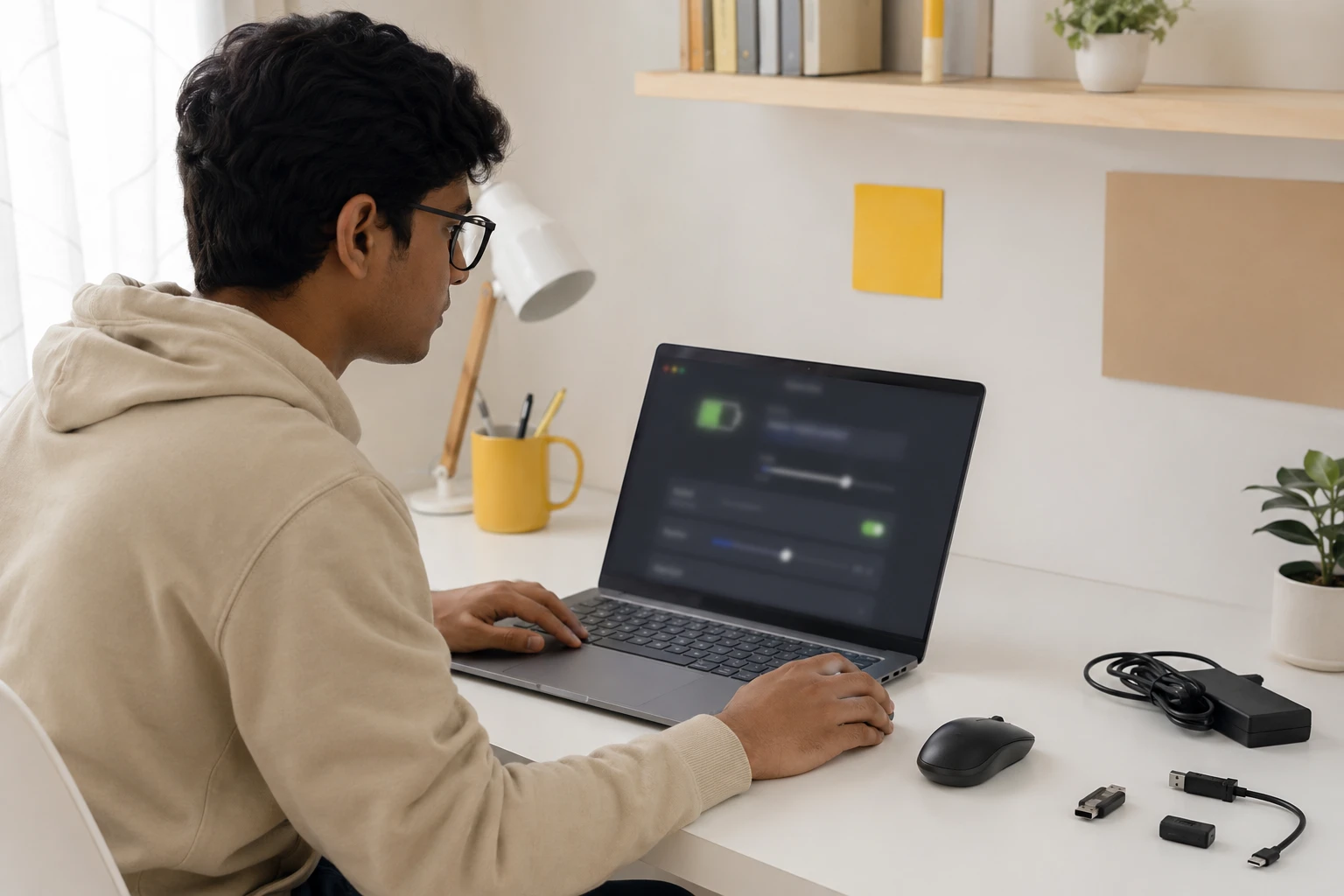
The display, processor, graphics chip, background apps, and connected devices usually consume the most power. Apply these actions, then test normal use.
- Set brightness to the lowest comfortable level.
- Choose Best power efficiency or a similar low-power mode.
- Turn on Energy Saver automatically at 30% to 40%.
- Close unused browser tabs, startup apps, launchers, and cloud sync.
- Set the screen to turn off after about 3 minutes on battery.
- Use 60Hz instead of 120Hz or 144Hz when smooth motion is unnecessary.
- Keep vents open and avoid beds, sofas, sunlight, and hot cars.
- Disconnect unused USB drives, phones, hubs, and external displays.
Microsoft places most controls under Windows battery-saving settings. Menu names vary by version and model.
Why Is Your Laptop Battery Draining Fast?
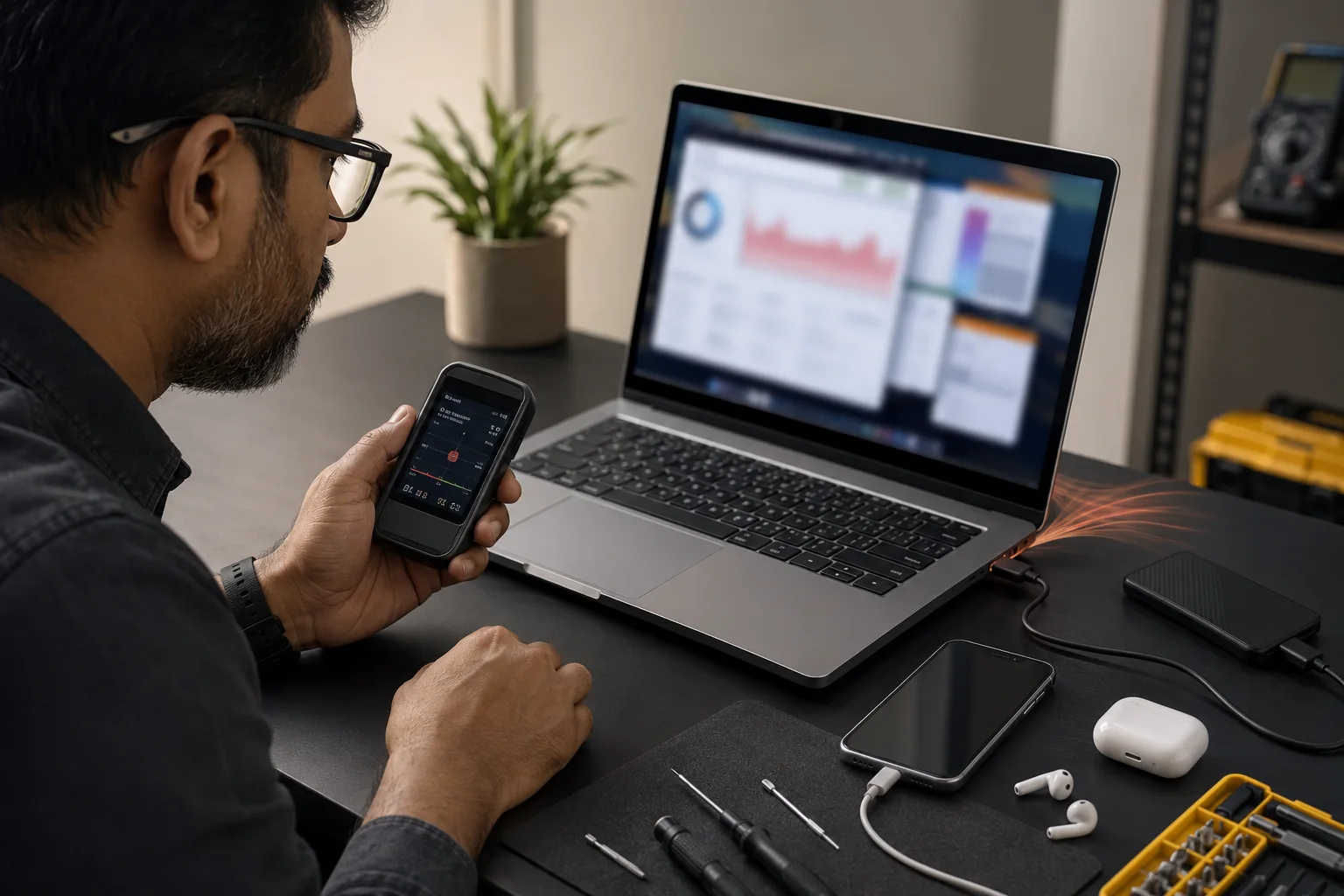
A laptop battery draining fast does not always mean the battery has failed. Heavy apps, high brightness, video calls, dedicated graphics, background updates, heat, and normal chemical ageing can create similar symptoms.
|
What you notice |
Likely cause |
First check |
|---|---|---|
|
Fast drain with loud fans |
High CPU or GPU load |
Task Manager |
|
Drain during calls or videos |
Camera, display and browser load |
Brightness and open tabs |
|
Overnight loss in Sleep |
Sleep-state or network activity |
Test Hibernate |
|
Short runtime during light work |
Reduced battery capacity |
Battery report |
|
Charging stops at 60% or 80% |
Smart charging or charge limit |
Manufacturer app |
|
Lifted trackpad or swollen base |
Battery expansion |
Stop use and seek service |
A sudden change often points to software or drivers. A steady decline over months usually indicates reduced capacity.
How to Increase Battery Life of Laptop Through Settings
Power controls can reduce waste without slowing ordinary browsing or documents. The right balance depends on your workload.
1. Use Battery Saver on Laptop at the Right Time
A battery saver on laptop limits background work and some visual effects. In Windows 11, open Settings > System > Power & battery > Energy saver, then choose when it should activate. Use it during travel, classes, meetings, or power cuts. Disable it for rendering, software builds, or gaming.
2. Reduce Display Power
The screen is one of the largest power users. Lower brightness, shorten timeouts, and use 60Hz for reading, writing, or browsing when higher refresh rates add little value.
3. Stop Background Apps and Startup Programs
Sync tools, launchers, many browser tabs, and camera apps can drain power while appearing idle. Open Task Manager with Ctrl + Shift + Esc and check CPU, GPU, and power usage. Review Settings > System > Power & battery > Battery usage for high-consumption apps. Windows allows background controls for supported apps, although some desktop programs manage themselves.
For a broader tune-up, follow Rentopay’s easy laptop performance tips. Less background work lets the processor rest sooner.
4. Keep the Laptop Cool
Heat increases fan activity and accelerates battery ageing. Use a hard surface, keep vents clear, remove visible dust safely, and avoid charging in direct sunlight.
Indian summers make airflow important. Rentopay’s laptop overheating prevention guide covers airflow, workload, cleaning, and service warning signs.
5. Disconnect Unused Devices and Use Hibernate
USB drives, phones, hubs, and external monitors draw power. Disconnect them when mobility matters, and use Hibernate or shut down for long breaks or overnight travel.
How to Extend Laptop Battery Life for Years
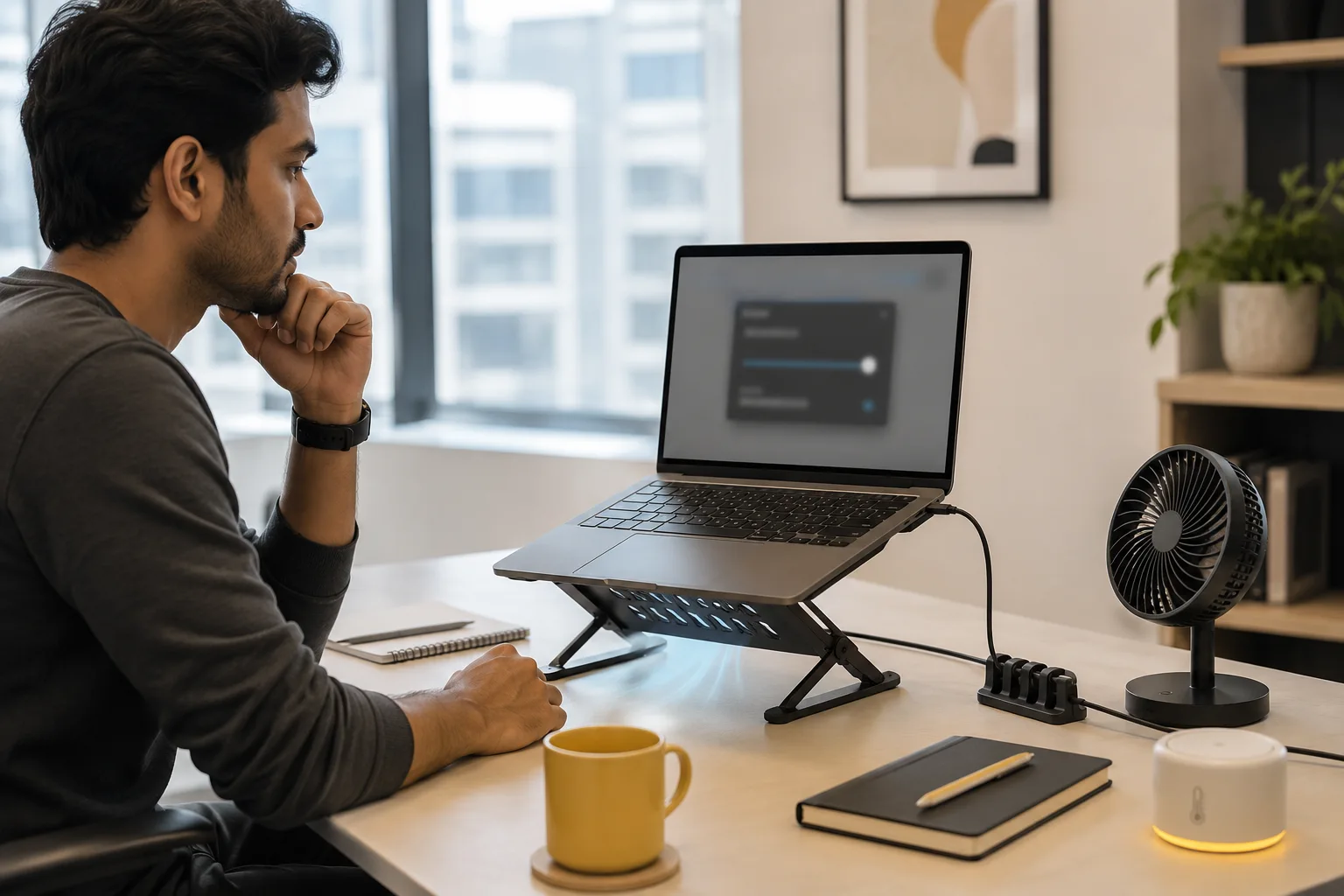
To understand how to extend laptop battery life, separate runtime from lifespan. Runtime means hours per charge, while lifespan means how slowly lithium-ion cells lose their original capacity.
Microsoft’s Windows battery-care guidance recommends avoiding frequent deep discharges and keeping the battery roughly between 20% and 80% when practical. Treat this as guidance, not a rigid rule.
Use smart charging when the laptop stays plugged in most of the day. Dell India’s battery guidance shows how supported models offer adaptive, AC-use, and custom charging modes.
Lenovo Conservation Mode holds supported models near 75% to 80%, while other manufacturers use different names and limits.
Do not worry if a modern laptop pauses charging before 100%. Apple’s battery health guidance states that Optimised Battery Charging may delay charging beyond 80% based on routine, temperature, and battery-health management.
What to Check When My Laptop Battery Is Draining Fast

When someone says, my laptop battery is draining fast, compare present capacity with original design capacity. Settings help a healthy battery, but they cannot rebuild worn cells.
On Windows 11:
- Open Command Prompt as administrator.
- Enter powercfg /batteryreport.
- Open the saved HTML report.
- Compare Design Capacity with Full Charge Capacity.
- Review recent use for sudden drops or standby loss.
Microsoft confirms that the report shows usage and estimated capacity. Rentopay’s battery health guide explains the figures.
On a Mac, open System Settings > Battery > Battery Health. Apple uses statuses such as Normal or Service Recommended and explains that maximum capacity falls as the battery chemically ages.
If the case bulges, the trackpad lifts, or the battery swells, stop using and charging the laptop. Microsoft advises immediate caution because pressure or puncture can create a safety risk.
Rentopay’s Expert View on When to Replace a Laptop Battery
After more than two decades around computer hardware, my rule is simple: measure before replacing. Repeat a fixed workload, record charge loss, check heat and Task Manager, then compare full-charge capacity with design capacity.
For rentals, battery backup must match the job, not a vague all-day promise. Review the questions to ask before renting a laptop and compare laptops with the best battery life in India.
Final Checklist for Better Laptop Battery Life
The best answer to how to improve laptop battery life combines efficient settings, workload control, cooling, smart charging, and an honest health check. Start with brightness and Energy Saver, then investigate apps, heat, sleep loss, and battery capacity.
If your current laptop cannot support classes, meetings, projects, or business travel, Rentopay can help you rent a suitable device with battery backup and performance matched to your work.
Frequently Asked Questions About Laptop Battery Life
These voice-search-friendly answers cover the questions users ask most often. The right solution depends on battery age, workload, laptop design, temperature, and available power settings.
1. How do I stop my laptop battery from draining so fast?
Lower brightness, enable Energy Saver, close demanding apps, reduce refresh rate, and disconnect unused devices. If light work still causes rapid drain, generate a battery report and check full-charge capacity.
2. Is it safe to keep a laptop plugged in all the time?
Modern laptops control charging, so they do not continuously overcharge the battery. High charge combined with heat can still speed ageing, so use smart charging or conservation mode when available.
3. What percentage should I charge my laptop battery to?
A moderate range such as 20% to 80% can reduce battery stress, but you do not need to follow it rigidly. Charge to 100% before travel or long unplugged work.
4. Does Battery Saver on Laptop Damage Performance?
Battery Saver may reduce background activity, brightness, and peak speed, but it does not damage the laptop. Heavy rendering, gaming, compiling, or multitasking may feel slower while it is active.
5. Why Is My Laptop Battery Draining Fast Even When Off?
Confirm that the laptop is fully shut down rather than sleeping. USB devices, wake features, firmware problems, or a worn battery can cause loss, so test a full shutdown overnight.
6. How Long Should a Laptop Battery Last at 100%?
There is no universal number because capacity, processor, display, apps, brightness, network use, and battery health vary. Compare results under the same workload and brightness instead of relying only on advertised hours.
7. When Should I Replace My Laptop Battery?
Consider replacement when runtime becomes impractical, diagnostics report a fault, or the laptop shuts down unexpectedly. Seek qualified service immediately if you see swelling, deformation, unusual heat, smoke, or a chemical smell.
8. Does Dark Mode Improve Laptop Battery Life?
Dark mode can improve battery life on laptops with OLED displays because black pixels use less power. On standard LCD screens, the savings are usually very small.
9. Can I Use My Laptop While It Is Charging?
Yes, you can safely use your laptop while charging. Keep the vents clear and avoid heavy tasks in hot conditions, as excess heat can reduce long-term battery health.