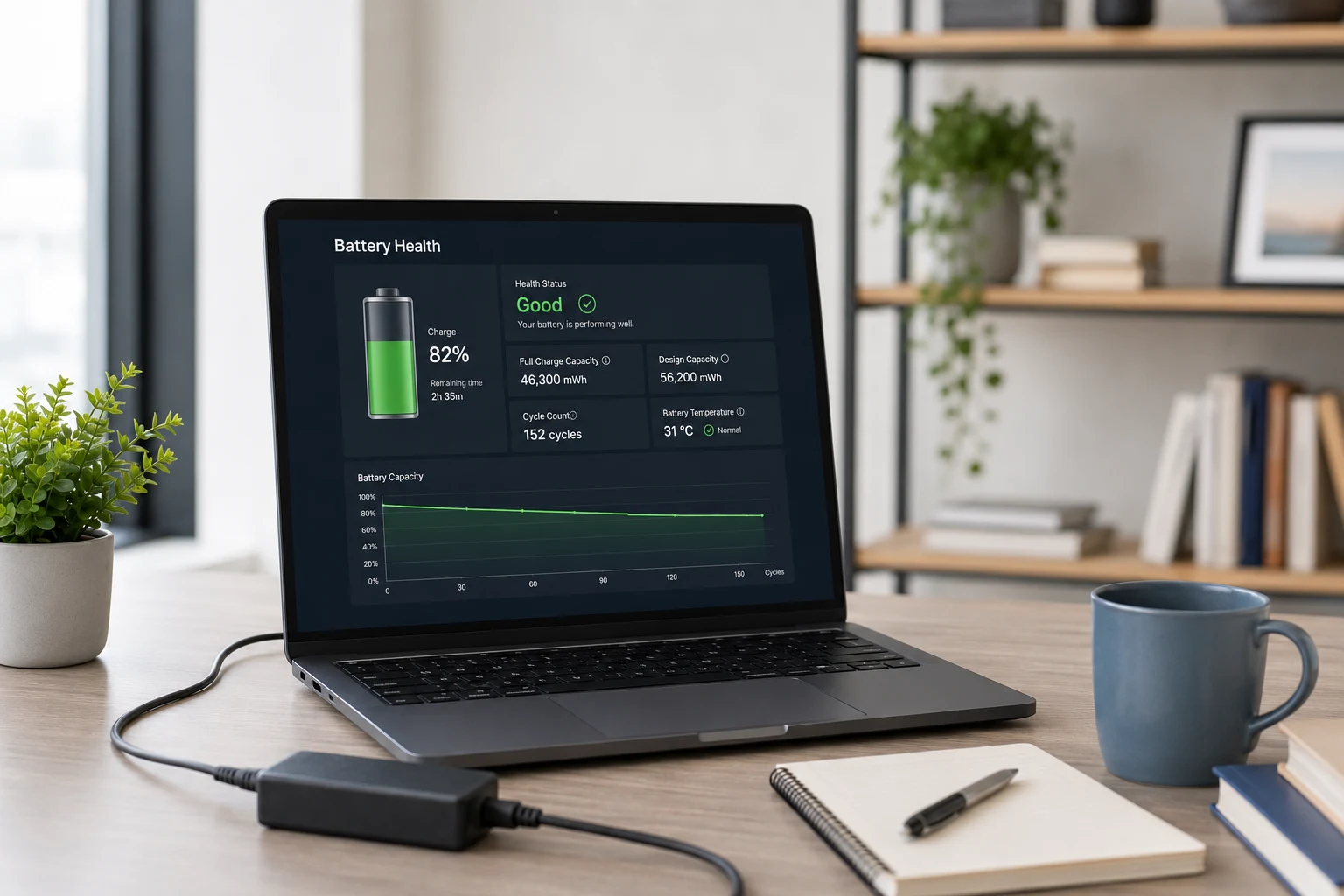
How to Check Battery Health in Laptop: Easy Guide
Knowing how to check battery health in laptop helps you avoid sudden shutdowns, weak backup, charging issues and poor performance during work or study.
Here’s the simple formula:
Battery health percentage = Full Charge Capacity ÷ Design Capacity × 100
If your laptop battery health is above 80%, it is usually fine for daily use. If it drops below 70%, backup can feel weak. If the laptop shuts down suddenly, charges slowly, heats up, or lasts less than one hour, run a full laptop battery test and plan for service or replacement.
How to Check Battery Health in Laptop on Windows 10 and 11
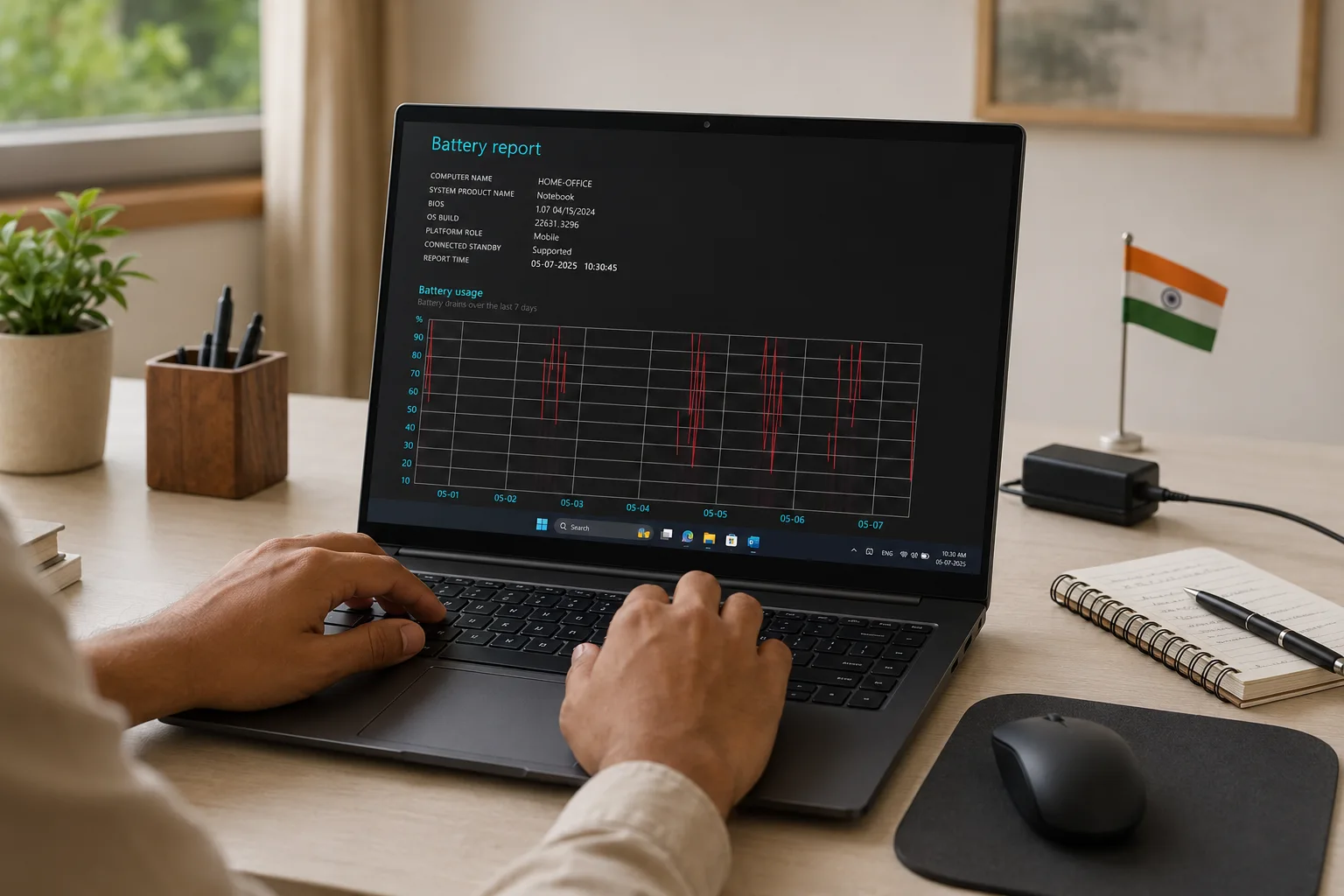
The fastest Windows method is the built-in Windows battery report because it shows real capacity history, recent usage and estimated backup in one file.
Follow these steps:
- Click Start and type Command Prompt.
- Right-click it and choose Run as administrator.
- Type this command: powercfg /batteryreport
- Press Enter.
- Copy the file path shown on the screen.
- Open File Explorer and double-click battery-report.html.
This report is useful because Windows records how the battery behaves over time. In my experience with laptop diagnostics, one backup complaint does not prove battery failure. A student may drain the battery faster during online classes. A designer may see poor backup because the GPU is active. The report gives better proof than guesswork.
If the command does not work, try Windows Terminal or PowerShell as administrator. If the report opens but shows missing cycle count, do not panic. Many Windows laptops do not expose cycle count to the operating system. In that case, use the laptop brand’s diagnostic app or BIOS.
How to Read a Windows Battery Report Without Confusion
The key is not the number of hours shown by Windows, but the gap between original capacity and current full charge capacity.
Open the Installed batteries section and check these values:
|
Battery report value |
What it means |
|---|---|
|
Design Capacity |
Capacity when the battery was new |
|
Full Charge Capacity |
Capacity the battery holds now |
|
Cycle Count |
Approximate charge cycles used |
|
Battery Life Estimates |
Backup based on recent usage |
For example, if design capacity is 50,000 mWh and full charge capacity is 40,000 mWh, health is about 80%. That is still workable. If full charge capacity falls to 25,000 mWh, health is about 50%, and the laptop will need charging much more often.
Do not judge battery health from one day of heavy use. Video calls, Chrome tabs, coding tools, gaming, Excel files, high brightness and hotspot use can all drain power faster. If backup is your main concern, compare real-world options in this guide to laptops with the best battery life in India. Check battery health again after two or three normal workdays.
Check Laptop Battery Health on MacBook
MacBooks make the basic health check simpler because macOS shows battery condition directly in settings on supported models.
For newer macOS versions:
- Click the Apple menu.
- Open System Settings.
- Go to Battery.
- Check Battery Health.
- Look for Normal or Service Recommended.
For detailed information:
- Hold Option and click the Apple menu.
- Choose System Information.
- Select Power under Hardware.
- Check Cycle Count, Condition and capacity details if shown.
A MacBook can still work after a high cycle count, but backup may drop. Apple explains that Service Recommended on a Mac battery means the battery holds less charge than when it was new or may not function normally. For rented or second-hand MacBooks, always check the MacBook battery cycle count before committing to long usage. If you are unsure which device type fits your work, this MacBook vs Windows laptop rental guide can help you compare both options.
Laptop Battery Test Using Brand Tools
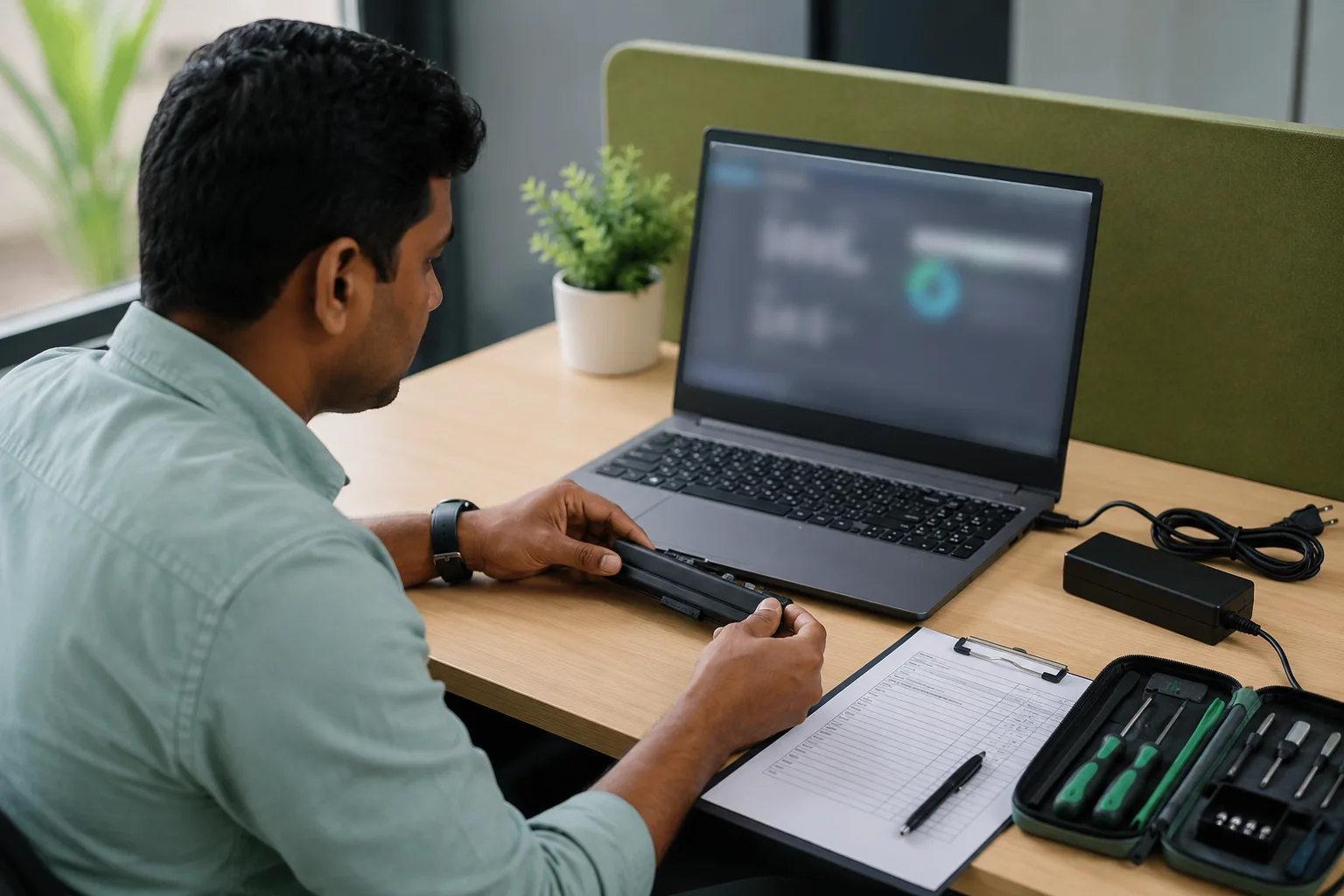
Brand diagnostic tools help when Windows data looks incomplete or when the laptop has charging, adapter or BIOS-level battery errors.
Use these tools based on your laptop brand:
- Dell: Dell battery health checks through SupportAssist, BIOS battery health, Dell Power Manager or onboard diagnostics.
- HP: HP battery testing and calibration through HP Support Assistant or HP Battery Check.
- Lenovo: Lenovo Vantage battery details for battery health and capacity checks.
- ASUS: ASUS Battery Health Charging and MyASUS battery health features.
- Acer: Acer Care Center, where available.
These tools can detect problems that a basic Windows report may miss. For example, a battery may show decent capacity but still fail under load. A weak adapter can also make the battery look faulty because charging becomes slow or unstable.
If you see swelling, a lifted touchpad, a bulging bottom panel, burning smell, or unusual heat while charging, stop using the laptop and get it checked. Do not press the battery area or keep charging it overnight.
What Is Good Laptop Battery Health?
A battery above 80% health is usually good, but the right answer depends on your workload, laptop age and how long you need backup.
Use this simple guide:
- 90% to 100%: Excellent for daily use.
- 80% to 89%: Good and normal for many used laptops.
- 70% to 79%: Usable, but backup may feel shorter.
- 50% to 69%: Weak for college, travel and meetings.
- Below 50%: Consider replacement or use it plugged in until serviced.
Battery health and battery life are not the same. Battery health shows capacity compared to new condition. Battery life means how long the laptop runs on one charge. A healthy gaming laptop may still give poor backup during gaming. A business laptop with lower specs may run longer even with similar battery health.
How to Improve Laptop Battery Life in Daily Use
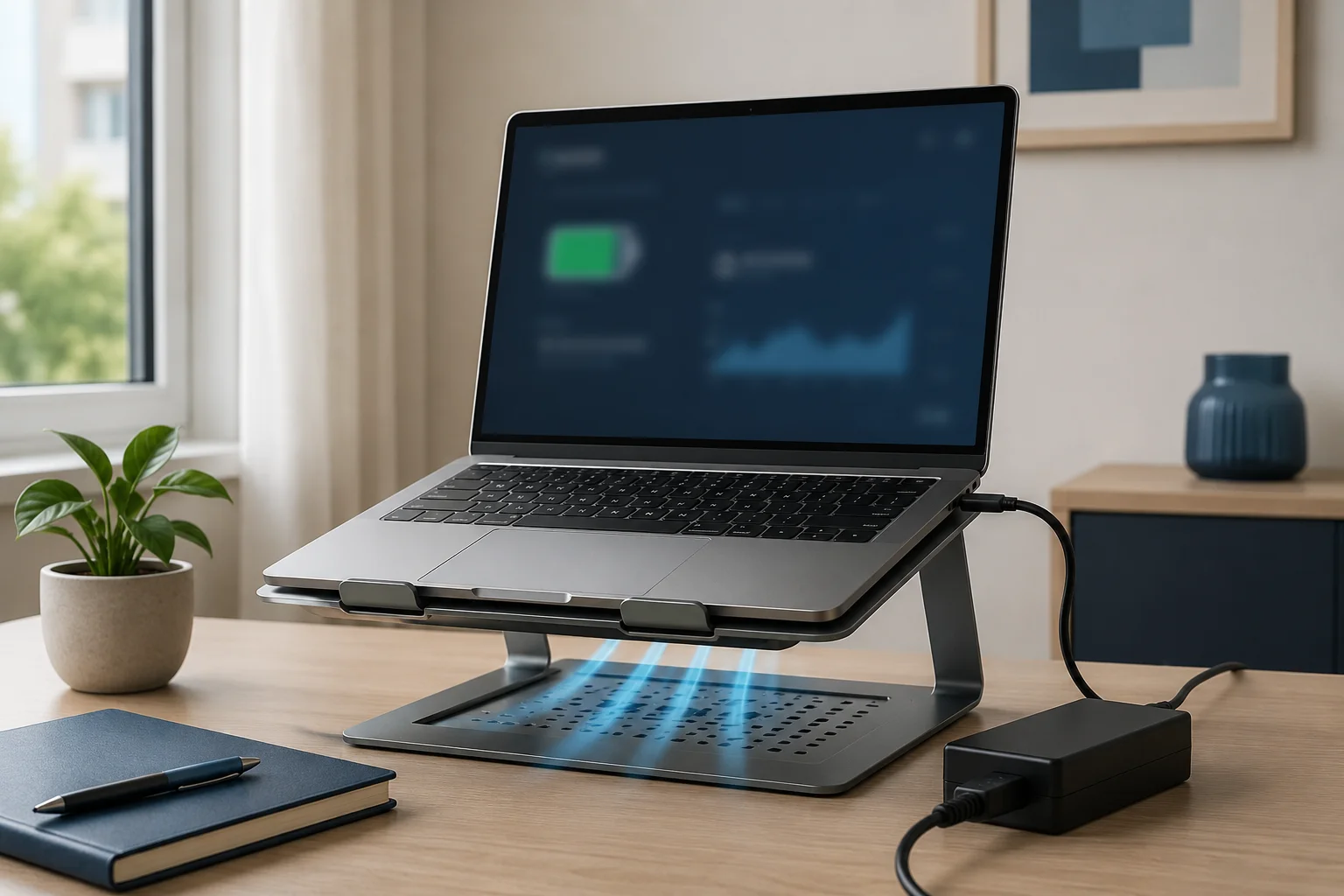
You can improve laptop battery life by reducing power waste, heat and unnecessary background activity during normal work.
Try these habits:
- Keep screen brightness at a comfortable lower level.
- Use Battery Saver or efficient power mode on Windows.
- Lower refresh rate from 120Hz or 144Hz to 60Hz when battery matters.
- Close unused browser tabs and startup apps.
- Turn off Bluetooth, keyboard backlight and hotspot when not needed.
- Keep vents open and avoid using the laptop on beds or pillows.
- Use the original or certified charger.
- Update Windows, macOS, BIOS and drivers when available.
For Indian users, heat matters a lot. A laptop used in a non-AC room, parked car, crowded classroom or poorly ventilated desk can lose battery performance faster. Lithium-ion batteries do not like heat. If your laptop becomes hot while charging, let it cool before heavy use and follow these laptop overheating prevention steps.
How to Increase Battery Life of Laptop for Students and Businesses
The best battery routine depends on whether you move around all day, work from a desk, or manage multiple laptops for a team.
For students, charge before class, carry a suitable adapter, use battery saver during lectures, and avoid gaming on battery before long study sessions. Students who need flexible devices can also explore student-friendly laptop rental plans instead of depending on an old weak-battery laptop. For startup founders and business owners, set power policies for team laptops, reduce background apps and check battery reports every few months. Teams planning device rentals in Bengaluru can also review this guide on how to rent a laptop in Bangalore.
If your team uses laptops for training sessions, client demos or events, do a laptop battery test before the event day. For larger teams, use this checklist on what to ask before renting 50 laptops so battery backup, chargers and support are clear before delivery. Check full charge capacity, actual backup, charger condition and heat. This avoids last-minute device failures.
For devices that stay plugged in most of the time, use built-in battery care settings if your brand provides them. Some laptops can limit charging or adjust charging behaviour to reduce wear. Availability depends on the model and manufacturer.
Why Rentopay Looks Beyond Battery Backup Claims
At Rentopay, we look at battery health as a practical reliability check, not just a number inside settings.
A laptop can show 80% battery health and still fail a real workday if it runs hot, has too many background apps, uses a weak charger, or carries a power-hungry processor. That is why the best test is a mix of report data and real usage.
Before choosing a laptop for classes, business travel, employee onboarding or events, ask three questions:
- What is the full charge capacity compared to design capacity?
- How long does it last under your actual workload?
- Does it charge safely without heat, warning messages or shutdowns?
For short-term projects, renting a tested laptop can be smarter than buying a new one only because your old battery has dropped. If you are comparing cost and usage period, read this practical guide on laptop on rent vs buy. Businesses comparing models and service support in Telangana can also use this guide on choosing the best laptop on rent in Hyderabad. Rentopay helps students, professionals, startups and businesses in India access laptops without heavy upfront cost.
When Should You Replace a Laptop Battery?
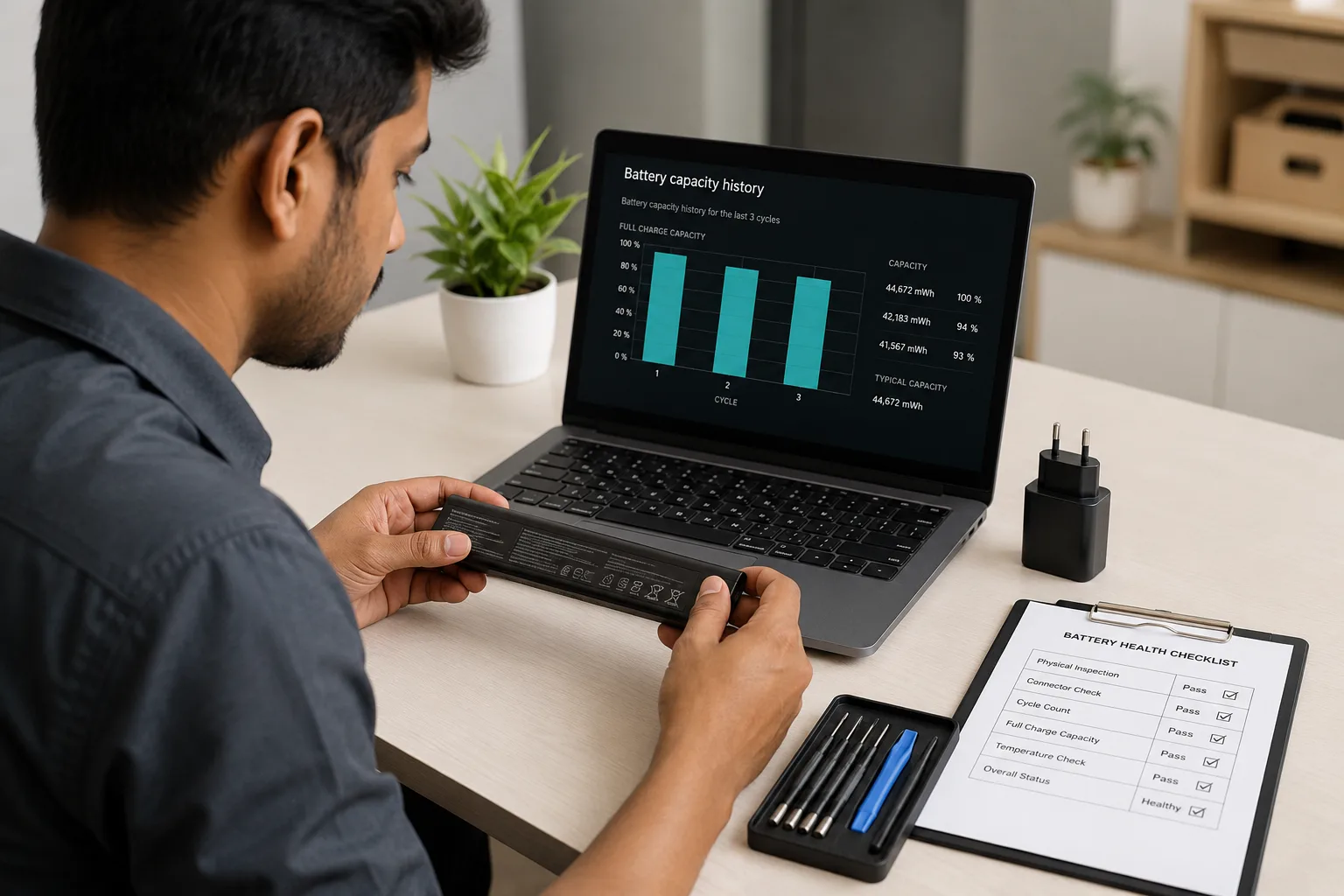
Replace the battery when weak backup affects work, health drops sharply, or the laptop shows safety signs like swelling or sudden shutdowns.
Common replacement signs include:
- Battery health below 70% with poor backup.
- Laptop shuts down at 20% or 30% charge.
- Battery drops quickly after unplugging.
- Charging pauses or fails often.
- Laptop works only when plugged in.
- Battery area feels swollen or unusually hot.
- Brand diagnostics show a battery error.
Do not replace a battery only because one app shows a low number. Confirm with Windows battery report, BIOS or brand diagnostics. Also check the charger. Many “battery issues” start with a low-quality or wrong-wattage adapter.
Final Thoughts
Checking laptop battery health takes only a few minutes, but it can save you from poor backup, sudden shutdowns and unnecessary laptop purchases.
Use the Windows battery report, Mac Battery Health, and brand tools to check battery health properly. Compare design capacity with full charge capacity, look at real backup, and watch for heat or charging issues. If battery drain comes from slow performance or heavy background apps, these easy tips to improve laptop performance can also help. If you run a business or manage student devices, make battery checks part of routine laptop maintenance.
For flexible laptop needs in India, Rentopay offers rental options for students, professionals, startups and businesses that need reliable devices without heavy upfront investment. If device safety and dependable support matter to your team, this page on secure laptop rentals in Trivandrum is also worth reading.
FAQs
1. How do I check battery health in laptop quickly?
On Windows, open Command Prompt as administrator, type powercfg /batteryreport, press Enter, and open the saved battery report file.
2. What is a good battery health percentage for a laptop?
A laptop battery above 80% health is usually good. Below 70%, backup may feel weak, especially for travel, classes or meetings.
3. How can I check laptop battery health on Windows 11?
Use the powercfg /batteryreport command in Command Prompt or Windows Terminal, then compare design capacity and full charge capacity.
4. How do I check battery health on a MacBook?
Go to Apple menu, open System Settings, click Battery, and check Battery Health. For cycle count, open System Information and select Power.
5. Can I check battery health online?
Not exactly. Windows creates a local HTML battery report on your laptop. Some brand websites offer diagnostics, but local tools are usually safer.
6. Why is my laptop battery draining fast even with good health?
High brightness, video calls, gaming, background apps, heat, old drivers and high refresh rate can drain battery fast even when battery health is good.
7. How can I improve laptop battery life?
Lower brightness, use battery saver, close unused apps, reduce refresh rate, keep the laptop cool, and use the correct charger.
8. Is it safe to keep a laptop plugged in all day?
It is usually safe on modern laptops, but heat can reduce battery lifespan. Use battery care settings if your laptop brand supports them.