How to Fix Screen Flickering: Simple Fixes That Work
If you are searching for how to fix screen flickering, start with the basics: restart the graphics driver, check Task Manager, update or roll back the display driver, set the correct refresh rate, and test your cable or external monitor.
In many cases, screen flickering Windows 11 problems happen due to a driver conflict, app issue, loose cable, wrong display setting, overheating, or screen hardware fault. So do not rush to replace the screen immediately.
Microsoft recommends using the Task Manager test to check whether flickering comes from a display driver or an incompatible app. You can also try the quick graphics reset shortcut: Windows + Ctrl + Shift + B. Microsoft explains this method in its Windows screen flickering troubleshooting guide.
A flickering laptop screen and a flickering monitor may look similar, but the causes can be very different. A laptop may have a loose internal display cable. A monitor may simply have a bad HDMI cable.
How to Fix Screen Flickering with a Quick Diagnosis
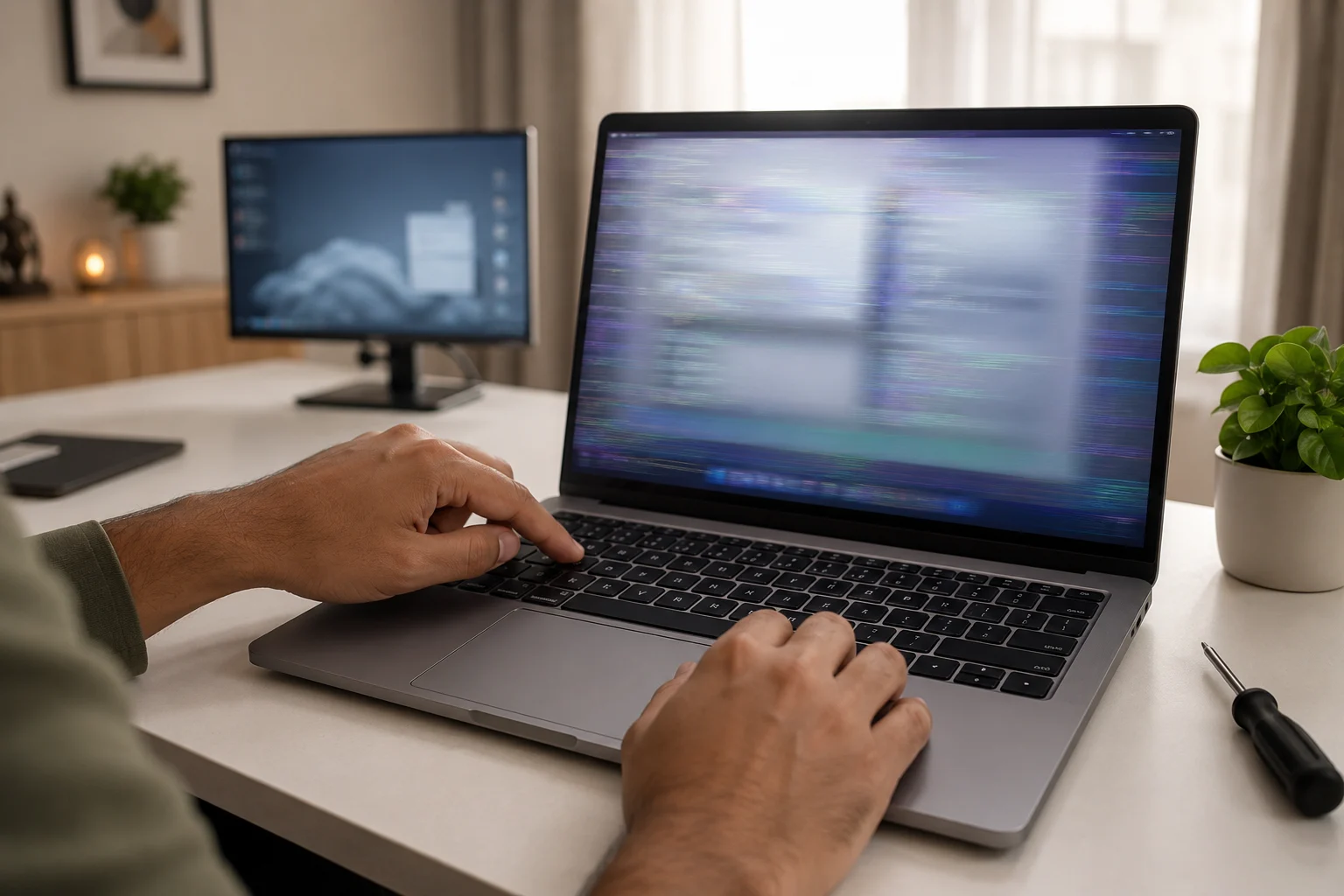
The best way to fix screen flickering is to find out whether the problem comes from Windows, the display driver, an app, the cable, or the screen panel itself.
Start with this 5-minute check before trying advanced repairs.
- Press Windows + Ctrl + Shift + B to reset the graphics driver.
- Open Task Manager using Ctrl + Shift + Esc.
- Check whether Task Manager also flickers.
- Connect an external monitor if you are using a laptop.
- Move the laptop lid slowly and see if flickering changes.
- Try a different HDMI, DisplayPort, or USB-C cable for monitor flickering.
If Task Manager flickers, the issue usually points to the display driver or graphics card. If Task Manager stays stable but other parts of the screen flicker, an app may be causing the problem.
This one test saves time because it tells you where to look first.
|
Symptom |
Most Likely Cause |
|---|---|
|
Full screen flickers |
Display driver or GPU |
|
Only one app flickers |
App conflict |
|
Monitor flickers randomly |
Cable or refresh rate |
|
Laptop flickers when lid moves |
Display cable or hinge issue |
|
Flicker during heavy work |
Heat or GPU stress |
Fix Screen Flickering Windows 11 Driver Problems
Driver issues are one of the most common reasons behind computer screen flickering, especially after Windows updates, GPU updates, or a fresh Windows 11 installation.
Open Settings > Windows Update > Advanced options > Optional updates. Check if Windows has display, graphics, or chipset driver updates. Install updates only from trusted sources like Windows Update, your laptop brand website, Intel, AMD, or NVIDIA.
If the problem started after a recent driver update, you may need to roll it back.
Follow these steps:
- Right-click the Start button.
- Open Device Manager.
- Expand Display adapters.
- Right-click your graphics driver.
- Select Properties.
- Go to the Driver tab.
- Click Roll Back Driver, if available.
If the roll back option is not available, uninstall the driver and restart the laptop. Windows will install a basic display driver. After that, install the correct driver again.
HP also recommends using Safe Mode when the screen keeps flickering and normal troubleshooting becomes difficult. You can read HP’s guide on how to stop laptop screen flickering for more driver-level checks.
Monitor Flickering: Check Cable, Port, and Refresh Rate
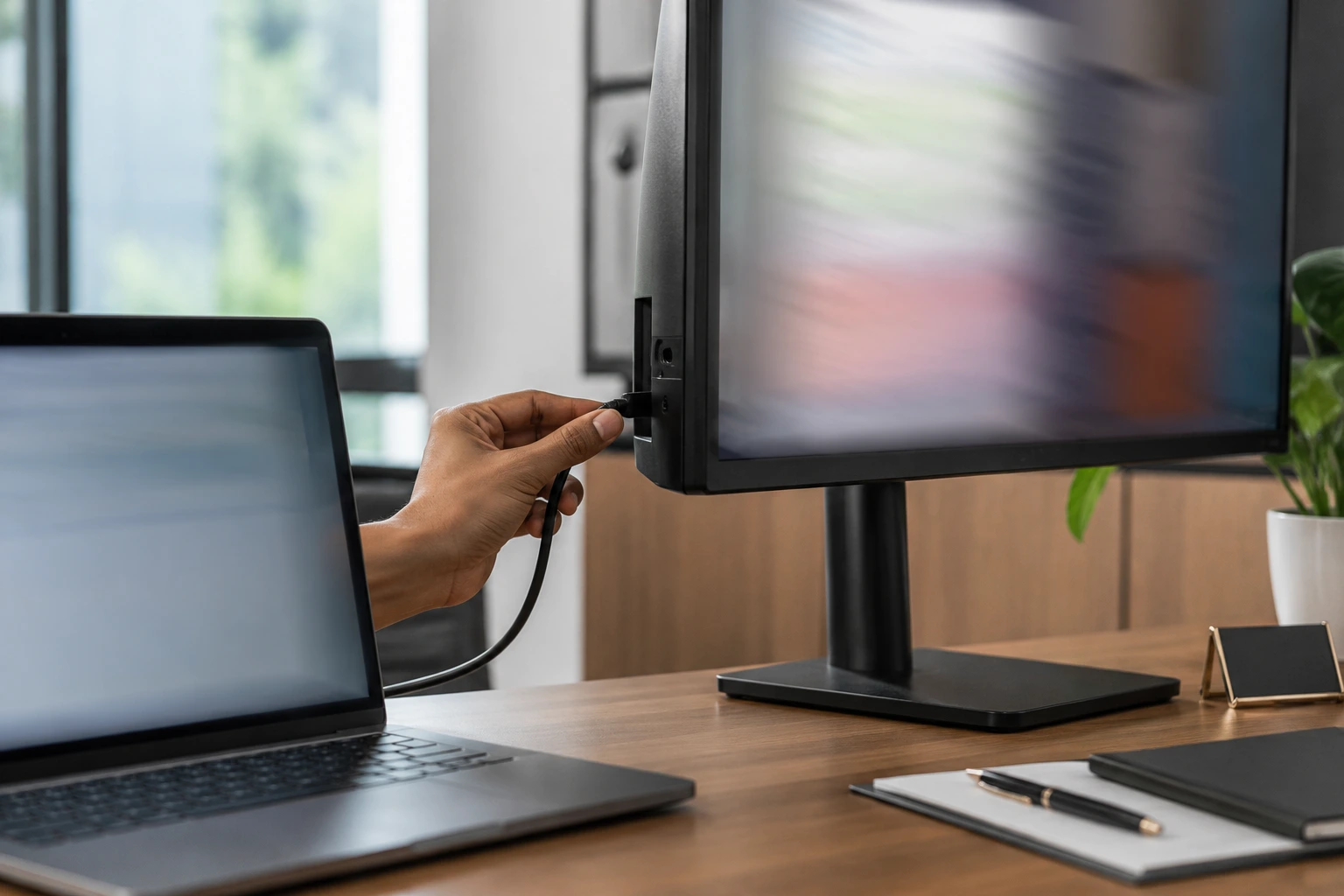
If only your external monitor is flickering, first check the cable and refresh rate. Many people blame the monitor when the real issue is signal quality.
A weak HDMI cable, loose DisplayPort cable, low-quality adapter, or unsupported refresh rate can easily cause monitor flickering. This is common with 4K monitors, gaming monitors, docking stations, and USB-C display adapters.
Try this order:
- Remove and reconnect the display cable.
- Try another HDMI or DisplayPort cable.
- Avoid cheap adapters if possible.
- Connect the monitor directly to the laptop or CPU.
- Try another port on the laptop or monitor.
- Lower the refresh rate and test again.
- Test the monitor with another laptop or desktop.
Go to Settings > System > Display > Advanced display. Choose your monitor and select a supported refresh rate like 60Hz, 75Hz, 120Hz, or 144Hz, depending on your device.
Intel also recommends testing another cable, another display, and a direct connection without adapters when troubleshooting display flicker. Their graphics display flicker support guide explains this in more detail.
If the monitor is flickering only at high refresh rates, the cable or graphics port may not support that mode properly.
Flickering Laptop Screen: Check Hinge, Heat, and Panel Damage
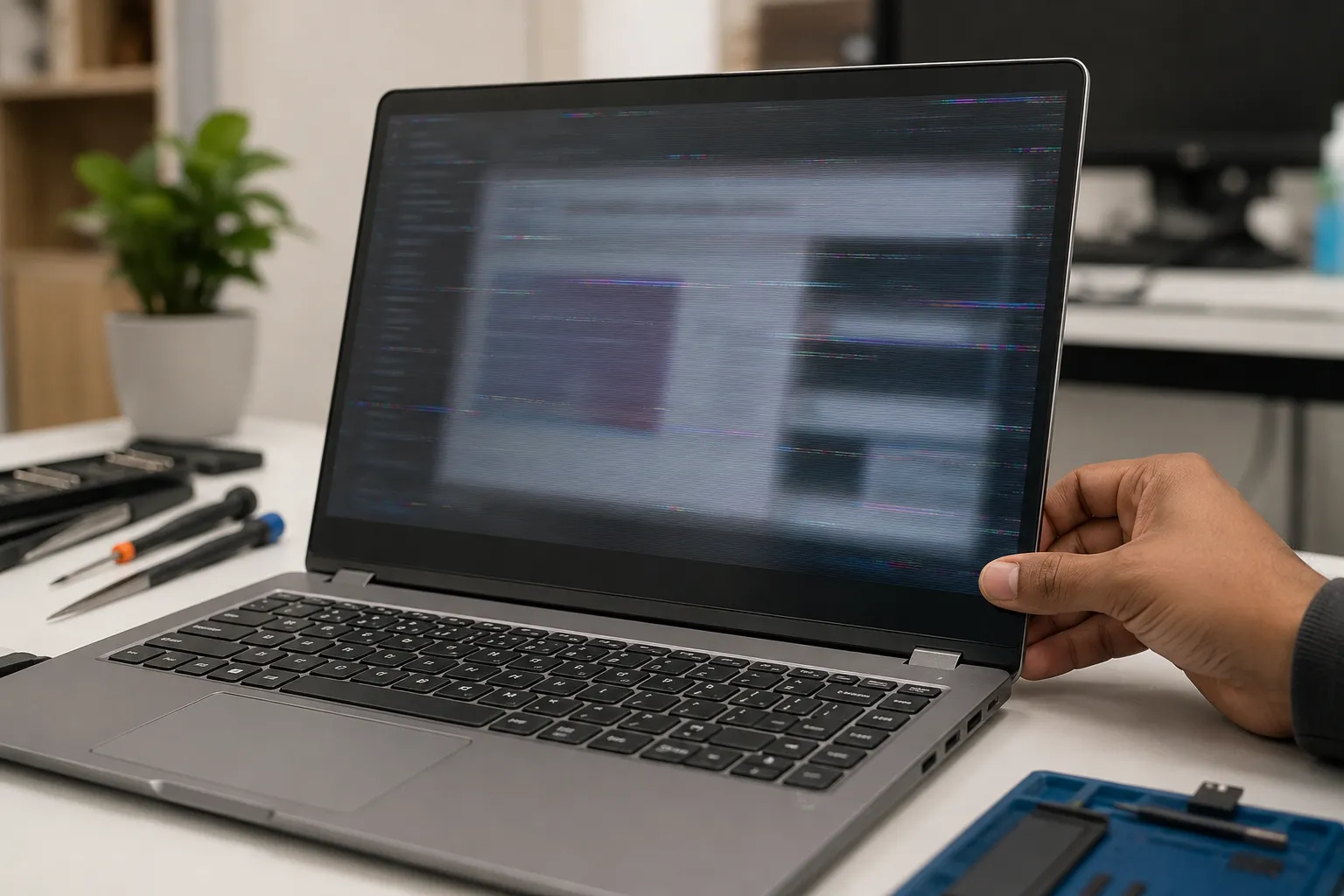
A flickering laptop screen needs extra care because the cable between the motherboard and display passes through the hinge area.
Slowly move the laptop lid forward and backwards. If the flicker changes when you move the lid, the internal display cable may be loose, damaged, or pinched near the hinge. Now connect your laptop to an external monitor.
If the external monitor works fine but the laptop screen flickers, the problem usually sits in one of these areas:
- Laptop display panel
- Internal display cable
- Backlight circuit
- Hinge-side connector
- Screen pressure damage
If both the laptop screen and external monitor flicker, the issue may come from the GPU, graphics driver, overheating, or motherboard.
Heat can also trigger flickering. If the laptop flickers during gaming, video editing, long online classes, coding, or heavy browser use, check the cooling system. Rentopay’s laptop overheating prevention guide can help you reduce heat-related display instability.
If you notice bright spots, pressure patches, or fixed white dots, compare the issue with this guide on white dots in the laptop screen. If the screen turns black instead of flickering, use this laptop black screen troubleshooting guide.
When Computer Screen Flickering Happens Only in Apps
If flickering happens only in Chrome, Edge, Office, Zoom, Teams, video players, or design tools, the screen may not be damaged.
Many apps use hardware acceleration. This feature allows the app to use the graphics card for smoother performance. But if the display driver and app do not work well together, the result can be computer screen flickering.
Try this first:
- Turn off hardware acceleration in the affected app.
- Restart the app.
- Update the app.
- Update the graphics driver.
- Disable extensions in Chrome or Edge.
- Remove recently installed screen recorders or display tools.
ASUS also mentions app-specific flickering in Office, Chrome, Edge, and video playback. Their ASUS display flicker support page suggests checking hardware graphics acceleration when flicker appears inside selected apps.
This type of flicker usually does not mean your laptop screen is failing. It usually points to a software or graphics rendering issue.
Do This Before Replacing the Screen
From a hardware engineer’s point of view, screen flickering is not one problem. It is only a visible symptom.
Before spending money on screen replacement, do this practical split test.
- Take a screenshot. If flicker appears in the screenshot, suspect software or GPU rendering.
- Connect an external monitor. If it works fine, suspect laptop display hardware.
- Boot into BIOS. If flickering appears there too, suspect hardware.
- Move the lid gently. If flicker changes, suspect the display cable.
- Try another cable for external monitor flickering.
- Check heat during heavy work.
- Test in Safe Mode.
For students, college professionals, business owners, and startup founders in India, downtime can be more expensive than the repair itself. A student may have an online exam. A founder may have a client demo. A designer may have urgent delivery work.
If repair takes time, using a rental laptop can keep work moving. Before renting, read these questions to ask before renting a laptop. If you specifically need a Windows device, check this guide on renting a Windows 11 laptop before Windows 10 support ends.
What Screen Flickering Really Means
Screen flickering means your display image keeps flashing, blinking, shaking, dimming, or refreshing when it should stay stable. The cause can sit in software or hardware. That is why random guessing does not work well.
Software-side causes include:
- Display driver bugs
- Wrong refresh rate
- Windows update conflict
- App compatibility issue
- Hardware acceleration
- Corrupt graphics setting
Hardware-side causes include:
- Loose display cable
- Damaged laptop panel
- Faulty monitor cable
- Weak adapter
- GPU problem
- Backlight issue
- Overheating
A single dead pixel, white spot, pressure mark, horizontal line, and GPU artifact are not the same issue. Users often call all of them screen flickering, but technicians diagnose them differently.
If your laptop feels slow, hangs often, and then flickers during load, performance may also be part of the problem. Rentopay’s guide on what makes a laptop fast can help you understand RAM, SSD, processor, and cooling impact.
For external setups, good accessories matter. A poor cable or weak adapter can make a good monitor look faulty. You can explore Rentopay’s guide to the best laptop accessories in India for useful add-ons like stands, cables, cooling pads, and external keyboards.
Final Advice on Fixing a Flickering Monitor or Laptop Screen
Most flickering issues can be narrowed down with simple tests. Start with software, then move to cables, refresh rate, heat, and hardware.
If your flickering monitor becomes stable after changing the cable or refresh rate, you solved a signal issue. If your flickering laptop screen changes when you move the lid, get the hinge cable checked. If flickering appears even in BIOS, do not waste time reinstalling apps again and again.
For Indian users, the practical answer is simple: fix small issues yourself, but do not risk important work on an unstable laptop. If repair will take time, renting a tested laptop for exams, office work, interviews, events, or startup operations can be the smarter short-term move.
FAQs on How to Fix Screen Flickering
Screen flickering questions are common because the same symptom can come from Windows, monitor cables, display drivers, overheating, app conflicts, or screen hardware damage.
1. Why is my laptop screen flickering?
Your laptop screen may flicker because of a display driver issue, wrong refresh rate, loose display cable, overheating, app conflict, or damaged screen panel. First test Task Manager and an external monitor.
2. How do I fix screen flickering Windows 11?
To fix screen flickering Windows 11, press Windows + Ctrl + Shift + B, update or roll back the graphics driver, check Task Manager, set the right refresh rate, and remove conflicting apps.
3. Why is my monitor flickering randomly?
Your monitor may flicker because of a loose HDMI cable, bad DisplayPort cable, unsupported refresh rate, weak adapter, power issue, or graphics driver problem. Try another cable first.
4. Can overheating cause computer screen flickering?
Yes, overheating can cause computer screen flickering. Heat can make the GPU unstable during gaming, editing, coding, or long work sessions. Improve airflow and clean vents.
5. Is a flickering laptop screen always a hardware issue?
No, a flickering laptop screen is not always a hardware issue. It can come from drivers, Windows updates, apps, refresh rate settings, or hardware acceleration. Test before replacing the screen.
6. Why does my screen flicker only in Chrome or videos?
Your screen may flicker only in Chrome or videos because of hardware acceleration, browser extensions, graphics driver bugs, or video rendering conflict. Disable hardware acceleration and restart the app.
7. Should I replace my laptop screen if it flickers?
Replace the screen only if tests show a panel, backlight, or display cable fault. Check drivers, refresh rate, BIOS, external monitor output, and hinge movement first.
8. Why is my external monitor flickering but laptop screen is fine?
If the external monitor is flickering but the laptop screen is fine, the issue is usually the cable, port, adapter, refresh rate, or monitor setting. Test with another cable and port.
Conclusion
Screen flickering is frustrating, but most cases can be narrowed down with a simple step-by-step check. Start with the display driver, refresh rate, cable, app settings, and heat before assuming the screen is damaged. If the issue continues and your work cannot wait, renting a tested device can help you avoid downtime. Rentopay offers flexible laptop rental plans across India for students, professionals, startups, and business teams.